> ## Documentation Index
> Fetch the complete documentation index at: https://knowledge.flowella.io/llms.txt
> Use this file to discover all available pages before exploring further.
# Meta integration settings
> Manage your connected WhatsApp Business Accounts and phone numbers, re-authorise Meta when tokens expire, and review channel-level settings.
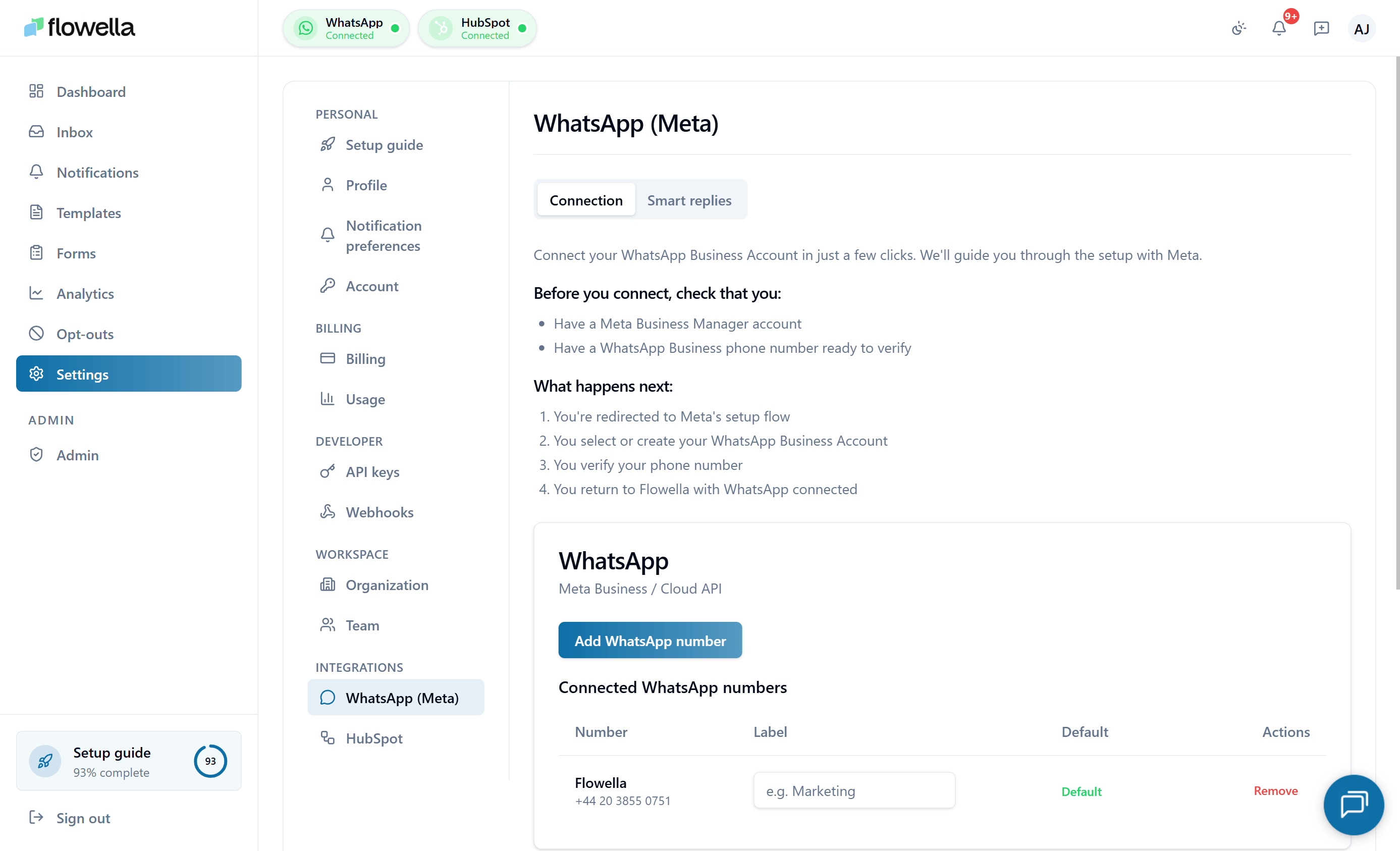 This page covers the **Settings → Meta** screen in Flowella, which is where you manage your connection to Meta and the WhatsApp Business Accounts (WABAs) and phone numbers attached to your org.
For the initial connection during onboarding, see [Display name & profile](/meta/profile-setup). For the URL pattern and switching between channels, see [Multi-channel](/essentials/multi-channel).
## Who can manage Meta settings
Only **Owners** and **Admins** can change Meta integration settings. Members see the page but cannot reconnect or modify channels.
## What you see on Settings → Meta
The page lists every WABA connected to your org, and under each WABA, every phone number. For each phone number you can see:
* Display name
* Verification status
* Quality rating (as reported by Meta)
* Whether Flowella is currently subscribed to incoming-message webhooks
## Reconnecting Meta
Meta access tokens can expire — typically because a user permission was revoked, the connected user changed role at the company, or Meta required re-authorisation. When that happens, Flowella shows a banner prompting you to reconnect.
On **Settings → Meta**, click **Reconnect WhatsApp**.
Meta opens its Embedded Signup popup. Sign in with a Facebook account that has admin access to the Meta Business and the WABA.
Approve the scopes Flowella requests. These are the same scopes used during onboarding.
After the popup closes, the channel list refreshes. Confirm every WABA and phone number you expect is listed.
## Adding a new WABA or phone number
You can add more channels at any time:
* **A new WABA** — click **Connect WhatsApp** and run through Meta's Embedded Signup again. Pick the WABA you want to add.
* **A new phone number on an existing WABA** — add the number in Meta Business Manager first (Meta requires verification on Meta's side), then refresh the channel list in Flowella.
See [Multi-channel](/essentials/multi-channel) for how shared and per-channel settings work.
## Changing a display name or business profile
Display name, profile picture, address, and "About" text are configured per phone number. See [Display name & profile](/meta/profile-setup) for the full walk-through.
## Disconnecting a channel
If you no longer need a phone number in Flowella:
1. Open **Settings → Meta**.
2. Find the phone number under its WABA.
3. Click **Disconnect**.
Disconnecting:
* Stops Flowella from sending or receiving messages on that number.
* Does not delete templates or conversation history (these are kept for audit and reporting).
* Does not affect the number in Meta Business Manager — it remains attached to the WABA.
To remove the number from Meta entirely, do that in Meta Business Manager.
If templates or messages stop working on a single channel, **Settings → Meta** is the first place to check. A red banner here usually means a re-auth is needed.
## Related
The order of business portfolio, verification, WABA, and phone setup.
Verify your Meta Business so display names and limits unlock.
Add and verify the numbers that power each channel.
The separate card Meta uses for WhatsApp delivery fees.
Each channel now uses its own Meta access token — relevant for multi-WABA orgs.
Use your existing WhatsApp Business app number with Flowella.
This page covers the **Settings → Meta** screen in Flowella, which is where you manage your connection to Meta and the WhatsApp Business Accounts (WABAs) and phone numbers attached to your org.
For the initial connection during onboarding, see [Display name & profile](/meta/profile-setup). For the URL pattern and switching between channels, see [Multi-channel](/essentials/multi-channel).
## Who can manage Meta settings
Only **Owners** and **Admins** can change Meta integration settings. Members see the page but cannot reconnect or modify channels.
## What you see on Settings → Meta
The page lists every WABA connected to your org, and under each WABA, every phone number. For each phone number you can see:
* Display name
* Verification status
* Quality rating (as reported by Meta)
* Whether Flowella is currently subscribed to incoming-message webhooks
## Reconnecting Meta
Meta access tokens can expire — typically because a user permission was revoked, the connected user changed role at the company, or Meta required re-authorisation. When that happens, Flowella shows a banner prompting you to reconnect.
On **Settings → Meta**, click **Reconnect WhatsApp**.
Meta opens its Embedded Signup popup. Sign in with a Facebook account that has admin access to the Meta Business and the WABA.
Approve the scopes Flowella requests. These are the same scopes used during onboarding.
After the popup closes, the channel list refreshes. Confirm every WABA and phone number you expect is listed.
## Adding a new WABA or phone number
You can add more channels at any time:
* **A new WABA** — click **Connect WhatsApp** and run through Meta's Embedded Signup again. Pick the WABA you want to add.
* **A new phone number on an existing WABA** — add the number in Meta Business Manager first (Meta requires verification on Meta's side), then refresh the channel list in Flowella.
See [Multi-channel](/essentials/multi-channel) for how shared and per-channel settings work.
## Changing a display name or business profile
Display name, profile picture, address, and "About" text are configured per phone number. See [Display name & profile](/meta/profile-setup) for the full walk-through.
## Disconnecting a channel
If you no longer need a phone number in Flowella:
1. Open **Settings → Meta**.
2. Find the phone number under its WABA.
3. Click **Disconnect**.
Disconnecting:
* Stops Flowella from sending or receiving messages on that number.
* Does not delete templates or conversation history (these are kept for audit and reporting).
* Does not affect the number in Meta Business Manager — it remains attached to the WABA.
To remove the number from Meta entirely, do that in Meta Business Manager.
If templates or messages stop working on a single channel, **Settings → Meta** is the first place to check. A red banner here usually means a re-auth is needed.
## Related
The order of business portfolio, verification, WABA, and phone setup.
Verify your Meta Business so display names and limits unlock.
Add and verify the numbers that power each channel.
The separate card Meta uses for WhatsApp delivery fees.
Each channel now uses its own Meta access token — relevant for multi-WABA orgs.
Use your existing WhatsApp Business app number with Flowella.