> ## Documentation Index
> Fetch the complete documentation index at: https://knowledge.flowella.io/llms.txt
> Use this file to discover all available pages before exploring further.
# Flowella dashboard: usage, WhatsApp snapshot, channels
> What you see when you sign in to Flowella: usage counters, a 7-day WhatsApp snapshot, connected channels, and HubSpot integration and forms status.
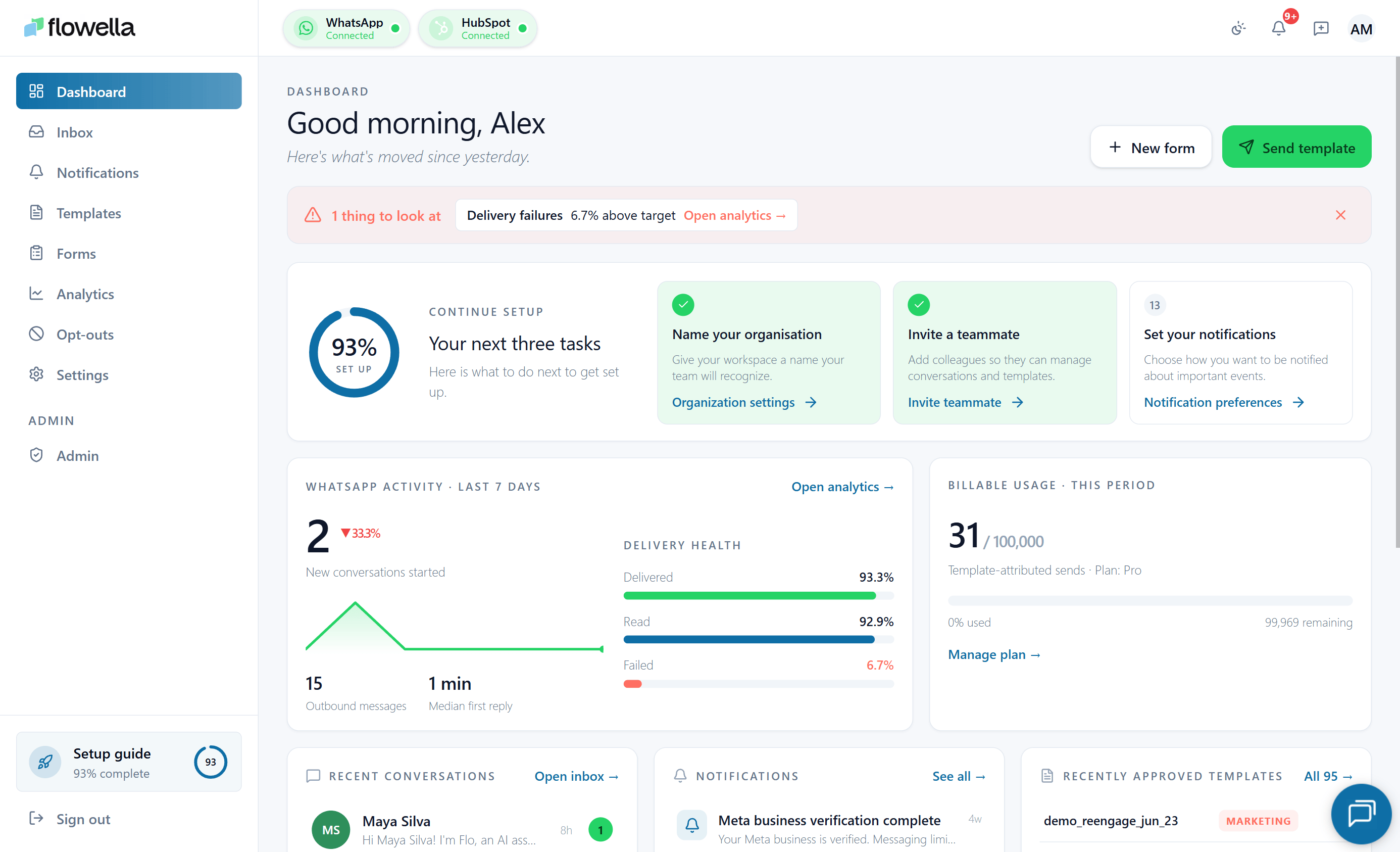 The Dashboard is the first page you see after signing in. It gives you a one-screen view of your billing, your WhatsApp activity over the last 7 days, your connected channels, your HubSpot integration, and the forms Flowella is syncing.
## How to open it
Sign in to Flowella. The Dashboard is the home page of every organisation, at `/{org}/dashboard`. You can also click the Flowella logo in the top-left from any page to return here.
## What the Dashboard shows
The page is laid out as a grid of cards. The exact set you see depends on what is connected, but the standard set is:
Current plan and a shortcut to manage your subscription. See [Billing](/account/billing).
A snapshot of activity on your active channel: conversations, total outbound messages, delivery rate, read rate, and failure rate.
The number of WhatsApp channels connected to your org and a shortcut to add another. See [Multi-channel](/essentials/multi-channel).
Connection status for HubSpot and a quick link to integration settings.
The number of HubSpot forms Flowella is tracking. See [Forms](/app/forms).
Live counts pulled from Meta and your Flowella drafts — for example, "**12 approved · 3 drafts**" — with a shortcut into the templates list. If Meta doesn't respond within 8 seconds, the card falls back to the last known counts.
Shortcuts to common tasks: open the inbox, create a template, view analytics.
Each card shows an **"Updated …"** freshness line so you know how recent the numbers are. Data refreshes when you focus the tab and at most every 60 seconds.
## The WhatsApp snapshot
The WhatsApp card shows five metrics, all calculated over the **last 7 days** for your **active channel**:
* **Conversations** — distinct conversations that had at least one message in the period.
* **Total outbound** — messages sent from your channel.
* **Delivery rate** — percentage of outbound messages Meta confirmed delivered.
* **Read rate** — percentage of delivered messages the recipient opened.
* **Failure rate** — percentage of outbound messages that failed.
For longer ranges and per-template breakdowns, open [Analytics](/app/analytics).
If the active channel has had **no activity** in the last 7 days, the card shows a neutral **"No activity yet"** message instead of a row of zeros and a misleading 0.0% failure rate.
## Sample data when nothing is connected
If your org has no WhatsApp channel yet, the Dashboard still renders the layout but uses **illustrative numbers** with a "Sample data" callout. As soon as you connect a channel and send a few messages, the card switches to your real data.
## Switching channels
The WhatsApp snapshot reflects the **active channel**. To see numbers for a different channel, switch channels using the channel switcher in the top-left. See [Multi-channel](/essentials/multi-channel).
If a card shows "Unavailable", the underlying integration probably needs reconnecting. Most often that is HubSpot or Meta — check **Settings → HubSpot** or **Settings → Meta**.
## Related
Per-channel detail behind the 7-day dashboard snapshot.
Current-cycle conversation count and per-channel breakdown.
Open a conversation directly from the dashboard.
The bell icon and the operational events behind it.
The Dashboard is the first page you see after signing in. It gives you a one-screen view of your billing, your WhatsApp activity over the last 7 days, your connected channels, your HubSpot integration, and the forms Flowella is syncing.
## How to open it
Sign in to Flowella. The Dashboard is the home page of every organisation, at `/{org}/dashboard`. You can also click the Flowella logo in the top-left from any page to return here.
## What the Dashboard shows
The page is laid out as a grid of cards. The exact set you see depends on what is connected, but the standard set is:
Current plan and a shortcut to manage your subscription. See [Billing](/account/billing).
A snapshot of activity on your active channel: conversations, total outbound messages, delivery rate, read rate, and failure rate.
The number of WhatsApp channels connected to your org and a shortcut to add another. See [Multi-channel](/essentials/multi-channel).
Connection status for HubSpot and a quick link to integration settings.
The number of HubSpot forms Flowella is tracking. See [Forms](/app/forms).
Live counts pulled from Meta and your Flowella drafts — for example, "**12 approved · 3 drafts**" — with a shortcut into the templates list. If Meta doesn't respond within 8 seconds, the card falls back to the last known counts.
Shortcuts to common tasks: open the inbox, create a template, view analytics.
Each card shows an **"Updated …"** freshness line so you know how recent the numbers are. Data refreshes when you focus the tab and at most every 60 seconds.
## The WhatsApp snapshot
The WhatsApp card shows five metrics, all calculated over the **last 7 days** for your **active channel**:
* **Conversations** — distinct conversations that had at least one message in the period.
* **Total outbound** — messages sent from your channel.
* **Delivery rate** — percentage of outbound messages Meta confirmed delivered.
* **Read rate** — percentage of delivered messages the recipient opened.
* **Failure rate** — percentage of outbound messages that failed.
For longer ranges and per-template breakdowns, open [Analytics](/app/analytics).
If the active channel has had **no activity** in the last 7 days, the card shows a neutral **"No activity yet"** message instead of a row of zeros and a misleading 0.0% failure rate.
## Sample data when nothing is connected
If your org has no WhatsApp channel yet, the Dashboard still renders the layout but uses **illustrative numbers** with a "Sample data" callout. As soon as you connect a channel and send a few messages, the card switches to your real data.
## Switching channels
The WhatsApp snapshot reflects the **active channel**. To see numbers for a different channel, switch channels using the channel switcher in the top-left. See [Multi-channel](/essentials/multi-channel).
If a card shows "Unavailable", the underlying integration probably needs reconnecting. Most often that is HubSpot or Meta — check **Settings → HubSpot** or **Settings → Meta**.
## Related
Per-channel detail behind the 7-day dashboard snapshot.
Current-cycle conversation count and per-channel breakdown.
Open a conversation directly from the dashboard.
The bell icon and the operational events behind it.