> ## Documentation Index
> Fetch the complete documentation index at: https://knowledge.flowella.io/llms.txt
> Use this file to discover all available pages before exploring further.
# Forms page: sync HubSpot forms to WhatsApp Flows
> Browse the HubSpot forms Flowella tracks, check each WhatsApp Flow's sync status with Meta, and trigger a sync run from the in-app Forms screen.
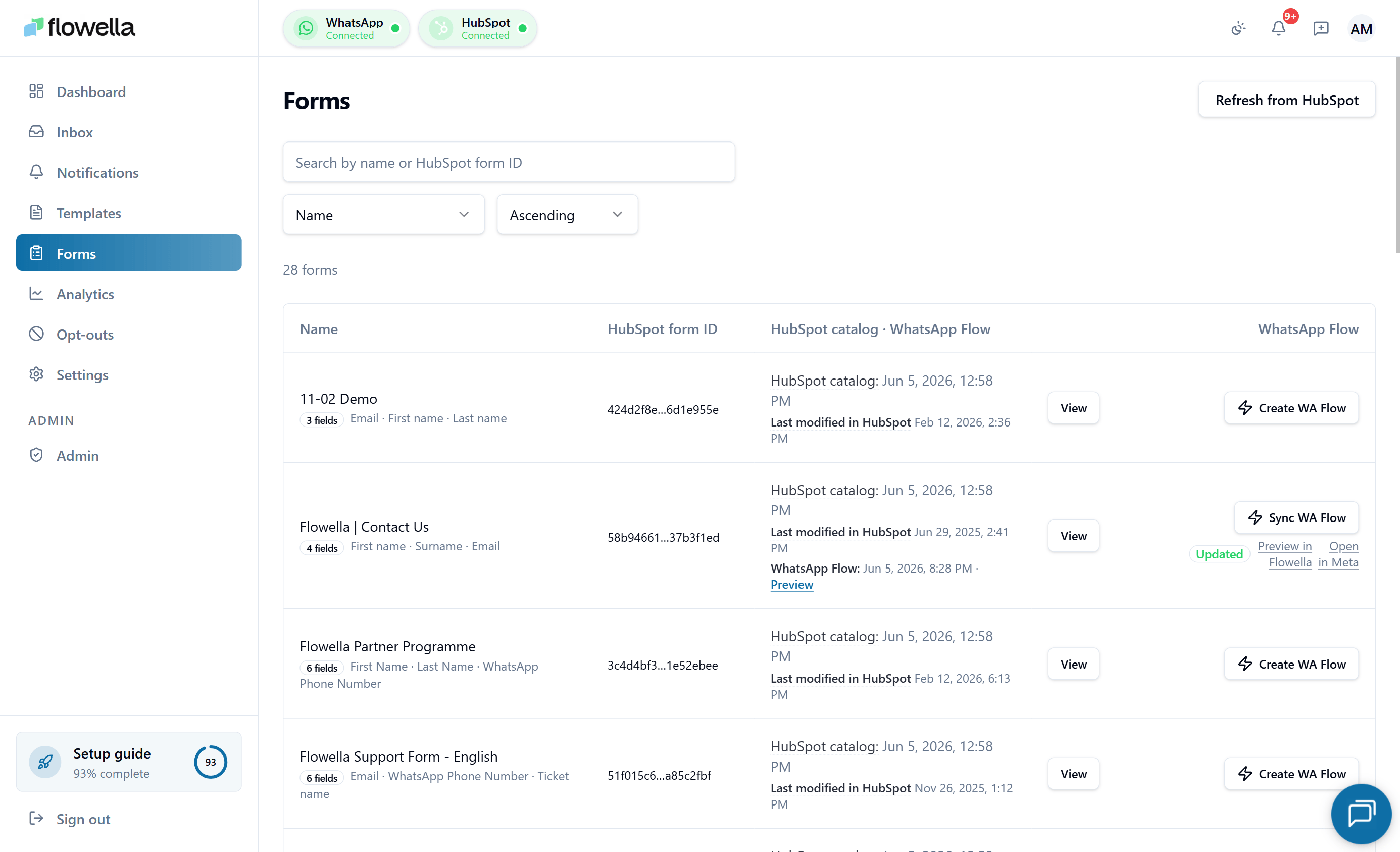 The Forms page shows every HubSpot form Flowella is tracking for your organisation, the WhatsApp Flow Flowella has built from each one, and whether that Flow is in sync with Meta.
For how to set up the HubSpot integration in the first place, see [HubSpot setup](/hubspot/setup). This page covers the in-app **Forms** screen, not the integration setup.
## How to open it
Go to **Forms** in the left navigation, or:
```text theme={null}
/{org}/forms
```
You can also open Forms scoped to a specific channel at `/{org}/{waba}/{phone}/forms`. The list is the same — the channel scoping is used when you sync a Flow to Meta.
## What the list shows
Each row represents one HubSpot form. Columns include:
* **Form name** and a truncated HubSpot form ID with a one-click copy button.
* **Field count** — how many fields the form has, with a flag if any are unsupported.
* **Last modified in HubSpot** — pulled from HubSpot's own `updatedAt` so you can tell when the form definition itself changed.
* **Catalog updated** — when Flowella last refreshed the form definition from HubSpot.
* **WhatsApp Flow status** — synced, draft, or stale (HubSpot has changed since the last sync).
* **Create WhatsApp Flow / Sync WhatsApp Flow** — the primary action. The label switches to **Sync** when a Flow already exists and to **Stale — Sync needed** when the HubSpot form has been edited since the last sync.
The button is **pre-disabled** with a tooltip when it can't run — for example: HubSpot not connected, no active WhatsApp channel, billing inactive, or the form contains unsupported field types. The tooltip explains exactly which prerequisite is missing.
If your HubSpot account has no forms synced yet, Flowella **bootstraps the catalog automatically** on first visit, so you don't have to trigger an initial pull.
You can filter and search the list to find a specific form quickly.
## Form detail
Click a row to open its detail page. The detail header shows the same **Create / Sync WhatsApp Flow** primary action as the list row, so you don't have to go back to make changes. From the detail page you can:
* Review the field-by-field mapping between the HubSpot form and the WhatsApp Flow.
* See past **sync runs** — when each was started, status (queued, running, succeeded, failed), and any errors Meta returned.
* Trigger a new sync, **retry** a failed run, or **cancel** a sync that is still in progress.
* Open the corresponding Flow in Meta Business Suite.
## Syncing a form to a WhatsApp Flow
When you click **Create WhatsApp Flow** or **Sync WhatsApp Flow**, Flowella:
1. Runs a **preflight check** — confirms HubSpot is connected, the active channel is verified, the form has at least one supported field, and billing is active.
2. Reads the latest form definition from HubSpot.
3. Generates the equivalent WhatsApp Flow JSON.
4. Uploads it to Meta on the channel you have selected (channel-scoped).
5. Records the sync run on the detail page.
Most syncs take a few seconds. If Meta rejects the Flow, the failure reason appears in the run row as a **user-safe error message** (translated from Meta Graph) — usually because of an unsupported field type, a verification problem on the channel, or a category mismatch. Retry from the same row once you've fixed the cause.
## Channel scope gating
Forms are **org-wide in the list** but **channel-scoped when you sync** — a Flow has to be uploaded against a specific WABA + phone number combination.
| URL you open | What happens |
| ----------------------------- | ---------------------------------------------------------------------------------------------------------------------------------------------------------------------------------------------------------------------------------------------------------------------- |
| `/{org}/forms` | Lists every form Flowella tracks. If exactly **one** WhatsApp channel is connected, Flowella uses it automatically when you sync. With more than one channel, you need to open Forms in a channel scope before syncing. |
| `/{org}/{waba}/{phone}/forms` | Same list, but syncs target this channel directly. The page **waits for the channel id in the URL to be resolved** before running its HubSpot queries, so you don't see a skeleton flash with results from the wrong channel when the session-cached channel is stale. |
If you click **Sync** from the org-wide URL and Flowella can't decide which channel to use (no channels connected, multiple channels with no scope set, or a stale cross-org session), the button stays pre-disabled with a tooltip explaining what's missing. Switch into the correct channel from the [channel switcher](/essentials/multi-channel#switching-channels), or open `/{org}/{waba}/{phone}/forms` directly.
## Sync error UX
When a sync fails, Flowella turns the run row into a single outline action button so you can fix forwards from the same row:
| Run state | Button | What it does |
| ---------------- | ------------- | ------------------------------------------------------------------------ |
| Failed | **Try again** | Re-enqueues the same form sync. |
| Queued / running | **Cancel** | Best-effort removes the job and marks the run **`FLOW_SYNC_CANCELLED`**. |
| Never synced | **Create** | Runs the first sync for this form. |
The row also carries a **user-safe error badge**:
* **`FLOW_SYNC_PREFLIGHT` + Meta error `#133010`** (phone not registered) — the badge shows the stored Meta message and a **phone-registration** hint, not a generic "not ready". Finish phone registration in **Settings → Meta** and retry.
* **`QUEUE_FAILED`** — the sync queue couldn't pick up the job. Usually transient; retry. If it persists, the platform status page is the next place to check (see [Status & incidents](/essentials/status-and-incidents)).
* **Meta `validation_errors`** — the badge summarises which fields Meta rejected, so you can adjust the HubSpot form (or the field mapping) and retry without leaving the row.
Run history is preserved across retries, so you can see how many attempts a form has taken and what changed between them.
## Question copy in rich text blocks
HubSpot lets you place a **rich text element** above a field group so the question text sits above the input rather than inside the field label. Flowella maps those blocks into the WhatsApp Flow alongside the inputs:
| HubSpot rich text | Flow component |
| ----------------------------------- | ---------------------------- |
| `H1` heading | Text heading |
| `H2` or `H3` heading | Text subheading |
| Paragraph, list, or other body copy | Text body (markdown enabled) |
The rich text appears **before** the inputs in the field group, so customers see the question, then answer it. Field labels are still shown in-app, so keep them short — see [Form design best practices](/app/form-design-best-practices).
If you already have HubSpot forms that use rich text above field groups, **re-sync** them from the [form detail page](#form-detail). Older sync runs only picked up field labels, so the rich text question copy was missing from the published Flow until you sync again.
A WhatsApp Flow screen can hold at most **50 components**. On very large forms, Flowella keeps every input and drops rich text blocks from the end of the screen to stay under the ceiling — inputs are never removed, but some question copy may not appear. Split the form across screens (or into two forms) if you need every piece of copy to render.
## Sample data
If you have no HubSpot connection yet, the Forms page renders with **illustrative rows** behind a "Sample data" callout. Connect HubSpot to switch to your real forms.
HubSpot forms with unsupported field types (file upload, signature) cannot be synced as-is. Adjust the form in HubSpot or skip those fields in the WhatsApp Flow.
A form can sync perfectly and still read badly on a phone. Long field labels are shortened on screen, most noticeably on iPhone, and the wrong question type makes it worse. See [Form design best practices](/app/form-design-best-practices) before you build a form.
## Related
Connect the portal Flowella reads forms from.
Build HubSpot forms that render cleanly on every device.
Trigger Flows from a HubSpot workflow.
End-to-end recipes that combine forms, templates, and workflows.
Diagnose form sync issues and missing submissions.
Forms are synced per channel — understand the scoping.
How form submissions are encrypted in transit and at rest.
The Forms page shows every HubSpot form Flowella is tracking for your organisation, the WhatsApp Flow Flowella has built from each one, and whether that Flow is in sync with Meta.
For how to set up the HubSpot integration in the first place, see [HubSpot setup](/hubspot/setup). This page covers the in-app **Forms** screen, not the integration setup.
## How to open it
Go to **Forms** in the left navigation, or:
```text theme={null}
/{org}/forms
```
You can also open Forms scoped to a specific channel at `/{org}/{waba}/{phone}/forms`. The list is the same — the channel scoping is used when you sync a Flow to Meta.
## What the list shows
Each row represents one HubSpot form. Columns include:
* **Form name** and a truncated HubSpot form ID with a one-click copy button.
* **Field count** — how many fields the form has, with a flag if any are unsupported.
* **Last modified in HubSpot** — pulled from HubSpot's own `updatedAt` so you can tell when the form definition itself changed.
* **Catalog updated** — when Flowella last refreshed the form definition from HubSpot.
* **WhatsApp Flow status** — synced, draft, or stale (HubSpot has changed since the last sync).
* **Create WhatsApp Flow / Sync WhatsApp Flow** — the primary action. The label switches to **Sync** when a Flow already exists and to **Stale — Sync needed** when the HubSpot form has been edited since the last sync.
The button is **pre-disabled** with a tooltip when it can't run — for example: HubSpot not connected, no active WhatsApp channel, billing inactive, or the form contains unsupported field types. The tooltip explains exactly which prerequisite is missing.
If your HubSpot account has no forms synced yet, Flowella **bootstraps the catalog automatically** on first visit, so you don't have to trigger an initial pull.
You can filter and search the list to find a specific form quickly.
## Form detail
Click a row to open its detail page. The detail header shows the same **Create / Sync WhatsApp Flow** primary action as the list row, so you don't have to go back to make changes. From the detail page you can:
* Review the field-by-field mapping between the HubSpot form and the WhatsApp Flow.
* See past **sync runs** — when each was started, status (queued, running, succeeded, failed), and any errors Meta returned.
* Trigger a new sync, **retry** a failed run, or **cancel** a sync that is still in progress.
* Open the corresponding Flow in Meta Business Suite.
## Syncing a form to a WhatsApp Flow
When you click **Create WhatsApp Flow** or **Sync WhatsApp Flow**, Flowella:
1. Runs a **preflight check** — confirms HubSpot is connected, the active channel is verified, the form has at least one supported field, and billing is active.
2. Reads the latest form definition from HubSpot.
3. Generates the equivalent WhatsApp Flow JSON.
4. Uploads it to Meta on the channel you have selected (channel-scoped).
5. Records the sync run on the detail page.
Most syncs take a few seconds. If Meta rejects the Flow, the failure reason appears in the run row as a **user-safe error message** (translated from Meta Graph) — usually because of an unsupported field type, a verification problem on the channel, or a category mismatch. Retry from the same row once you've fixed the cause.
## Channel scope gating
Forms are **org-wide in the list** but **channel-scoped when you sync** — a Flow has to be uploaded against a specific WABA + phone number combination.
| URL you open | What happens |
| ----------------------------- | ---------------------------------------------------------------------------------------------------------------------------------------------------------------------------------------------------------------------------------------------------------------------- |
| `/{org}/forms` | Lists every form Flowella tracks. If exactly **one** WhatsApp channel is connected, Flowella uses it automatically when you sync. With more than one channel, you need to open Forms in a channel scope before syncing. |
| `/{org}/{waba}/{phone}/forms` | Same list, but syncs target this channel directly. The page **waits for the channel id in the URL to be resolved** before running its HubSpot queries, so you don't see a skeleton flash with results from the wrong channel when the session-cached channel is stale. |
If you click **Sync** from the org-wide URL and Flowella can't decide which channel to use (no channels connected, multiple channels with no scope set, or a stale cross-org session), the button stays pre-disabled with a tooltip explaining what's missing. Switch into the correct channel from the [channel switcher](/essentials/multi-channel#switching-channels), or open `/{org}/{waba}/{phone}/forms` directly.
## Sync error UX
When a sync fails, Flowella turns the run row into a single outline action button so you can fix forwards from the same row:
| Run state | Button | What it does |
| ---------------- | ------------- | ------------------------------------------------------------------------ |
| Failed | **Try again** | Re-enqueues the same form sync. |
| Queued / running | **Cancel** | Best-effort removes the job and marks the run **`FLOW_SYNC_CANCELLED`**. |
| Never synced | **Create** | Runs the first sync for this form. |
The row also carries a **user-safe error badge**:
* **`FLOW_SYNC_PREFLIGHT` + Meta error `#133010`** (phone not registered) — the badge shows the stored Meta message and a **phone-registration** hint, not a generic "not ready". Finish phone registration in **Settings → Meta** and retry.
* **`QUEUE_FAILED`** — the sync queue couldn't pick up the job. Usually transient; retry. If it persists, the platform status page is the next place to check (see [Status & incidents](/essentials/status-and-incidents)).
* **Meta `validation_errors`** — the badge summarises which fields Meta rejected, so you can adjust the HubSpot form (or the field mapping) and retry without leaving the row.
Run history is preserved across retries, so you can see how many attempts a form has taken and what changed between them.
## Question copy in rich text blocks
HubSpot lets you place a **rich text element** above a field group so the question text sits above the input rather than inside the field label. Flowella maps those blocks into the WhatsApp Flow alongside the inputs:
| HubSpot rich text | Flow component |
| ----------------------------------- | ---------------------------- |
| `H1` heading | Text heading |
| `H2` or `H3` heading | Text subheading |
| Paragraph, list, or other body copy | Text body (markdown enabled) |
The rich text appears **before** the inputs in the field group, so customers see the question, then answer it. Field labels are still shown in-app, so keep them short — see [Form design best practices](/app/form-design-best-practices).
If you already have HubSpot forms that use rich text above field groups, **re-sync** them from the [form detail page](#form-detail). Older sync runs only picked up field labels, so the rich text question copy was missing from the published Flow until you sync again.
A WhatsApp Flow screen can hold at most **50 components**. On very large forms, Flowella keeps every input and drops rich text blocks from the end of the screen to stay under the ceiling — inputs are never removed, but some question copy may not appear. Split the form across screens (or into two forms) if you need every piece of copy to render.
## Sample data
If you have no HubSpot connection yet, the Forms page renders with **illustrative rows** behind a "Sample data" callout. Connect HubSpot to switch to your real forms.
HubSpot forms with unsupported field types (file upload, signature) cannot be synced as-is. Adjust the form in HubSpot or skip those fields in the WhatsApp Flow.
A form can sync perfectly and still read badly on a phone. Long field labels are shortened on screen, most noticeably on iPhone, and the wrong question type makes it worse. See [Form design best practices](/app/form-design-best-practices) before you build a form.
## Related
Connect the portal Flowella reads forms from.
Build HubSpot forms that render cleanly on every device.
Trigger Flows from a HubSpot workflow.
End-to-end recipes that combine forms, templates, and workflows.
Diagnose form sync issues and missing submissions.
Forms are synced per channel — understand the scoping.
How form submissions are encrypted in transit and at rest.