> ## Documentation Index
> Fetch the complete documentation index at: https://knowledge.flowella.io/llms.txt
> Use this file to discover all available pages before exploring further.
# Using the Flowella Inbox for WhatsApp Conversations
> Triage WhatsApp conversations with Open/Unseen and All/Pending tabs, Smart Reply, typing indicators, read receipts, and template sends.
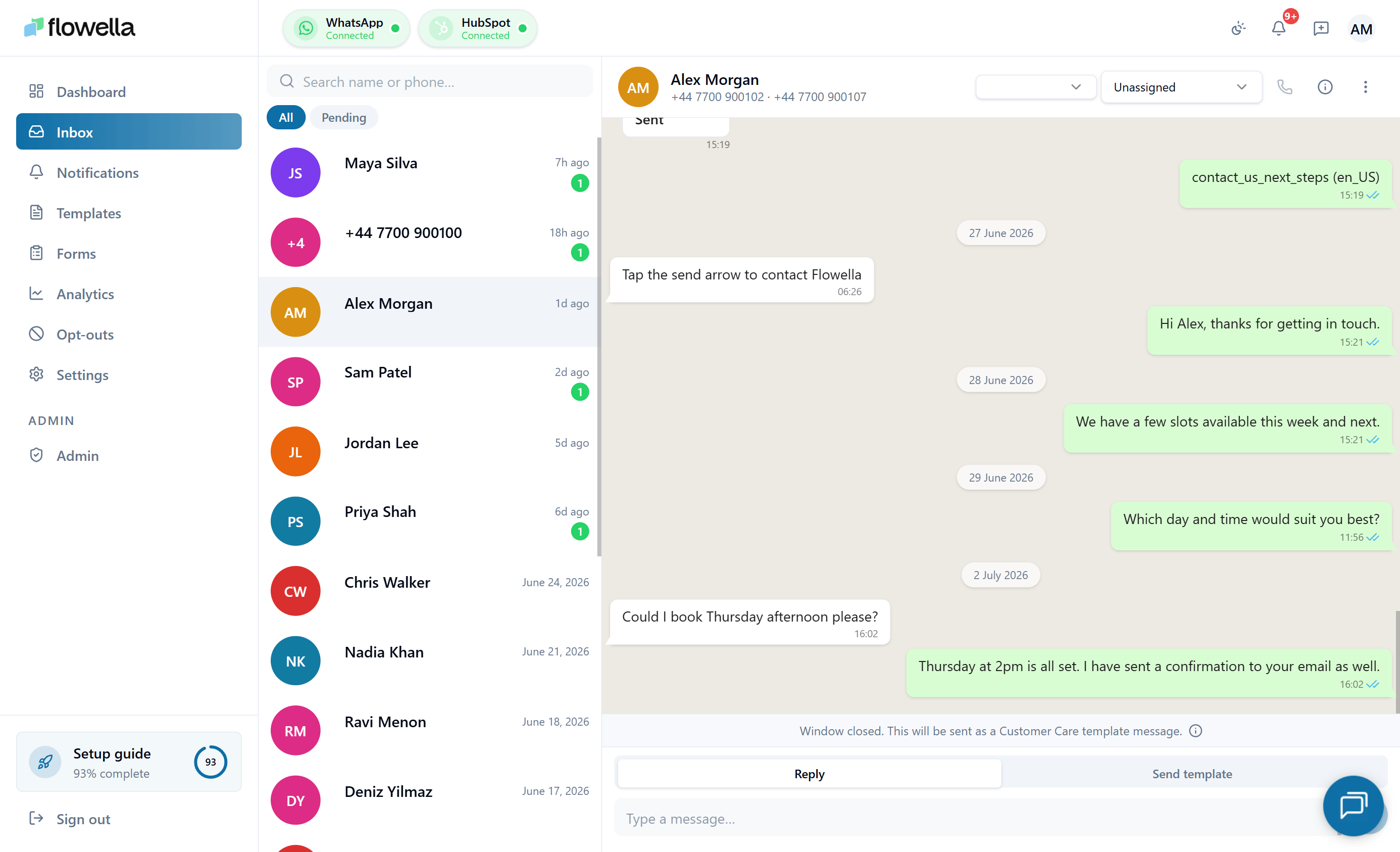 The Inbox is where you and your team handle every WhatsApp conversation Flowella is managing. From here you read and reply to messages, send templates when the 24-hour customer service window has closed, see when contacts open and respond to your messages, and keep your queue tidy with tabs and archiving.
## Opening the inbox
1. Sign in to Flowella.
2. In the left navigation, click **Inbox**.
You'll see three areas:
* **Conversation list** on the left
* **Current conversation** in the middle
* **Contact status and actions** on the right of the header
To test a template before using it with real contacts, use **Templates → select a template → Send tab → Test Template** — not the inbox.
## Conversation list
The left-hand panel shows every conversation Flowella is tracking on the active WhatsApp channel.
### Tabs
The list is split into two sets of tabs:
**Status tabs**
* **Open** — conversations that are currently active (not archived).
* **Unseen** — conversations with at least one message your team hasn't acknowledged. The unseen state is **org-wide**: once any teammate opens the conversation, it leaves Unseen for everyone.
**Activity tabs**
* **All** — every conversation under the current status tab.
* **Pending** — only conversations **awaiting your reply** (the most recent message was from the customer).
Switching tabs filters the list immediately. Selecting a thread marks it as seen for the whole organization.
Most teams work the **Unseen → Pending** combination first thing in the morning to surface only conversations that still need a human response.
### Conversation items
Each row shows:
* Contact **name** (or phone number if no name is available)
* Latest **message preview**
* **Time** of the most recent message
* An **unread badge** when there are unseen messages
### Search
Use **Search conversations…** to find a contact by name, phone number, or text from a recent message.
### Archive
The **Archive** action moves a resolved conversation out of the **Open** view without deleting it. Archived conversations remain searchable and can be reopened at any time.
## Conversation view
Click any item in the list to open it. The middle panel shows the full message history with that contact, including:
* Incoming messages from the customer (with **read receipts** when WhatsApp reports the customer has read your reply)
* Outgoing messages sent by workflows, templates, or agents — with structured **template cards** (header, body, footer, buttons, media, location) and **Flow answer rows** for Flow submissions, instead of just the template name
* **Typing bubble** when the customer is composing a reply (when Meta surfaces the signal)
* Timestamps for each message
### Live typing indicator (composer → customer)
When you start typing in the reply composer, Flowella sends a throttled typing indicator to the customer's WhatsApp client. The signal refreshes every \~20 seconds while your draft is non-empty and clears as soon as you send or empty the composer.
This works automatically — there's nothing to enable. It uses Meta's WhatsApp Cloud API typing-indicator endpoint and is only sent inside the 24-hour customer service window.
## The 24-hour customer service window
WhatsApp Business Platform only allows **free-form messages** for 24 hours after the customer's last message. After that, you must use an **approved template**.
Flowella surfaces this state clearly in the composer:
* **Window open** — the composer shows a single text field. Press Enter to send.
* **Window closed** — the composer splits into two tabs: **Reply** (default) and **Send template**.
The header of any open conversation also shows the contact's WhatsApp number and their opt-in status.
## Reply tab (Smart Reply)
The **Reply** tab lets you type a free-text message **even when the 24-hour window has closed**. Flowella does this by wrapping your text into an approved **reopen template** (one of three system templates: **Service**, **Update**, or **Offer**).
* Inside the window — your text sends as a normal free-form WhatsApp message.
* Outside the window — your text is placed into variable `{{3}}` of the active reopen template. Variable `{{1}}` is the contact's first name and `{{2}}` is your business name; both are filled automatically.
A banner above the composer explains that an out-of-window send uses Utility template pricing (Meta charges per conversation; see [Pricing and conversation categories](/account/pricing-and-conversation-categories)).
Reply templates are provisioned automatically the first time you open the Inbox on a Meta-connected channel, and an hourly worker backfills anything still missing. You can edit the framing text under [Reply templates](/settings/reply-templates).
## Send template tab
Use **Send template** when you want to pick a specific approved template rather than wrap a free-text reply.
1. Pick a **WhatsApp template** from the list.
2. Fill any required variables (the contact's saved values prefill where possible).
3. Click **Send**.
Template messages are commonly used to:
* Reopen a conversation with structured content (appointment reminder, order update)
* Send notifications, confirmations, or reminders
* Start a structured WhatsApp Flow from the inbox
## Contact status and opt-outs
The conversation header shows the contact's WhatsApp number and their opt-in status:
* **Opted in** — Flowella is allowed to send messages.
* **Opt out** button — mark the contact as opted out if they ask to stop.
When a contact is opted out, Flowella will not send any further messages to them, even if a workflow or flow attempts to do so.
## Recommended agent workflow
Open the **Inbox**, switch to the **Unseen** tab, then the **Pending** activity tab. You'll see only conversations awaiting a human reply.
Reply to conversations from oldest to newest while still inside the 24-hour window where possible.
If 24 hours have passed since the customer's last message, type into the **Reply** tab to send a Smart Reply, or pick a specific template from **Send template**.
If a contact asks to stop receiving WhatsApp messages, click **Opt Out** in the conversation header.
Once a conversation is resolved, archive it to keep **Open** manageable.
## Limitations
* The inbox is designed for **one-to-one conversations**. For bulk sends, see [Templates](/app/templates) and [Campaigns overview](/campaigns/overview).
* Free-form replies are only possible inside WhatsApp's **24-hour customer service window**. After that, **Reply** uses a reopen template and **Send template** uses any approved template.
* If a template send fails, check that:
* The contact's number is in full [international format](/hubspot/phone-number-format).
* The contact is [opted in](/app/opt-outs).
* The template is approved on your WhatsApp Business account — see [Templates](/app/templates) and [Template rejected](/troubleshooting/template-rejected).
## Related
Edit the Service, Update, and Offer reopen templates used by the Reply tab.
Create and submit templates for sending outside the 24-hour window.
Manage consent for the contacts you message.
Diagnose sends that don't reach the recipient.
The Inbox is where you and your team handle every WhatsApp conversation Flowella is managing. From here you read and reply to messages, send templates when the 24-hour customer service window has closed, see when contacts open and respond to your messages, and keep your queue tidy with tabs and archiving.
## Opening the inbox
1. Sign in to Flowella.
2. In the left navigation, click **Inbox**.
You'll see three areas:
* **Conversation list** on the left
* **Current conversation** in the middle
* **Contact status and actions** on the right of the header
To test a template before using it with real contacts, use **Templates → select a template → Send tab → Test Template** — not the inbox.
## Conversation list
The left-hand panel shows every conversation Flowella is tracking on the active WhatsApp channel.
### Tabs
The list is split into two sets of tabs:
**Status tabs**
* **Open** — conversations that are currently active (not archived).
* **Unseen** — conversations with at least one message your team hasn't acknowledged. The unseen state is **org-wide**: once any teammate opens the conversation, it leaves Unseen for everyone.
**Activity tabs**
* **All** — every conversation under the current status tab.
* **Pending** — only conversations **awaiting your reply** (the most recent message was from the customer).
Switching tabs filters the list immediately. Selecting a thread marks it as seen for the whole organization.
Most teams work the **Unseen → Pending** combination first thing in the morning to surface only conversations that still need a human response.
### Conversation items
Each row shows:
* Contact **name** (or phone number if no name is available)
* Latest **message preview**
* **Time** of the most recent message
* An **unread badge** when there are unseen messages
### Search
Use **Search conversations…** to find a contact by name, phone number, or text from a recent message.
### Archive
The **Archive** action moves a resolved conversation out of the **Open** view without deleting it. Archived conversations remain searchable and can be reopened at any time.
## Conversation view
Click any item in the list to open it. The middle panel shows the full message history with that contact, including:
* Incoming messages from the customer (with **read receipts** when WhatsApp reports the customer has read your reply)
* Outgoing messages sent by workflows, templates, or agents — with structured **template cards** (header, body, footer, buttons, media, location) and **Flow answer rows** for Flow submissions, instead of just the template name
* **Typing bubble** when the customer is composing a reply (when Meta surfaces the signal)
* Timestamps for each message
### Live typing indicator (composer → customer)
When you start typing in the reply composer, Flowella sends a throttled typing indicator to the customer's WhatsApp client. The signal refreshes every \~20 seconds while your draft is non-empty and clears as soon as you send or empty the composer.
This works automatically — there's nothing to enable. It uses Meta's WhatsApp Cloud API typing-indicator endpoint and is only sent inside the 24-hour customer service window.
## The 24-hour customer service window
WhatsApp Business Platform only allows **free-form messages** for 24 hours after the customer's last message. After that, you must use an **approved template**.
Flowella surfaces this state clearly in the composer:
* **Window open** — the composer shows a single text field. Press Enter to send.
* **Window closed** — the composer splits into two tabs: **Reply** (default) and **Send template**.
The header of any open conversation also shows the contact's WhatsApp number and their opt-in status.
## Reply tab (Smart Reply)
The **Reply** tab lets you type a free-text message **even when the 24-hour window has closed**. Flowella does this by wrapping your text into an approved **reopen template** (one of three system templates: **Service**, **Update**, or **Offer**).
* Inside the window — your text sends as a normal free-form WhatsApp message.
* Outside the window — your text is placed into variable `{{3}}` of the active reopen template. Variable `{{1}}` is the contact's first name and `{{2}}` is your business name; both are filled automatically.
A banner above the composer explains that an out-of-window send uses Utility template pricing (Meta charges per conversation; see [Pricing and conversation categories](/account/pricing-and-conversation-categories)).
Reply templates are provisioned automatically the first time you open the Inbox on a Meta-connected channel, and an hourly worker backfills anything still missing. You can edit the framing text under [Reply templates](/settings/reply-templates).
## Send template tab
Use **Send template** when you want to pick a specific approved template rather than wrap a free-text reply.
1. Pick a **WhatsApp template** from the list.
2. Fill any required variables (the contact's saved values prefill where possible).
3. Click **Send**.
Template messages are commonly used to:
* Reopen a conversation with structured content (appointment reminder, order update)
* Send notifications, confirmations, or reminders
* Start a structured WhatsApp Flow from the inbox
## Contact status and opt-outs
The conversation header shows the contact's WhatsApp number and their opt-in status:
* **Opted in** — Flowella is allowed to send messages.
* **Opt out** button — mark the contact as opted out if they ask to stop.
When a contact is opted out, Flowella will not send any further messages to them, even if a workflow or flow attempts to do so.
## Recommended agent workflow
Open the **Inbox**, switch to the **Unseen** tab, then the **Pending** activity tab. You'll see only conversations awaiting a human reply.
Reply to conversations from oldest to newest while still inside the 24-hour window where possible.
If 24 hours have passed since the customer's last message, type into the **Reply** tab to send a Smart Reply, or pick a specific template from **Send template**.
If a contact asks to stop receiving WhatsApp messages, click **Opt Out** in the conversation header.
Once a conversation is resolved, archive it to keep **Open** manageable.
## Limitations
* The inbox is designed for **one-to-one conversations**. For bulk sends, see [Templates](/app/templates) and [Campaigns overview](/campaigns/overview).
* Free-form replies are only possible inside WhatsApp's **24-hour customer service window**. After that, **Reply** uses a reopen template and **Send template** uses any approved template.
* If a template send fails, check that:
* The contact's number is in full [international format](/hubspot/phone-number-format).
* The contact is [opted in](/app/opt-outs).
* The template is approved on your WhatsApp Business account — see [Templates](/app/templates) and [Template rejected](/troubleshooting/template-rejected).
## Related
Edit the Service, Update, and Offer reopen templates used by the Reply tab.
Create and submit templates for sending outside the 24-hour window.
Manage consent for the contacts you message.
Diagnose sends that don't reach the recipient.