> ## Documentation Index
> Fetch the complete documentation index at: https://knowledge.flowella.io/llms.txt
> Use this file to discover all available pages before exploring further.
# Notifications
> Read and manage in-app notifications about WhatsApp templates, integrations, exports, and operational events across your Flowella organisation.
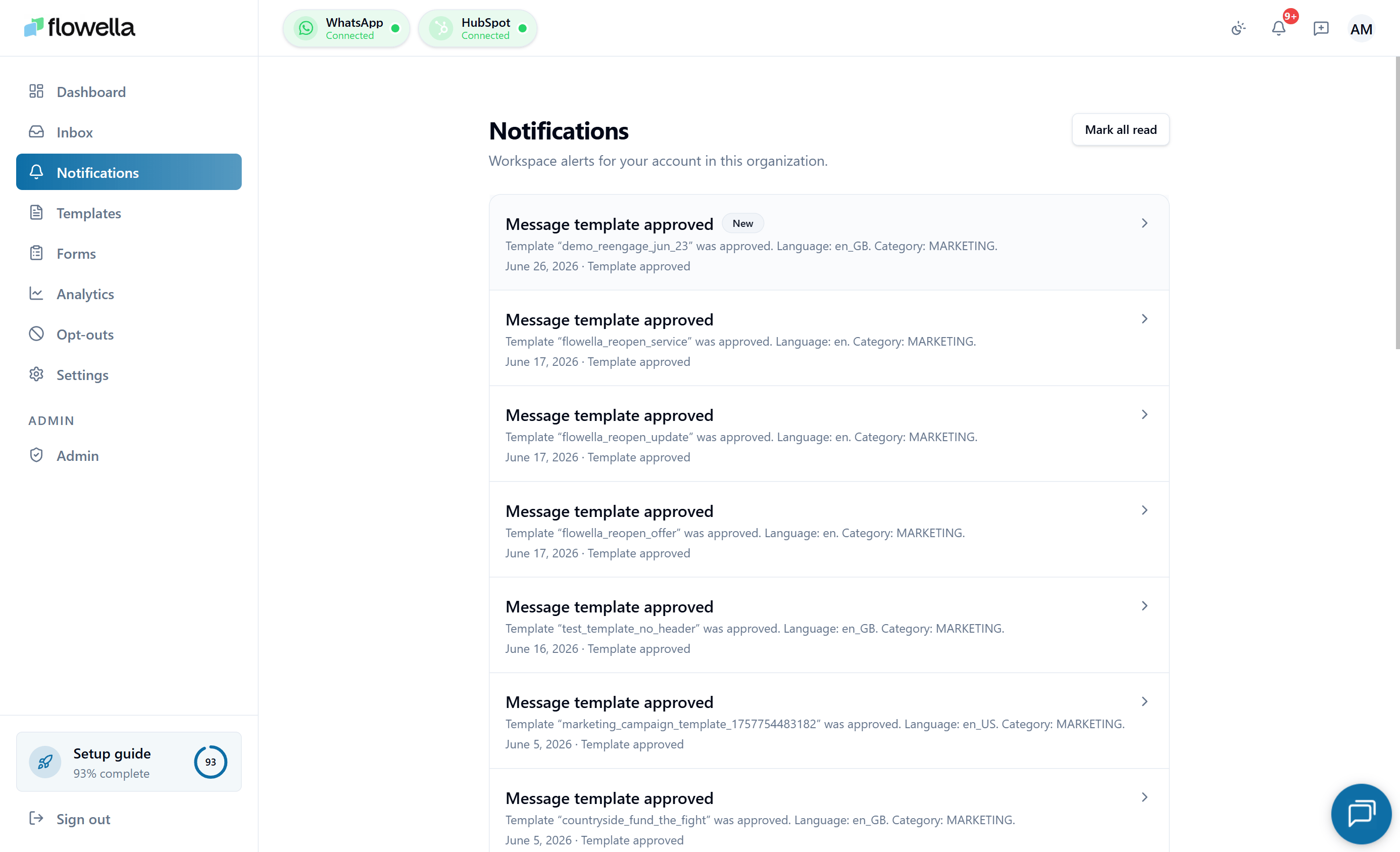 Notifications are the in-app feed Flowella uses to tell you about things that need your attention or that have just finished — template approvals, failed integrations, completed exports, and operational events affecting your org.
## How to open it
Click the bell icon in the top-right, or go to:
```text theme={null}
/{org}/notifications
```
The bell shows an unread count. Notifications are scoped to your organisation, so every member of the org sees the same feed.
## What appears here
Meta approved or rejected a submission, a template was paused for quality reasons.
HubSpot or Meta needs reconnecting, a webhook is failing.
An analytics export is ready to download.
A payment failed or a subscription state changed.
Incident notices and maintenance windows from Flowella.
See the full catalogue of events Flowella can emit.
The exact event list grows as we ship new features.
## Reading and clearing
* Click a row to open its **detail view** in a modal. The detail view shows the full payload, including links to the related object (template, channel, export, etc.).
* Click **Mark all read** to clear the unread badge for everything in the feed.
* Pagination is at the bottom of the list (20 per page).
Marking a notification read is per-user. Other members of your org keep their own unread state.
## Email and notification settings
Some events are also delivered by email. Configure which categories email you (and which only stay in-app) under [Notification preferences](/settings/notification-preferences).
## Retention
Notifications are kept in the feed long enough for routine review. Expect older notifications to be pruned over time so the feed stays useful — anything time-sensitive is also delivered by email or as a webhook event so you do not lose it. If you need a permanent record of a specific event, capture it from the detail view at the time.
If a teammate keeps missing template approvals, point them at [Notification preferences](/settings/notification-preferences) to enable email for the **Templates** category.
## Related
The full list of events Flowella can emit, with channels and mandatory flags.
Choose which categories deliver in-app, by email, or both.
Operational notifications and where to check platform health.
Push events to your own systems instead of polling the feed.
Notifications are the in-app feed Flowella uses to tell you about things that need your attention or that have just finished — template approvals, failed integrations, completed exports, and operational events affecting your org.
## How to open it
Click the bell icon in the top-right, or go to:
```text theme={null}
/{org}/notifications
```
The bell shows an unread count. Notifications are scoped to your organisation, so every member of the org sees the same feed.
## What appears here
Meta approved or rejected a submission, a template was paused for quality reasons.
HubSpot or Meta needs reconnecting, a webhook is failing.
An analytics export is ready to download.
A payment failed or a subscription state changed.
Incident notices and maintenance windows from Flowella.
See the full catalogue of events Flowella can emit.
The exact event list grows as we ship new features.
## Reading and clearing
* Click a row to open its **detail view** in a modal. The detail view shows the full payload, including links to the related object (template, channel, export, etc.).
* Click **Mark all read** to clear the unread badge for everything in the feed.
* Pagination is at the bottom of the list (20 per page).
Marking a notification read is per-user. Other members of your org keep their own unread state.
## Email and notification settings
Some events are also delivered by email. Configure which categories email you (and which only stay in-app) under [Notification preferences](/settings/notification-preferences).
## Retention
Notifications are kept in the feed long enough for routine review. Expect older notifications to be pruned over time so the feed stays useful — anything time-sensitive is also delivered by email or as a webhook event so you do not lose it. If you need a permanent record of a specific event, capture it from the detail view at the time.
If a teammate keeps missing template approvals, point them at [Notification preferences](/settings/notification-preferences) to enable email for the **Templates** category.
## Related
The full list of events Flowella can emit, with channels and mandatory flags.
Choose which categories deliver in-app, by email, or both.
Operational notifications and where to check platform health.
Push events to your own systems instead of polling the feed.