> ## Documentation Index
> Fetch the complete documentation index at: https://knowledge.flowella.io/llms.txt
> Use this file to discover all available pages before exploring further.
# Managing WhatsApp Opt-Outs and Consent in Flowella
> Track consent, handle automatic keyword opt-outs, view a contact's full consent history, and manually update opt-in status to stay compliant at scale.
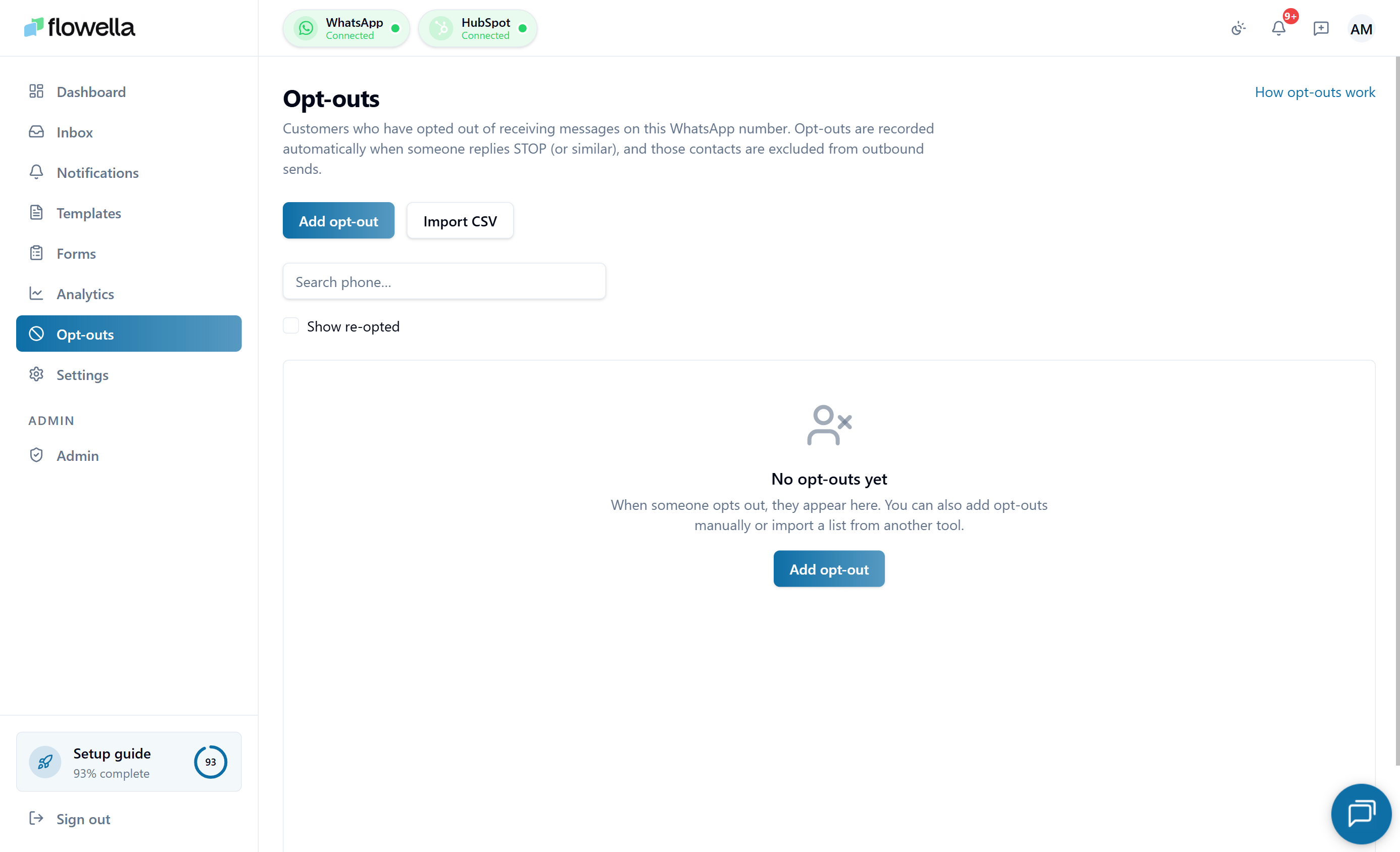 The Opt-Outs page is where Flowella tracks who has consented to receive WhatsApp messages and who has asked you to stop. Keeping this data accurate means your workflows will not message people who have opted out, and you have an audit trail to support compliance reporting.
## Opening the opt-outs page
1. Log in to Flowella.
2. In the left menu, click **Opt-Outs**.
The page is **scoped to the active WhatsApp channel**. If your org has more than one WhatsApp number, switch channels using the channel picker — the opt-outs list updates to show consent records for that number only.
At the top you will see three summary figures: **Total** contacts, how many are **Opted Out**, and how many are **Opted In**. Below that is a search bar where you can find a specific contact by phone number or name, and a **Refresh** button to pull the latest data.
If the list is empty, Flowella shows a help-oriented empty state with links to add contacts manually, import from CSV, or read more about how consent is captured.
## Adding contacts to your opt-out list
You can add contacts to the opt-out list without waiting for an inbound `STOP` message — useful when consent (or withdrawal of consent) was captured outside WhatsApp.
### Add a single contact manually
On the Opt-Outs page, click **Add contact** (top right).
Type the contact's phone number in international E.164 format (for example, `+447700900123`). Optionally add a display name.
Choose **Opted Out** (default) or **Opted In**. For most manual adds you want Opted Out.
Flowella validates the number, creates the consent record on the active channel, and logs the change as a manual consent event with your user as the source.
### Import contacts from CSV
For bulk updates — for example, importing an existing suppression list when you first connect a channel — use the CSV import dialog.
On the Opt-Outs page, click **Import CSV**.
The dialog offers a downloadable CSV template with the required columns: `phone` (E.164), `name` (optional), and `status` (`opted_in` or `opted_out`, defaults to `opted_out`).
Drag and drop your CSV or pick it from disk. Flowella validates each row and previews how many records will be created, updated, or skipped (for example, invalid phone numbers).
Confirm the import. Each row creates one consent event marked as a CSV import, attributed to your user. Rows that fail validation are downloadable as a separate "errors" CSV so you can fix and re-import.
CSV import is **idempotent**: re-importing the same file does not duplicate events. If a contact already has the same status, the row is skipped.
## Understanding the opt-outs table
The main table lists one row per WhatsApp number Flowella knows about.
| Column | What it shows |
| ------------------ | ------------------------------------------------------------ |
| **Phone Number** | The WhatsApp number in international format. |
| **Name** | The contact name, if known. |
| **Status** | A badge showing **Opted In** or **Opted Out**. |
| **Last Updated** | When the consent status last changed. |
| **Events** | How many consent events have been recorded for this contact. |
| **Actions → View** | Opens the detailed record for that number. |
Use the pagination controls at the bottom to move through the full list.
## Automatic opt-out and opt-in keywords
Flowella automatically updates a contact's status when they send certain keywords in any WhatsApp thread Flowella handles. These keywords follow the HubSpot SMS pattern and are matched case-insensitively.
If a contact sends one of these words on its own, or as the first word of a message, Flowella marks them as **Opted Out**:
| Language | Keywords |
| ---------- | --------------------------------------------------------- |
| English | `STOP`, `STOPALL`, `UNSUBSCRIBE`, `CANCEL`, `END`, `QUIT` |
| Spanish | `ALTO` |
| French | `ARRÊTER` |
| Portuguese | `PARAR` |
| German | `BEENDEN` |
| Japanese | `停止` |
After an automatic opt-out:
* Flowella **blocks all automated WhatsApp sends** (flows, workflows, campaigns) to that number.
* The contact's status shows as **Opted Out** in the Inbox header and on the Opt-Outs page.
* A consent event is logged against that number.
Treat an automatic opt-out as a hard stop for marketing and non-essential messages.
If a contact later wants to hear from you again, they can send an opt-in keyword. When Flowella sees one of these, it sets the contact back to **Opted In** automatically — no agent action required:
| Language | Keywords |
| ---------- | ------------------------------ |
| English | `START`, `SUBSCRIBE`, `UNSTOP` |
| Spanish | `EMPEZAR` |
| French | `COMMENCER` |
| Portuguese | `INICIAR` |
| German | `LOSLEGEN` |
| Japanese | `開始` |
Inbound `START` / `UNSTOP` (and the localised equivalents) flip the contact back to **Opted In** and log a consent event sourced as **inbound keyword**. Subsequent automated sends from workflows, flows, and campaigns will resume on the next trigger.
Make it clear in your message copy that contacts can reply with these words to manage their preferences.
## Viewing a contact's consent history
1. On the Opt-Outs page, find the contact using the search bar — search by name or phone number.
2. Click **View** in the **Actions** column.
The detail view shows:
* The current **status** (Opted In or Opted Out).
* When the status last changed and the mechanism that triggered it (for example, "Automatic keyword: STOP").
* The full **event history**, including automatic opt-outs and opt-ins from keywords, and any manual changes made by your team.
This event history provides an audit trail for compliance and internal reporting.
## Manually updating opt-in status
Sometimes a contact gives or withdraws consent through another channel — by phone, email, or a signed form. When that happens, you can update their status in Flowella manually from two places.
On the **Opt-Outs page**, use the search bar to find the contact by name or phone number.
Click **View** in the **Actions** column to open the contact's detail view.
Use the controls on the detail view to set the status to **Opted In** or **Opted Out** as appropriate.
Save the update. The change is recorded as a new consent event in the contact's history.
You can also update status directly from the **Inbox**: open the conversation, then use the **Opted In / Opt Out** buttons in the conversation header. If a contact explicitly asks to stop WhatsApp messages during a chat, click **Opt Out**. If they later give clear consent again and you have a record of it, switch them back to **Opted In**. Every manual change is logged as a new consent event.
## How Flowella uses opt-out data
Whenever Flowella is about to send a WhatsApp message, it checks the contact's current status:
* If the contact is **Opted Out**, Flowella **blocks the send** for all automated messages.
* If the contact is **Opted In**, the message proceeds as normal, subject to WhatsApp's 24-hour and template rules.
This check applies across:
* HubSpot workflows using the Flowella custom action
* Automated flows and campaigns
* Inbox template sends
Agents can still view conversation history and opt-out status in the Inbox so they can make informed decisions and stay compliant.
## Good practice checklist
Include a line in your messages such as "Reply STOP to opt out" so contacts always know how to unsubscribe.
Review the **Opt-Outs page** regularly to understand consent trends in your contact base.
If you use HubSpot subscription preferences, keep them aligned with Flowella's opt-out status wherever possible.
Train your team to respect the **Opted Out** label and never attempt to bypass it.
## Related
Diagnose cases where an opted-out contact still receives messages.
How HubSpot's Marketing Contacts model intersects with WhatsApp opt-in.
Opt-outs are per-channel — understand the scoping rules.
Audit trail, consent records, and compliance.
The Opt-Outs page is where Flowella tracks who has consented to receive WhatsApp messages and who has asked you to stop. Keeping this data accurate means your workflows will not message people who have opted out, and you have an audit trail to support compliance reporting.
## Opening the opt-outs page
1. Log in to Flowella.
2. In the left menu, click **Opt-Outs**.
The page is **scoped to the active WhatsApp channel**. If your org has more than one WhatsApp number, switch channels using the channel picker — the opt-outs list updates to show consent records for that number only.
At the top you will see three summary figures: **Total** contacts, how many are **Opted Out**, and how many are **Opted In**. Below that is a search bar where you can find a specific contact by phone number or name, and a **Refresh** button to pull the latest data.
If the list is empty, Flowella shows a help-oriented empty state with links to add contacts manually, import from CSV, or read more about how consent is captured.
## Adding contacts to your opt-out list
You can add contacts to the opt-out list without waiting for an inbound `STOP` message — useful when consent (or withdrawal of consent) was captured outside WhatsApp.
### Add a single contact manually
On the Opt-Outs page, click **Add contact** (top right).
Type the contact's phone number in international E.164 format (for example, `+447700900123`). Optionally add a display name.
Choose **Opted Out** (default) or **Opted In**. For most manual adds you want Opted Out.
Flowella validates the number, creates the consent record on the active channel, and logs the change as a manual consent event with your user as the source.
### Import contacts from CSV
For bulk updates — for example, importing an existing suppression list when you first connect a channel — use the CSV import dialog.
On the Opt-Outs page, click **Import CSV**.
The dialog offers a downloadable CSV template with the required columns: `phone` (E.164), `name` (optional), and `status` (`opted_in` or `opted_out`, defaults to `opted_out`).
Drag and drop your CSV or pick it from disk. Flowella validates each row and previews how many records will be created, updated, or skipped (for example, invalid phone numbers).
Confirm the import. Each row creates one consent event marked as a CSV import, attributed to your user. Rows that fail validation are downloadable as a separate "errors" CSV so you can fix and re-import.
CSV import is **idempotent**: re-importing the same file does not duplicate events. If a contact already has the same status, the row is skipped.
## Understanding the opt-outs table
The main table lists one row per WhatsApp number Flowella knows about.
| Column | What it shows |
| ------------------ | ------------------------------------------------------------ |
| **Phone Number** | The WhatsApp number in international format. |
| **Name** | The contact name, if known. |
| **Status** | A badge showing **Opted In** or **Opted Out**. |
| **Last Updated** | When the consent status last changed. |
| **Events** | How many consent events have been recorded for this contact. |
| **Actions → View** | Opens the detailed record for that number. |
Use the pagination controls at the bottom to move through the full list.
## Automatic opt-out and opt-in keywords
Flowella automatically updates a contact's status when they send certain keywords in any WhatsApp thread Flowella handles. These keywords follow the HubSpot SMS pattern and are matched case-insensitively.
If a contact sends one of these words on its own, or as the first word of a message, Flowella marks them as **Opted Out**:
| Language | Keywords |
| ---------- | --------------------------------------------------------- |
| English | `STOP`, `STOPALL`, `UNSUBSCRIBE`, `CANCEL`, `END`, `QUIT` |
| Spanish | `ALTO` |
| French | `ARRÊTER` |
| Portuguese | `PARAR` |
| German | `BEENDEN` |
| Japanese | `停止` |
After an automatic opt-out:
* Flowella **blocks all automated WhatsApp sends** (flows, workflows, campaigns) to that number.
* The contact's status shows as **Opted Out** in the Inbox header and on the Opt-Outs page.
* A consent event is logged against that number.
Treat an automatic opt-out as a hard stop for marketing and non-essential messages.
If a contact later wants to hear from you again, they can send an opt-in keyword. When Flowella sees one of these, it sets the contact back to **Opted In** automatically — no agent action required:
| Language | Keywords |
| ---------- | ------------------------------ |
| English | `START`, `SUBSCRIBE`, `UNSTOP` |
| Spanish | `EMPEZAR` |
| French | `COMMENCER` |
| Portuguese | `INICIAR` |
| German | `LOSLEGEN` |
| Japanese | `開始` |
Inbound `START` / `UNSTOP` (and the localised equivalents) flip the contact back to **Opted In** and log a consent event sourced as **inbound keyword**. Subsequent automated sends from workflows, flows, and campaigns will resume on the next trigger.
Make it clear in your message copy that contacts can reply with these words to manage their preferences.
## Viewing a contact's consent history
1. On the Opt-Outs page, find the contact using the search bar — search by name or phone number.
2. Click **View** in the **Actions** column.
The detail view shows:
* The current **status** (Opted In or Opted Out).
* When the status last changed and the mechanism that triggered it (for example, "Automatic keyword: STOP").
* The full **event history**, including automatic opt-outs and opt-ins from keywords, and any manual changes made by your team.
This event history provides an audit trail for compliance and internal reporting.
## Manually updating opt-in status
Sometimes a contact gives or withdraws consent through another channel — by phone, email, or a signed form. When that happens, you can update their status in Flowella manually from two places.
On the **Opt-Outs page**, use the search bar to find the contact by name or phone number.
Click **View** in the **Actions** column to open the contact's detail view.
Use the controls on the detail view to set the status to **Opted In** or **Opted Out** as appropriate.
Save the update. The change is recorded as a new consent event in the contact's history.
You can also update status directly from the **Inbox**: open the conversation, then use the **Opted In / Opt Out** buttons in the conversation header. If a contact explicitly asks to stop WhatsApp messages during a chat, click **Opt Out**. If they later give clear consent again and you have a record of it, switch them back to **Opted In**. Every manual change is logged as a new consent event.
## How Flowella uses opt-out data
Whenever Flowella is about to send a WhatsApp message, it checks the contact's current status:
* If the contact is **Opted Out**, Flowella **blocks the send** for all automated messages.
* If the contact is **Opted In**, the message proceeds as normal, subject to WhatsApp's 24-hour and template rules.
This check applies across:
* HubSpot workflows using the Flowella custom action
* Automated flows and campaigns
* Inbox template sends
Agents can still view conversation history and opt-out status in the Inbox so they can make informed decisions and stay compliant.
## Good practice checklist
Include a line in your messages such as "Reply STOP to opt out" so contacts always know how to unsubscribe.
Review the **Opt-Outs page** regularly to understand consent trends in your contact base.
If you use HubSpot subscription preferences, keep them aligned with Flowella's opt-out status wherever possible.
Train your team to respect the **Opted Out** label and never attempt to bypass it.
## Related
Diagnose cases where an opted-out contact still receives messages.
How HubSpot's Marketing Contacts model intersects with WhatsApp opt-in.
Opt-outs are per-channel — understand the scoping rules.
Audit trail, consent records, and compliance.