> ## Documentation Index
> Fetch the complete documentation index at: https://knowledge.flowella.io/llms.txt
> Use this file to discover all available pages before exploring further.
# Create, test, and bulk send WhatsApp templates
> Build Meta-approved WhatsApp templates with headers, body, and buttons, test on a real device, then bulk send with CSV import, scheduling, and live progress.
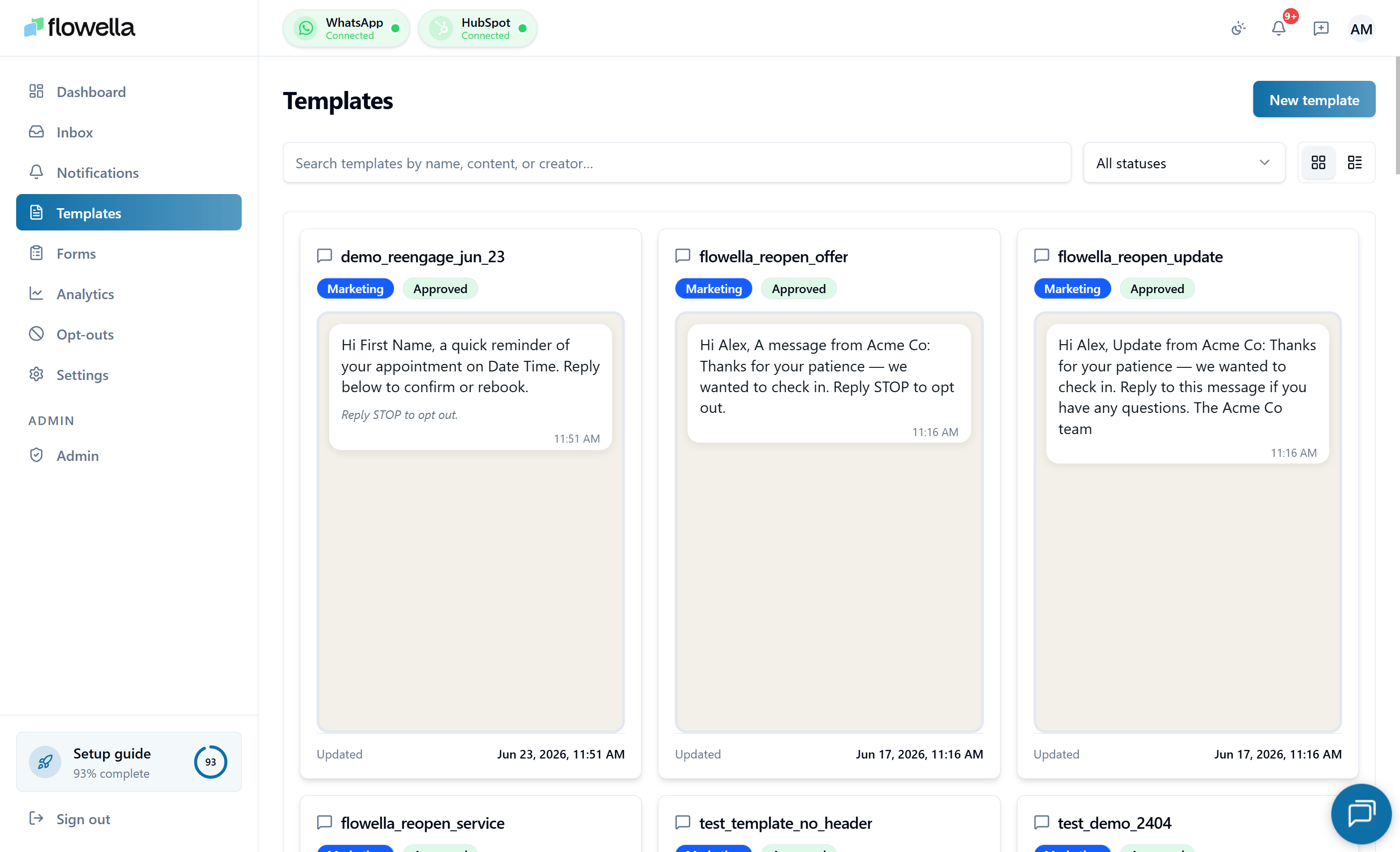 WhatsApp templates are pre-approved message formats that let you send structured messages to your contacts. They are essential for reaching people outside the 24-hour customer service window — for notifications, updates, reminders, and more. Templates can include rich media such as images and videos, dynamic text variables, and interactive buttons.
## What templates are and why they need Meta approval
Because WhatsApp templates are sent outside the standard conversation window, Meta reviews every template before it can be used. The approval process ensures messages meet WhatsApp's quality standards and business policies. Common rejection reasons include overly promotional language, misleading content, or poor grammar, so it pays to keep your copy clear and focused on genuine value for the recipient.
Once Meta approves a template, you can use it in Flowella workflows, automated flows, campaigns, and manual inbox sends. Any changes to a template's structure require resubmission — but dynamic variables let you personalise each message without additional approvals.
Approval is often near-instant. Meta runs an automated first-stage review that clears most templates within minutes, but anything routed for human review can take **up to 48 hours**. Submit ahead of time so a slower review never blocks a production send.
Looking for a quick reference on categories, header formats, button types, the `{{n}}` variable syntax, or the submission lifecycle? See [Template reference](/app/template-reference).
## Creating a template
Click **Templates** in the left sidebar.
This is the central location for all your WhatsApp message templates. From here you can view, edit, and track the approval status of every template your account has.
Click **New Template** to begin.
Before starting, have a clear idea of your template's purpose — order confirmation, appointment reminder, promotional message, and so on. A clear goal makes it easier to write copy that passes Meta's review.
Enter a descriptive name that reflects the template's purpose.
Use lowercase letters, numbers, and underscores only — for example, `order_confirmation` or `appointment_reminder`. Spaces and special characters are not allowed by Meta.
Optionally add an image or video as the template header to make your message more engaging.
Header media is optional but recommended. Images must be under 5 MB and videos under 10 MB. Videos should be under 60 seconds and open with an engaging frame.
Enter the main body text for your template. Keep it clear, concise, and relevant to your audience.
Use double curly braces to add dynamic variables — for example, `Hi {{1}}, your order {{2}} is ready for pickup!`. These are replaced with real contact data when Flowella sends the message.
Avoid overly promotional language. Meta's review looks for messages that provide clear value to the recipient.
Click **Add a button to your template** to include an interactive element.
Buttons give contacts a clear next step and increase engagement. You can add up to three buttons per template.
Choose the button type that fits your use case:
* **Call-to-action button** — directs users to a website or phone number.
* **Quick reply button** — lets users respond with predefined text.
* **URL button** — sends users to a specific web page.
You can mix button types on the same template. For example, combine a URL button labelled "View Order" with a quick reply button labelled "Contact Support".
Enter the action or destination for the button — for example, a phone number for a call button or a URL for a link button.
Enter the label that will appear on the button. Make it action-oriented and clear — for example, "Learn More", "Contact Us", or "Get Started".
Button text has a 25-character limit. Use short action verbs and make it obvious what happens when the button is tapped.
Click **Create Template** to save and submit your template.
Submitting the template sends it to Meta for review. This is often near-instant, as most templates clear Meta's automated review within minutes, though some are routed for human review and can take up to 48 hours.
During review, Meta checks for policy compliance. Ensure your template provides clear value to recipients and avoids promotional language that could lead to rejection.
Submitted templates land in the **Pending** state. Most clear Meta's automated review within minutes; some are routed for human review.
Meta tells you approval **may take up to 12 hours** and Flowella will **email you** as soon as the status changes. You don't need to keep refreshing the page.
Once Meta approves the template, you can use it in Flowella workflows, automated flows, the inbox, and bulk sends.
## Editor behaviour
The template editor is designed to never lose work.
* **Auto-save** — every change to the name, language, category, channel, or components saves after a \~1-second pause. A sticky footer action bar shows the current save state (**Saving…**, **Saved**, or **Unsaved changes**).
* **Publish is gated by save** — the **Publish** button stays disabled until the latest auto-save completes, so you can never submit a half-saved draft to Meta.
* **Body line breaks and footer spaces** are preserved across tab switches and saves — what you type is what Meta receives.
* **Quick Reply buttons start empty** with a placeholder. Saving or publishing a template with an empty Quick Reply text is blocked by inline validation (`BUTTON_TEXT_REQUIRED`).
* **Category dropdown** shows only the selected label when closed; opening it reveals Meta-aligned descriptions, a recategorisation note, and a link to the [Template reference](/app/template-reference).
## Testing a template
To test a template before using it with real contacts, open the template and switch to the **Send** tab.
From **Templates**, click the template you want to test, then select the **Send** tab.
Under **Test Template**, choose the **country code** and enter the WhatsApp number you can receive messages on.
The number must be in international format with the country code — for example, `+44123456789`.
Provide a value for each template variable. For **Coupon code** templates, enter the literal codes you want to send — the template's sample value is **placeholder only** and never used at send time.
Click **Send Test**.
You can send a test even while the template is still pending approval from Meta. Testing lets you see exactly how the message will appear to contacts before using it in production.
Open the message on your device and confirm the header media, body formatting, and buttons render correctly. Check on both iOS and Android if possible.
## Bulk send
The **Send** tab also lets you send an **APPROVED** template to many recipients in one job — useful for marketing announcements, batched reminders, or any structured outbound that doesn't fit in the inbox.
### Building the recipient list
The recipient list editor sits below **Test Template** in the Send tab.
* **Add rows manually** — one row per recipient, with a phone column and one column per template variable.
* **Import from CSV** — click **Import CSV** and pick a file. CSV file import is the only way to import recipients in bulk; pasting rows is not supported.
* **Download the sample CSV** — Flowella generates a starter file with the correct column headers for the selected template (phone + each variable). Use it as the basis for your own list.
* Remove rows with the row-level delete action.
Phone numbers must be in full international format (`+447700900000`). See [Phone number format](/hubspot/phone-number-format).
### Schedule and throttle
* **Schedule** — send immediately, or pick a future date and time.
* **Throttle** — choose how many messages per second Flowella dispatches to Meta. Throttle below your phone number's **messaging limit tier** to avoid spikes that hurt quality score. See [Messaging limits](/meta/messaging-limits).
### Watching the job run
Once you click **Start send**, the **Statistics** tab on the same template shows a live **progress banner** (delivered over an SSE stream) and **job summary tiles**: total queued, sent, delivered, read, failed, and **suppressed**.
The **Suppressed** state is used when Flowella drops a row because the same `(template, phone)` pair was already sent inside the **dedupe window**. This prevents accidental duplicates if you re-import a CSV or re-run a schedule.
You can leave the page — the job continues to run server-side and a notification fires when it completes.
### Per-send Details column
Every row in the **Statistics → Send log** has a **Details** column that explains the outcome in plain English instead of a Meta error code. The Details copy resolves the failure reason from `meta_webhook_logs` and the persisted delivery payload, so post-send Meta failures (for example, payment method **131042**) are surfaced just like pre-send job failures.
| Detail | What it means |
| ---------------------------- | ------------------------------------------------------------------------------------------------------------ |
| **Delivered** | Meta confirmed delivery. |
| **Invalid phone** | The recipient phone number isn't a valid WhatsApp number. |
| **Opted out** | The contact is on the opt-out list. |
| **Contact missing** | The phone wasn't resolvable to a Flowella contact at send time. |
| **Header media URL invalid** | The template has a media header whose sample URL can't be used for sends. Re-upload the media in the editor. |
| **Payment method (131042)** | Meta rejected the send because your WABA's payment method is invalid or has insufficient funds. |
| **Other Meta API error** | A non-deterministic Meta failure — re-send if the issue is transient. |
| **Unknown delivery failure** | Meta accepted the send but later reported it could not deliver. |
Status badges are localized to your account's UI language.
## Related
Categories, headers, buttons, variables, and the submission lifecycle.
Syntax, sample values, HubSpot mapping, and rejection traps.
What media formats and sizes WhatsApp accepts in template headers.
Common Meta rejection reasons and how to fix them.
How template category drives Meta's per-conversation pricing.
Send your approved templates from a HubSpot workflow.
WhatsApp templates are pre-approved message formats that let you send structured messages to your contacts. They are essential for reaching people outside the 24-hour customer service window — for notifications, updates, reminders, and more. Templates can include rich media such as images and videos, dynamic text variables, and interactive buttons.
## What templates are and why they need Meta approval
Because WhatsApp templates are sent outside the standard conversation window, Meta reviews every template before it can be used. The approval process ensures messages meet WhatsApp's quality standards and business policies. Common rejection reasons include overly promotional language, misleading content, or poor grammar, so it pays to keep your copy clear and focused on genuine value for the recipient.
Once Meta approves a template, you can use it in Flowella workflows, automated flows, campaigns, and manual inbox sends. Any changes to a template's structure require resubmission — but dynamic variables let you personalise each message without additional approvals.
Approval is often near-instant. Meta runs an automated first-stage review that clears most templates within minutes, but anything routed for human review can take **up to 48 hours**. Submit ahead of time so a slower review never blocks a production send.
Looking for a quick reference on categories, header formats, button types, the `{{n}}` variable syntax, or the submission lifecycle? See [Template reference](/app/template-reference).
## Creating a template
Click **Templates** in the left sidebar.
This is the central location for all your WhatsApp message templates. From here you can view, edit, and track the approval status of every template your account has.
Click **New Template** to begin.
Before starting, have a clear idea of your template's purpose — order confirmation, appointment reminder, promotional message, and so on. A clear goal makes it easier to write copy that passes Meta's review.
Enter a descriptive name that reflects the template's purpose.
Use lowercase letters, numbers, and underscores only — for example, `order_confirmation` or `appointment_reminder`. Spaces and special characters are not allowed by Meta.
Optionally add an image or video as the template header to make your message more engaging.
Header media is optional but recommended. Images must be under 5 MB and videos under 10 MB. Videos should be under 60 seconds and open with an engaging frame.
Enter the main body text for your template. Keep it clear, concise, and relevant to your audience.
Use double curly braces to add dynamic variables — for example, `Hi {{1}}, your order {{2}} is ready for pickup!`. These are replaced with real contact data when Flowella sends the message.
Avoid overly promotional language. Meta's review looks for messages that provide clear value to the recipient.
Click **Add a button to your template** to include an interactive element.
Buttons give contacts a clear next step and increase engagement. You can add up to three buttons per template.
Choose the button type that fits your use case:
* **Call-to-action button** — directs users to a website or phone number.
* **Quick reply button** — lets users respond with predefined text.
* **URL button** — sends users to a specific web page.
You can mix button types on the same template. For example, combine a URL button labelled "View Order" with a quick reply button labelled "Contact Support".
Enter the action or destination for the button — for example, a phone number for a call button or a URL for a link button.
Enter the label that will appear on the button. Make it action-oriented and clear — for example, "Learn More", "Contact Us", or "Get Started".
Button text has a 25-character limit. Use short action verbs and make it obvious what happens when the button is tapped.
Click **Create Template** to save and submit your template.
Submitting the template sends it to Meta for review. This is often near-instant, as most templates clear Meta's automated review within minutes, though some are routed for human review and can take up to 48 hours.
During review, Meta checks for policy compliance. Ensure your template provides clear value to recipients and avoids promotional language that could lead to rejection.
Submitted templates land in the **Pending** state. Most clear Meta's automated review within minutes; some are routed for human review.
Meta tells you approval **may take up to 12 hours** and Flowella will **email you** as soon as the status changes. You don't need to keep refreshing the page.
Once Meta approves the template, you can use it in Flowella workflows, automated flows, the inbox, and bulk sends.
## Editor behaviour
The template editor is designed to never lose work.
* **Auto-save** — every change to the name, language, category, channel, or components saves after a \~1-second pause. A sticky footer action bar shows the current save state (**Saving…**, **Saved**, or **Unsaved changes**).
* **Publish is gated by save** — the **Publish** button stays disabled until the latest auto-save completes, so you can never submit a half-saved draft to Meta.
* **Body line breaks and footer spaces** are preserved across tab switches and saves — what you type is what Meta receives.
* **Quick Reply buttons start empty** with a placeholder. Saving or publishing a template with an empty Quick Reply text is blocked by inline validation (`BUTTON_TEXT_REQUIRED`).
* **Category dropdown** shows only the selected label when closed; opening it reveals Meta-aligned descriptions, a recategorisation note, and a link to the [Template reference](/app/template-reference).
## Testing a template
To test a template before using it with real contacts, open the template and switch to the **Send** tab.
From **Templates**, click the template you want to test, then select the **Send** tab.
Under **Test Template**, choose the **country code** and enter the WhatsApp number you can receive messages on.
The number must be in international format with the country code — for example, `+44123456789`.
Provide a value for each template variable. For **Coupon code** templates, enter the literal codes you want to send — the template's sample value is **placeholder only** and never used at send time.
Click **Send Test**.
You can send a test even while the template is still pending approval from Meta. Testing lets you see exactly how the message will appear to contacts before using it in production.
Open the message on your device and confirm the header media, body formatting, and buttons render correctly. Check on both iOS and Android if possible.
## Bulk send
The **Send** tab also lets you send an **APPROVED** template to many recipients in one job — useful for marketing announcements, batched reminders, or any structured outbound that doesn't fit in the inbox.
### Building the recipient list
The recipient list editor sits below **Test Template** in the Send tab.
* **Add rows manually** — one row per recipient, with a phone column and one column per template variable.
* **Import from CSV** — click **Import CSV** and pick a file. CSV file import is the only way to import recipients in bulk; pasting rows is not supported.
* **Download the sample CSV** — Flowella generates a starter file with the correct column headers for the selected template (phone + each variable). Use it as the basis for your own list.
* Remove rows with the row-level delete action.
Phone numbers must be in full international format (`+447700900000`). See [Phone number format](/hubspot/phone-number-format).
### Schedule and throttle
* **Schedule** — send immediately, or pick a future date and time.
* **Throttle** — choose how many messages per second Flowella dispatches to Meta. Throttle below your phone number's **messaging limit tier** to avoid spikes that hurt quality score. See [Messaging limits](/meta/messaging-limits).
### Watching the job run
Once you click **Start send**, the **Statistics** tab on the same template shows a live **progress banner** (delivered over an SSE stream) and **job summary tiles**: total queued, sent, delivered, read, failed, and **suppressed**.
The **Suppressed** state is used when Flowella drops a row because the same `(template, phone)` pair was already sent inside the **dedupe window**. This prevents accidental duplicates if you re-import a CSV or re-run a schedule.
You can leave the page — the job continues to run server-side and a notification fires when it completes.
### Per-send Details column
Every row in the **Statistics → Send log** has a **Details** column that explains the outcome in plain English instead of a Meta error code. The Details copy resolves the failure reason from `meta_webhook_logs` and the persisted delivery payload, so post-send Meta failures (for example, payment method **131042**) are surfaced just like pre-send job failures.
| Detail | What it means |
| ---------------------------- | ------------------------------------------------------------------------------------------------------------ |
| **Delivered** | Meta confirmed delivery. |
| **Invalid phone** | The recipient phone number isn't a valid WhatsApp number. |
| **Opted out** | The contact is on the opt-out list. |
| **Contact missing** | The phone wasn't resolvable to a Flowella contact at send time. |
| **Header media URL invalid** | The template has a media header whose sample URL can't be used for sends. Re-upload the media in the editor. |
| **Payment method (131042)** | Meta rejected the send because your WABA's payment method is invalid or has insufficient funds. |
| **Other Meta API error** | A non-deterministic Meta failure — re-send if the issue is transient. |
| **Unknown delivery failure** | Meta accepted the send but later reported it could not deliver. |
Status badges are localized to your account's UI language.
## Related
Categories, headers, buttons, variables, and the submission lifecycle.
Syntax, sample values, HubSpot mapping, and rejection traps.
What media formats and sizes WhatsApp accepts in template headers.
Common Meta rejection reasons and how to fix them.
How template category drives Meta's per-conversation pricing.
Send your approved templates from a HubSpot workflow.