> ## Documentation Index
> Fetch the complete documentation index at: https://knowledge.flowella.io/llms.txt
> Use this file to discover all available pages before exploring further.
# Add a credit card to your WhatsApp Business Account on Meta
> Add a credit card to your WhatsApp Business account in Meta Business Suite and set it as the default payment method so WhatsApp delivery is never paused.
Meta charges your business directly for WhatsApp messages sent through the WhatsApp Business Platform. Those charges land on a credit card attached to your WhatsApp Business Account (WABA), not on your Flowella subscription. If the card is missing, declined, or sitting alongside a different card that is set as the Default, Meta will limit or block outbound business-initiated messages once you exhaust the free service tier.
This guide walks you through adding a credit card to your WABA in **Meta Business Suite**, then confirming the card is set as the **Default** payment method. Run through it once during onboarding, and again any time you change cards.
Flowella does not charge, store, or mark up this card. It sits with Meta and Meta invoices you against it directly. For your Flowella subscription card, see [Billing](/account/billing).
## Before you start
Make sure you have:
* **Full control of the business portfolio**, or the **Manage business finances** role on it. If you have a more limited role, you will not see Payment Settings on the WABA.
* **Manage WhatsApp Account** permission on the specific WABA you want to bill against. Ask the portfolio admin to grant this if the WABA does not appear in your list.
* A **Visa, Mastercard, or American Express** (region permitting) that is enabled for international and online transactions. Direct debit and most prepaid cards are not accepted.
* The card's **billing address** to hand, in the exact format your bank holds it.
Use a card with a generous limit and predictable settlement currency. Meta bills in the currency tied to your WABA, which cannot be changed after a payment method is attached, so pick the right currency the first time.
## Add the credit card
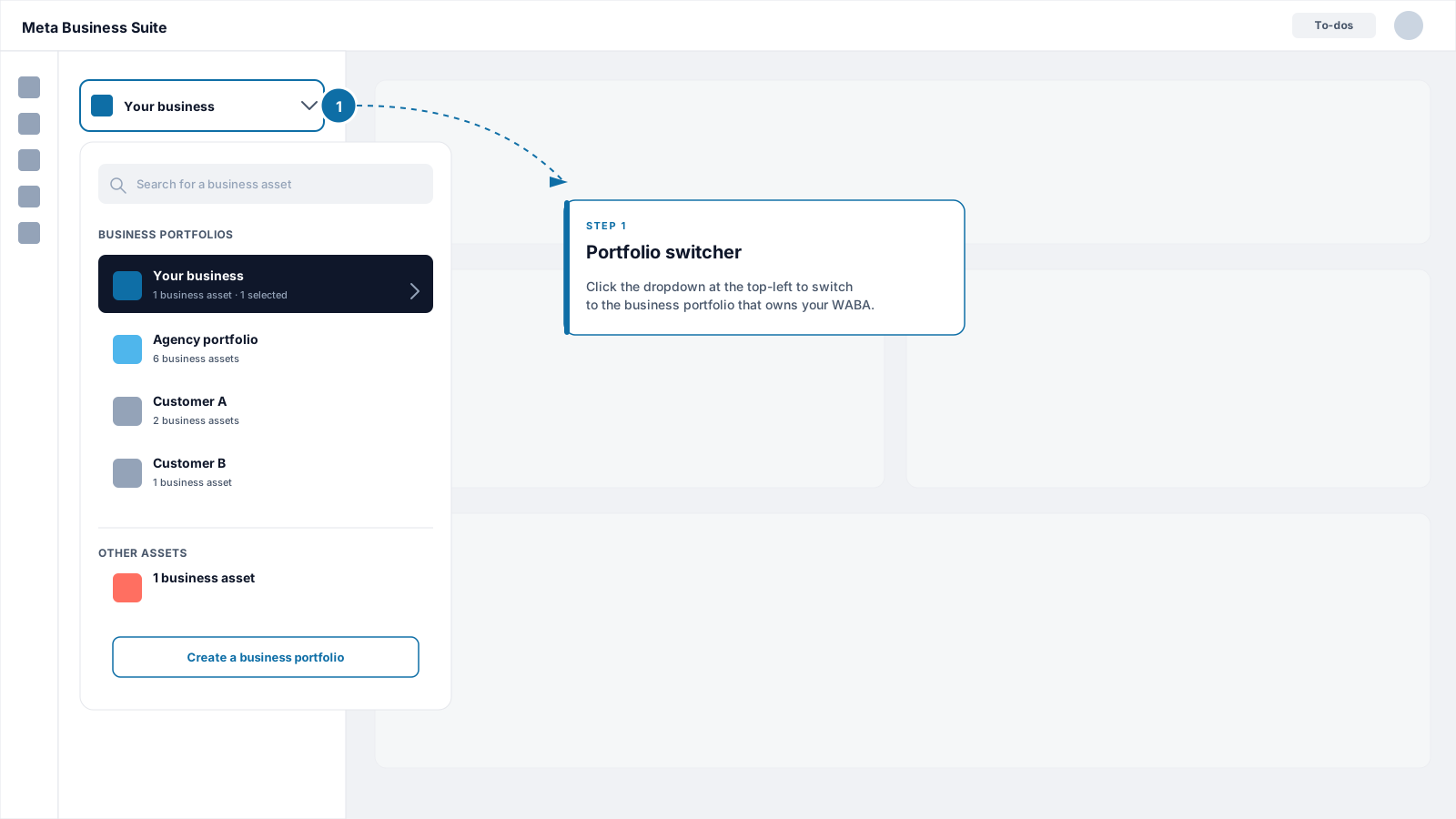
Sign in at [business.facebook.com](https://business.facebook.com) with the Facebook account that has admin access to your business portfolio. If you manage more than one portfolio, use the dropdown at the top left to switch to the portfolio that owns your WABA.
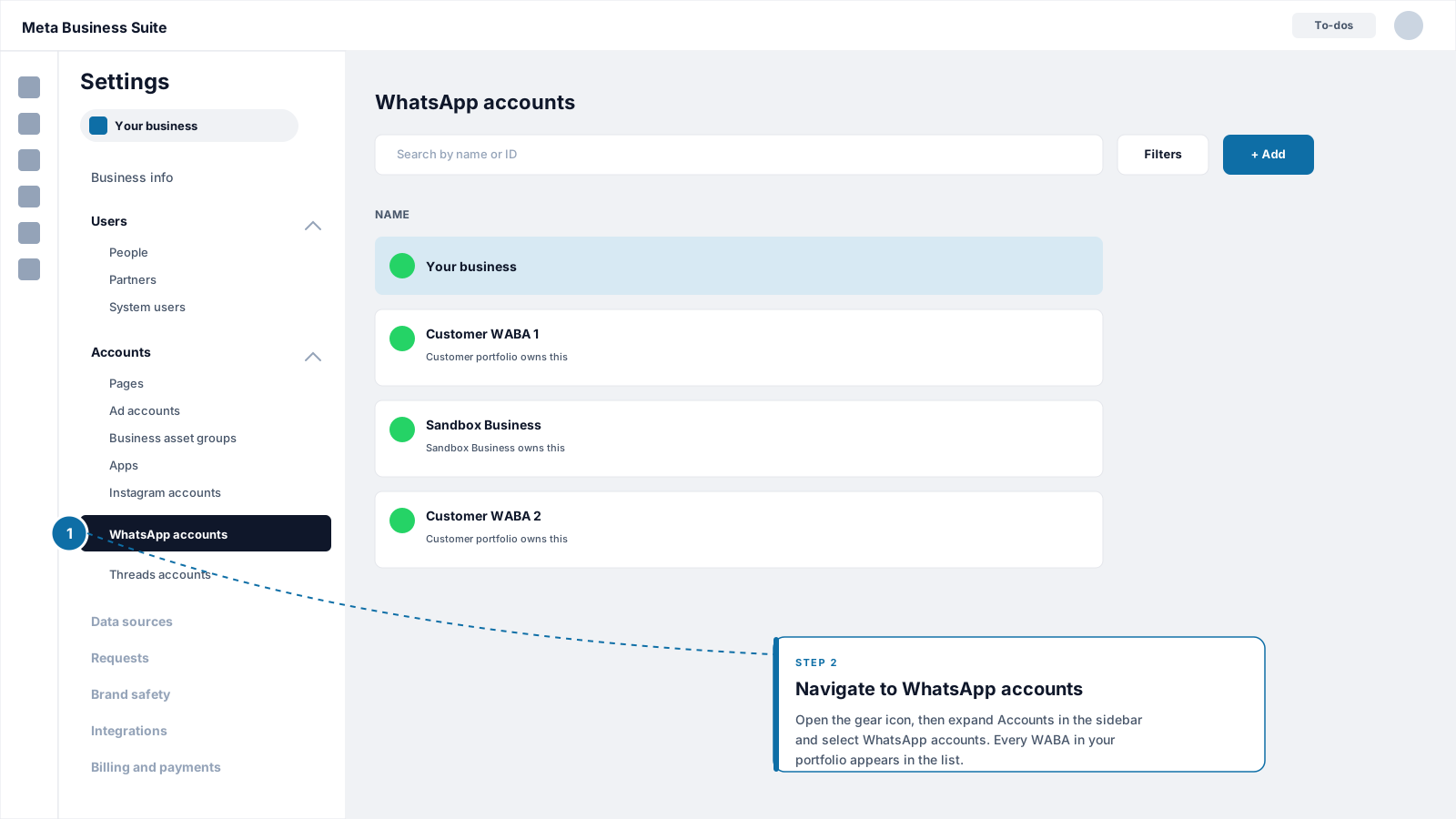
 Click the **gear icon** (Settings) in the left-hand navigation. Under **Accounts**, select **WhatsApp accounts**. You will see every WABA in this portfolio.
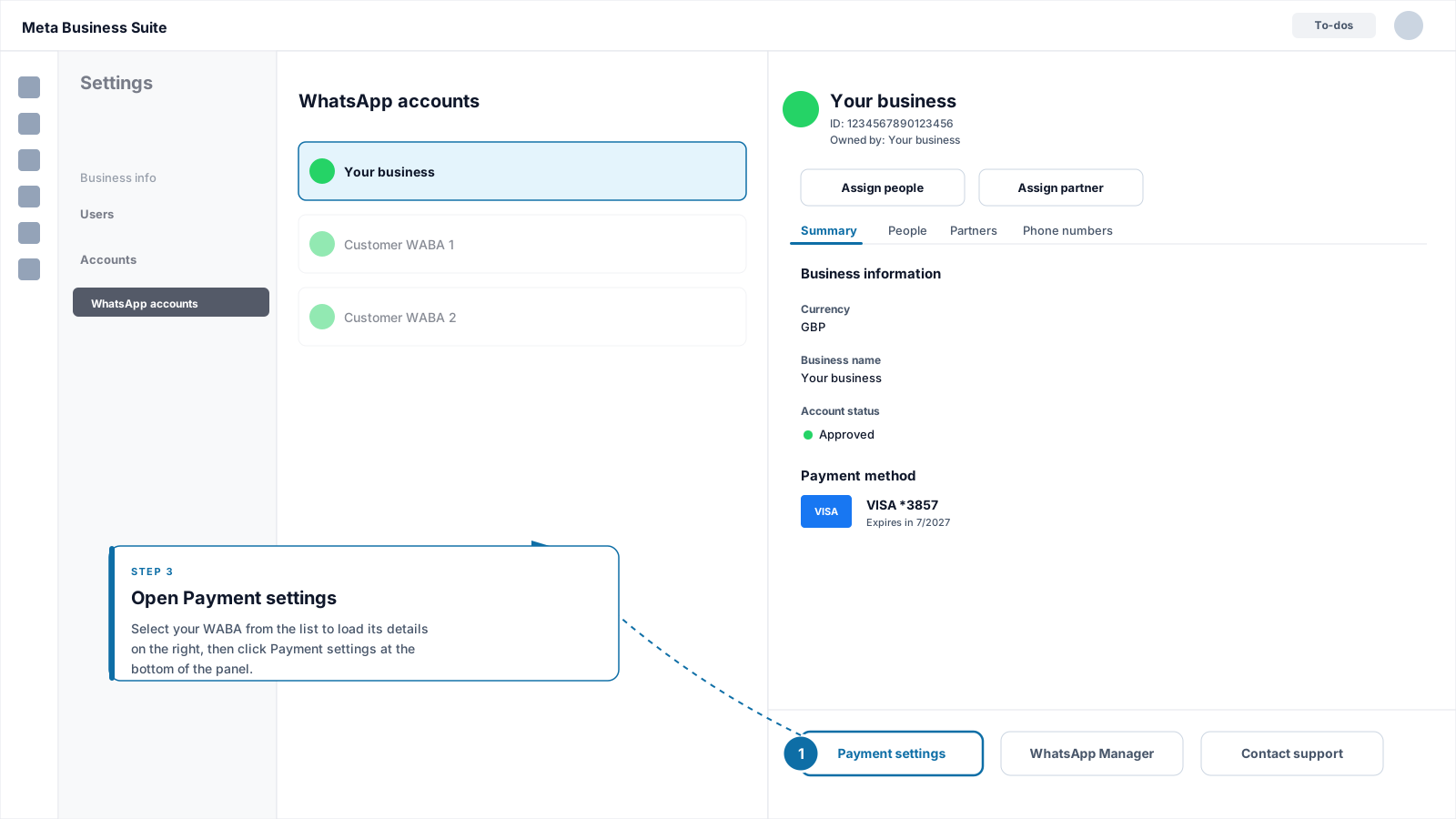
 Click the WABA you connected to Flowella. The details panel opens on the right. If you have multiple WABAs, pick the one whose phone numbers you actually send messages from.
In the WABA details view, click **Payment settings**. This jumps you to the billing screen for that specific WABA, separate from any advertising payment methods.
Click the WABA you connected to Flowella. The details panel opens on the right. If you have multiple WABAs, pick the one whose phone numbers you actually send messages from.
In the WABA details view, click **Payment settings**. This jumps you to the billing screen for that specific WABA, separate from any advertising payment methods.
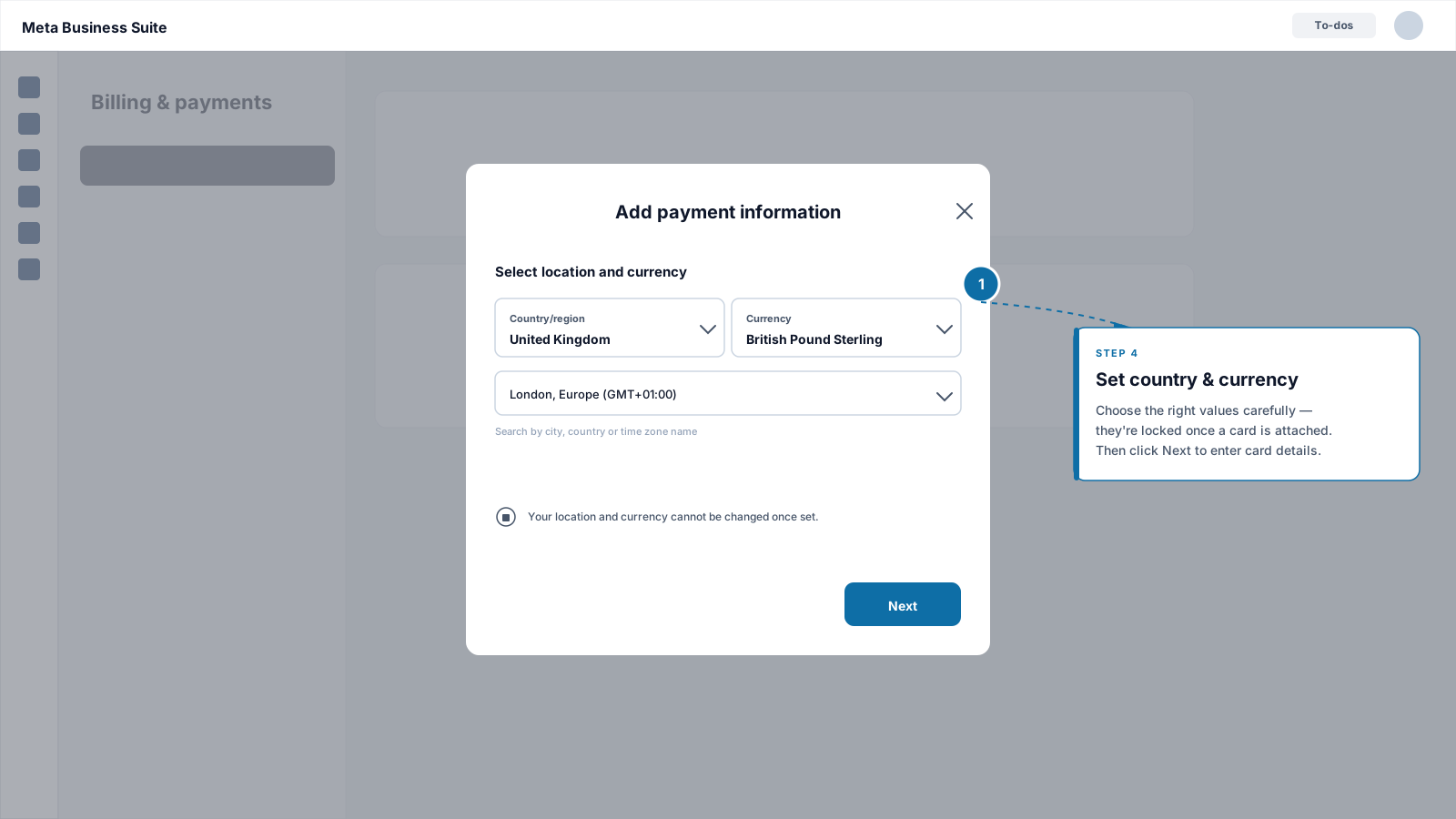
 Click **Add payment method**. In the dialog, set your **business country** and **currency**, then choose **Credit or debit card** as the payment type.
Country and currency are tied to the WABA and **cannot be edited once a payment method is attached**. Double-check both before you continue.
Click **Add payment method**. In the dialog, set your **business country** and **currency**, then choose **Credit or debit card** as the payment type.
Country and currency are tied to the WABA and **cannot be edited once a payment method is attached**. Double-check both before you continue.
 Fill in:
* Name on card (exactly as printed)
* 16-digit card number
* Expiry date (MM/YY)
* CVV / CVC
* Billing address (must match your bank's records)
Click **Save**. Meta runs a small authorisation charge against the card to verify it, which is automatically reversed.
Fill in:
* Name on card (exactly as printed)
* 16-digit card number
* Expiry date (MM/YY)
* CVV / CVC
* Billing address (must match your bank's records)
Click **Save**. Meta runs a small authorisation charge against the card to verify it, which is automatically reversed.
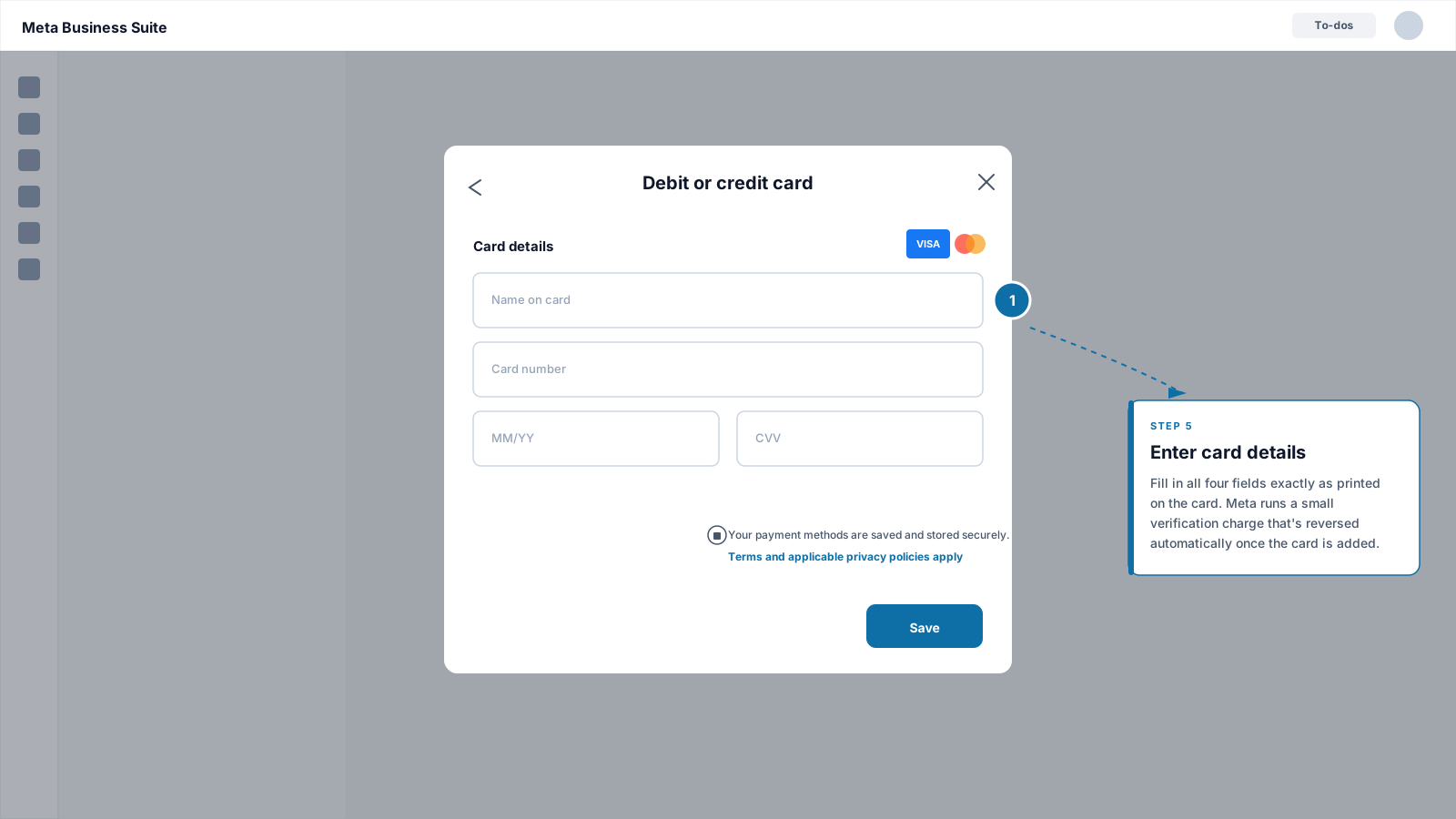 If your bank challenges the authorisation (3-D Secure, one-time passcode, or an in-app approval), complete the step on your phone or banking app. The Payment settings screen refreshes when verification succeeds.
The card is now attached to your WABA. The next section is the bit most people miss.
## Confirm the card is set as Default
Meta lets you attach multiple cards to a business portfolio. At the WABA (WhatsApp Business account) level, exactly one card carries the **Default** badge:
* **Default**: Meta charges this card for every WhatsApp invoice on this WABA.
* **No label**: other cards attached to your business portfolio that are not the Default. Meta does not charge these for WhatsApp; they only become active if you explicitly promote them.
If this is the first card you have ever attached to the WABA, Meta sets it as Default automatically. But if your portfolio already had a card on file (for ads, for example) and the new card has been added without the Default badge, **WhatsApp charges will continue to bill the existing Default**. That is exactly the trap behind "I added a card but my account still shows a payment warning."
Always verify the badge after you add the card.
From the same WABA Payment settings screen, scroll to **Payment methods**. Every card attached to this WABA is listed.
Look for a **Default** badge next to the card you just added.
* If it shows **Default**: you are done. Skip to [Verify the setup](#verify-the-setup).
* If it shows no badge: continue to the next step.
If your bank challenges the authorisation (3-D Secure, one-time passcode, or an in-app approval), complete the step on your phone or banking app. The Payment settings screen refreshes when verification succeeds.
The card is now attached to your WABA. The next section is the bit most people miss.
## Confirm the card is set as Default
Meta lets you attach multiple cards to a business portfolio. At the WABA (WhatsApp Business account) level, exactly one card carries the **Default** badge:
* **Default**: Meta charges this card for every WhatsApp invoice on this WABA.
* **No label**: other cards attached to your business portfolio that are not the Default. Meta does not charge these for WhatsApp; they only become active if you explicitly promote them.
If this is the first card you have ever attached to the WABA, Meta sets it as Default automatically. But if your portfolio already had a card on file (for ads, for example) and the new card has been added without the Default badge, **WhatsApp charges will continue to bill the existing Default**. That is exactly the trap behind "I added a card but my account still shows a payment warning."
Always verify the badge after you add the card.
From the same WABA Payment settings screen, scroll to **Payment methods**. Every card attached to this WABA is listed.
Look for a **Default** badge next to the card you just added.
* If it shows **Default**: you are done. Skip to [Verify the setup](#verify-the-setup).
* If it shows no badge: continue to the next step.
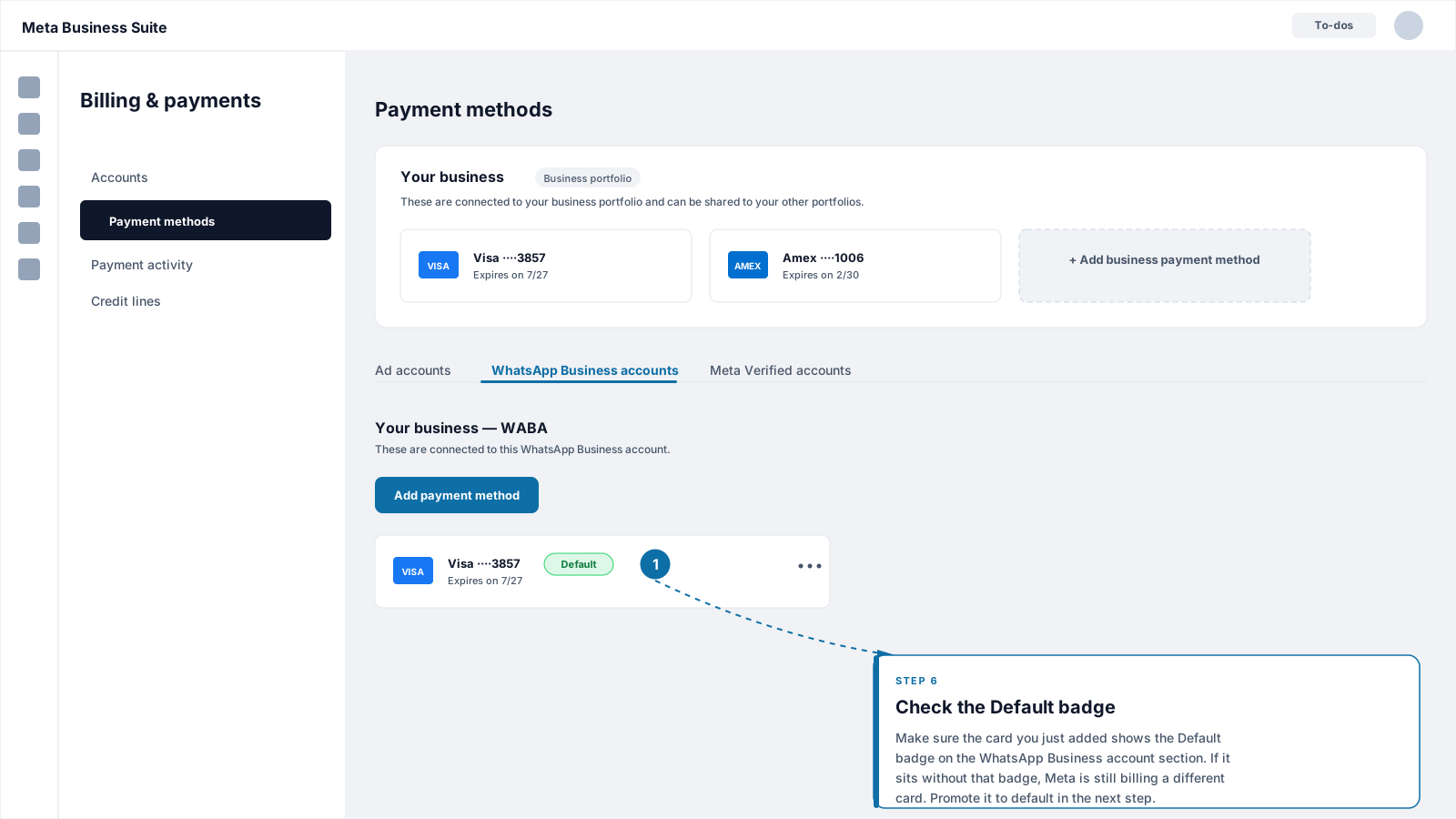 Click the **three-dot menu** (⋯) next to the new card and choose **Make default**. Confirm when prompted. The badge moves to the new card and the previous Default drops to an unlabeled state.
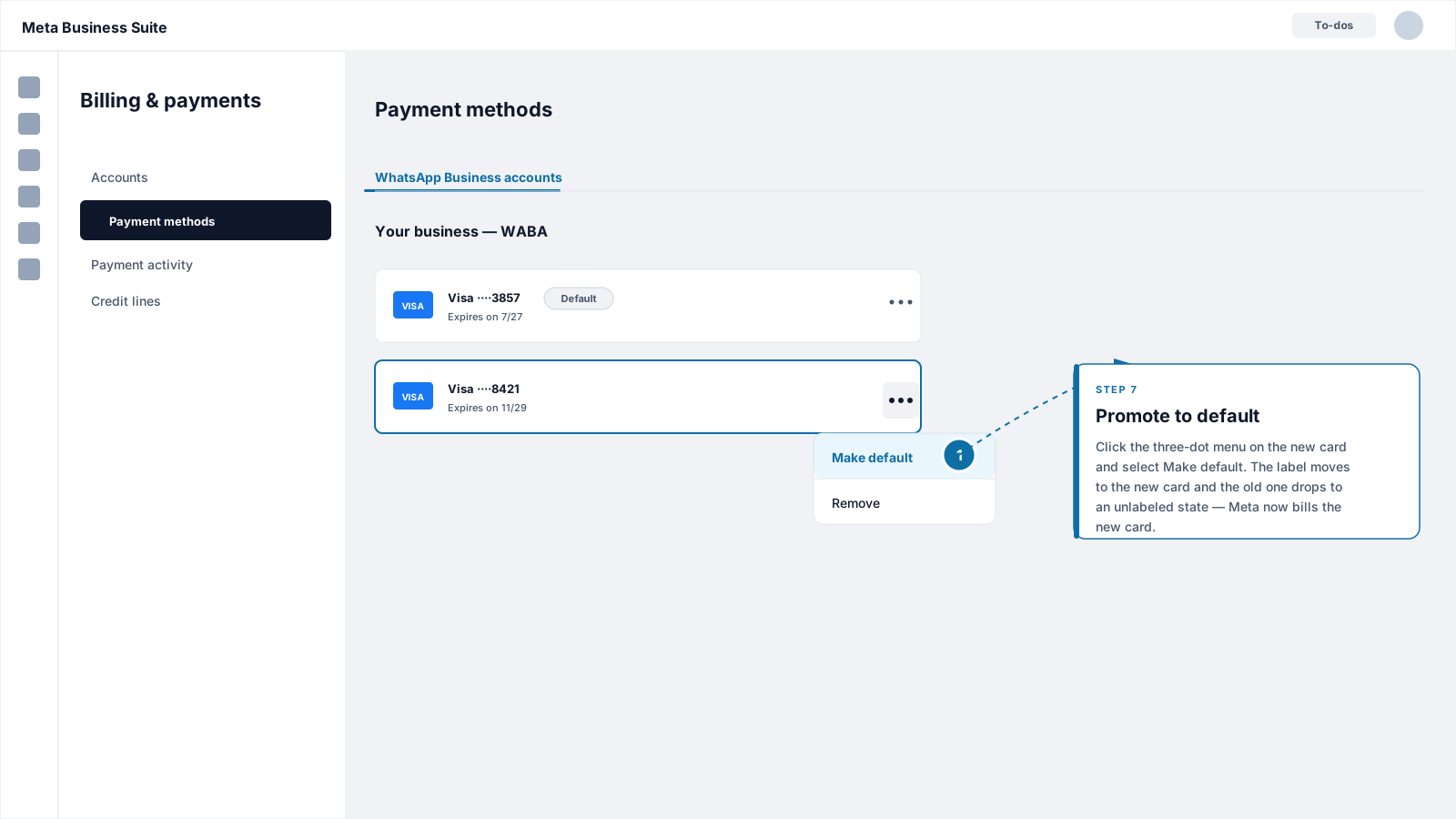 If the old card was a placeholder you no longer want, click its three-dot menu and choose **Remove**. Otherwise, leave it attached to the portfolio so Meta has something to fall back on if you ever need to swap it back in.
A card without the **Default** badge does **not** keep your WhatsApp Business Platform account in good standing on its own. Meta only charges the Default card on each WABA. If no card holds the Default badge, message limits and template approvals can be paused.
## Verify the setup
Before you close the tab, run through this quick checklist:
1. The Payment settings screen for the WABA shows **at least one card**, with the **Default** badge on your preferred card.
2. The WABA's **country and currency** match how you want to be invoiced.
3. No red banners or **Payment method needed** warnings appear on the WABA, in WhatsApp Manager, or in your Flowella dashboard.
Open Flowella's [Dashboard](/app/dashboard) and confirm the **Channels** section shows the WABA as healthy. If a payment-related warning was previously shown there, it should clear within a few minutes once Meta records the Default card.
## Updating or replacing the card later
Cards expire and sometimes get reissued. To swap the card without dropping billing:
1. Add the new card first using the steps above so it sits alongside the existing one.
2. **Promote the new card to Default** before removing the old one.
3. Only then remove the old card from **Payment settings → Payment methods**.
This order matters. If you remove the old card before promoting the new one, Meta can briefly leave the WABA with no Default card, which is what triggers the missing-payment-method warnings.
## Troubleshooting
Payment settings only appears for users with full control of the business portfolio or the **Manage business finances** role. Ask your portfolio admin to assign you that role on the portfolio that owns the WABA, then refresh the page.
Most decline reasons fall into one of three buckets:
* **International or online transactions are blocked** on the card. Turn these on in your banking app and retry.
* **Billing address mismatch.** The address must match what your bank holds on file, character for character.
* **3-D Secure not completed.** Check your banking app for an approval prompt and try again.
If it still stalls, try a different browser or a private window to rule out an extension blocking the authorisation step.
The most common cause is that the new card has been added to the portfolio but **does not carry the Default badge** on the WABA. Reopen **Payment settings → Payment methods** and confirm the **Default** badge is on the right card. If it isn't, follow the steps in [Confirm the card is set as Default](#confirm-the-card-is-set-as-default).
Other causes: the card was attached at the **business portfolio** level for ads rather than at the **WABA** level for WhatsApp, or the WABA shown in Meta is a different one to the WABA connected to Flowella. Open Flowella **Settings → Meta** and check the WABA name matches the one you just edited.
Country and currency are locked once a payment method is attached. If they are wrong, you usually need a new WABA in the correct country. Contact Flowella support before creating one so we can move your phone number across cleanly.
Credit lines are available to larger advertisers via Meta's monthly invoicing programme and need a separate application through your Meta representative. WhatsApp Business Platform charges can then be billed against the shared line of credit. For most Flowella customers a credit card is faster and simpler, especially at the start.
## What this card pays for
This payment method covers **Meta's WhatsApp Business Platform fees**: per-conversation or per-message charges set by Meta, varying by country and message category (marketing, utility, authentication, service). These are completely separate from your Flowella subscription, which is billed by Discover Digital via Stripe.
For a full breakdown of how Flowella subscription costs and Meta network fees sit alongside each other, see [Plans and limits](/account/plans-and-limits). For Flowella's own subscription card, see [Billing](/account/billing).
If you also run **Click-to-WhatsApp ads** from Facebook or Instagram, the ad spend is billed through your **ad account** payment method, not the WABA card you set up here. See [CTWA Ads](/campaigns/click-to-whatsapp-ads) for the full ad funnel setup.
If the old card was a placeholder you no longer want, click its three-dot menu and choose **Remove**. Otherwise, leave it attached to the portfolio so Meta has something to fall back on if you ever need to swap it back in.
A card without the **Default** badge does **not** keep your WhatsApp Business Platform account in good standing on its own. Meta only charges the Default card on each WABA. If no card holds the Default badge, message limits and template approvals can be paused.
## Verify the setup
Before you close the tab, run through this quick checklist:
1. The Payment settings screen for the WABA shows **at least one card**, with the **Default** badge on your preferred card.
2. The WABA's **country and currency** match how you want to be invoiced.
3. No red banners or **Payment method needed** warnings appear on the WABA, in WhatsApp Manager, or in your Flowella dashboard.
Open Flowella's [Dashboard](/app/dashboard) and confirm the **Channels** section shows the WABA as healthy. If a payment-related warning was previously shown there, it should clear within a few minutes once Meta records the Default card.
## Updating or replacing the card later
Cards expire and sometimes get reissued. To swap the card without dropping billing:
1. Add the new card first using the steps above so it sits alongside the existing one.
2. **Promote the new card to Default** before removing the old one.
3. Only then remove the old card from **Payment settings → Payment methods**.
This order matters. If you remove the old card before promoting the new one, Meta can briefly leave the WABA with no Default card, which is what triggers the missing-payment-method warnings.
## Troubleshooting
Payment settings only appears for users with full control of the business portfolio or the **Manage business finances** role. Ask your portfolio admin to assign you that role on the portfolio that owns the WABA, then refresh the page.
Most decline reasons fall into one of three buckets:
* **International or online transactions are blocked** on the card. Turn these on in your banking app and retry.
* **Billing address mismatch.** The address must match what your bank holds on file, character for character.
* **3-D Secure not completed.** Check your banking app for an approval prompt and try again.
If it still stalls, try a different browser or a private window to rule out an extension blocking the authorisation step.
The most common cause is that the new card has been added to the portfolio but **does not carry the Default badge** on the WABA. Reopen **Payment settings → Payment methods** and confirm the **Default** badge is on the right card. If it isn't, follow the steps in [Confirm the card is set as Default](#confirm-the-card-is-set-as-default).
Other causes: the card was attached at the **business portfolio** level for ads rather than at the **WABA** level for WhatsApp, or the WABA shown in Meta is a different one to the WABA connected to Flowella. Open Flowella **Settings → Meta** and check the WABA name matches the one you just edited.
Country and currency are locked once a payment method is attached. If they are wrong, you usually need a new WABA in the correct country. Contact Flowella support before creating one so we can move your phone number across cleanly.
Credit lines are available to larger advertisers via Meta's monthly invoicing programme and need a separate application through your Meta representative. WhatsApp Business Platform charges can then be billed against the shared line of credit. For most Flowella customers a credit card is faster and simpler, especially at the start.
## What this card pays for
This payment method covers **Meta's WhatsApp Business Platform fees**: per-conversation or per-message charges set by Meta, varying by country and message category (marketing, utility, authentication, service). These are completely separate from your Flowella subscription, which is billed by Discover Digital via Stripe.
For a full breakdown of how Flowella subscription costs and Meta network fees sit alongside each other, see [Plans and limits](/account/plans-and-limits). For Flowella's own subscription card, see [Billing](/account/billing).
If you also run **Click-to-WhatsApp ads** from Facebook or Instagram, the ad spend is billed through your **ad account** payment method, not the WABA card you set up here. See [CTWA Ads](/campaigns/click-to-whatsapp-ads) for the full ad funnel setup.