> ## Documentation Index
> Fetch the complete documentation index at: https://knowledge.flowella.io/llms.txt
> Use this file to discover all available pages before exploring further.
# Set up Flowella with the onboarding setup guide
> Use Flowella's auto-tracked onboarding checklist to connect Meta and HubSpot, configure your inbox, and launch your first WhatsApp send in 13 steps.
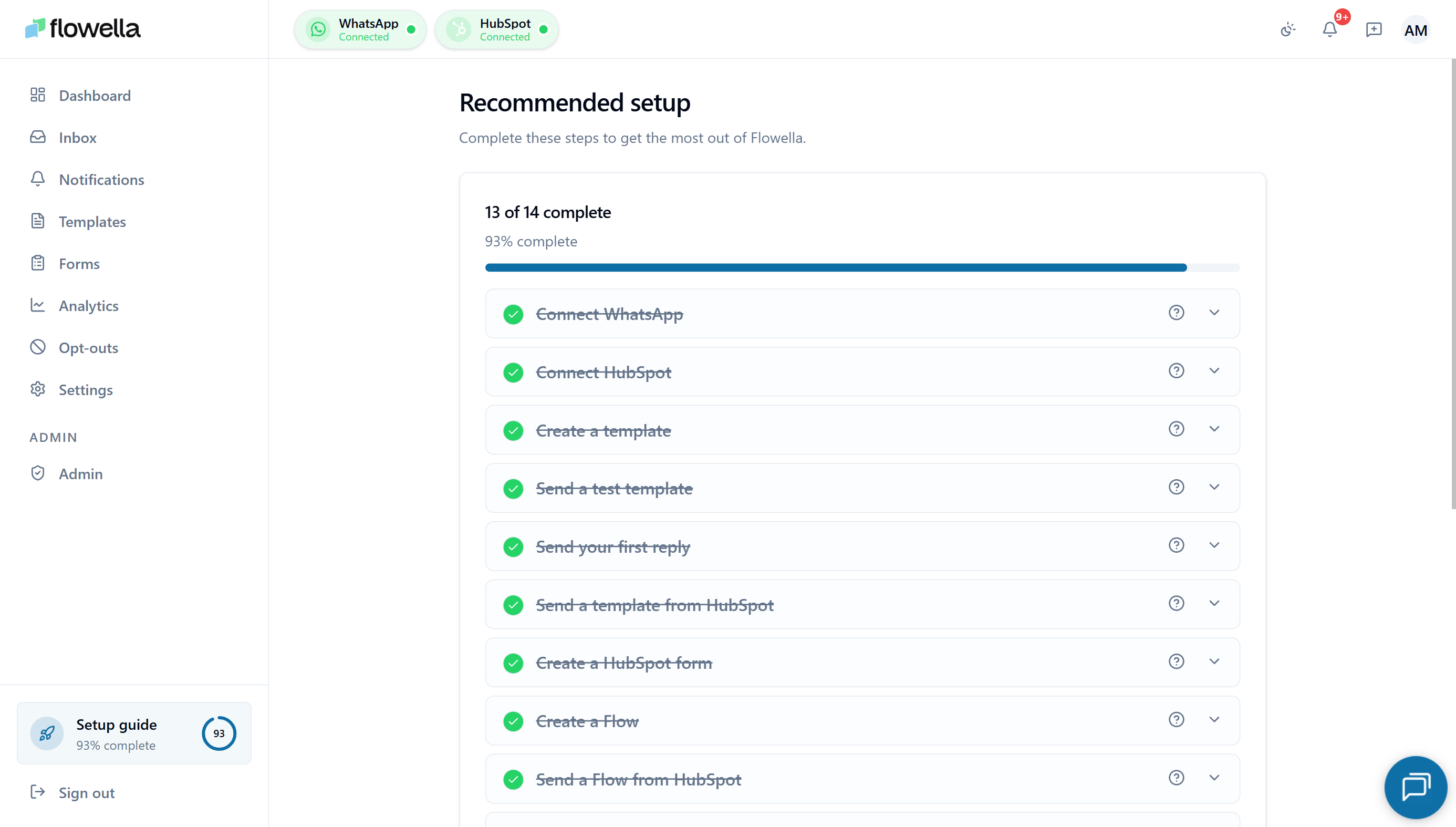 When you sign in to Flowella for the first time, you're sent straight to the **Setup guide** — a single page at `/{org}/onboarding` that tracks every action you need to complete before going live. The guide watches your org's state in the background and ticks off each step as you complete it, so you can leave at any time and return to exactly the right place.
You can re-open the setup guide at any time from the left-hand sidebar entry **Setup guide**.
## How the setup guide works
* **Auto-detected progress.** Every step has a check that runs against your account — connect a WABA, add a payment method, install the HubSpot app, and the step turns green on its own. No "Mark as complete" buttons.
* **First-sign-in redirect.** New sign-ins land on the setup guide automatically until every required step is done.
* **Progress bar.** A live counter at the top shows how many of the 13 steps you've cleared.
* **Continue later.** Click **Continue later** at any point to return to the dashboard — your progress stays exactly where it was.
* **Per-step help.** Each step has a help tooltip that links straight to the matching knowledge-base page. If a step turns red, the tooltip explains why.
* **Completion celebration.** A confetti animation fires when the last step turns green, and the sidebar entry drops off automatically once you're fully onboarded.
The setup guide is **org-wide**, not per-user. Any admin can pick up where another admin left off — useful when WhatsApp setup and HubSpot setup are owned by different people.
## The 13 steps
The guide groups steps under three headers: **Connect**, **Configure**, and **Launch**. Each one links to a focused page in the knowledge base if you need more detail.
### Connect
Sign up at [app.flowella.io](https://app.flowella.io/). This step is already complete by the time you see the guide.
Click **Connect WhatsApp Business** to launch Meta's Embedded Signup. Choose or create your business portfolio, WABA, and phone number, and confirm Flowella's permissions. See [Setup sequence](/meta/setup-sequence).
Add a Visa, Mastercard, or Amex to your WABA and confirm it carries the **Default** badge. Meta — not Flowella — bills WhatsApp conversation charges to this card. See [Meta payment method](/meta/payment-method).
Run the HubSpot OAuth flow to link your portal. Flowella confirms with **Connected to HubSpot** and your Portal ID. See [HubSpot setup](/hubspot/setup).
Install Flowella from the HubSpot marketplace so the workflow actions, contact properties, and timeline events become available in your portal.
Add the **Flowella Channel** to HubSpot's conversations inbox so WhatsApp threads land alongside email, chat, and calls. Inbound WhatsApp is published to the channel, and outbound replies from the HubSpot inbox are relayed back to WhatsApp. See [Custom channel](/hubspot/custom-channel).
### Configure
Add the rest of your team under **Settings → Team** with the right role (Owner, Admin, or Member). See [Team](/settings/team).
Confirm the organisation name, business email, and content/export language under **Settings → Organization**. See [Organization](/settings/organization).
Flowella auto-provisions three reopen templates — Service, Update, and Offer — used by Smart Reply and the **Send WhatsApp Reply** workflow action. Review the wording and confirm at least one is **Approved** and enabled. See [Reply templates](/settings/reply-templates).
Build a Meta-approved WhatsApp template. The guide's CTA deep-links straight into the **Meta Library** gallery, where you can search Meta's prebuilt utility templates and tick several at once to create them as local drafts in one click. From there, edit, personalise, and publish. The step ticks off as soon as one template reaches the **APPROVED** state.
You can also switch to the **Flowella Templates** tab for curated starters, or start from a blank editor. See [Templates](/app/templates).
### Launch
From **Templates → your template → Send tab → Test Template**, send a test to your own number to confirm everything renders correctly.
Wire your template into a HubSpot workflow with the **Send WhatsApp Template** or **Send WhatsApp Reply** action. See [Workflow actions](/hubspot/workflow-actions).
Trigger a workflow against a real contact, or run a bulk send from the Send tab. The guide marks itself complete once the first non-test outbound message is delivered.
## What happens after completion
* The **Setup guide** entry disappears from the sidebar.
* The next sign-in goes straight to the dashboard.
* You can still re-open the guide from the in-app search at any time — every step continues to reflect live state, so it doubles as a health check if anything later changes (for example, the Meta payment method is removed).
* An **optional re-engagement tip** appears once, alongside the completed guide. Flowella auto-provisions a re-engagement template for closed WhatsApp windows, so no extra setup step is required — the tip just points you to the one-tap **Re-engage** action in the [Inbox](/app/inbox) for when a chat window has closed. Dismiss it with **Got it** and it won't come back.
## What's next
Build, test, and bulk-send Meta-approved WhatsApp templates.
Triggers and actions that wire WhatsApp into HubSpot workflows.
Open/Unseen + All/Pending tabs, Smart Reply, typing indicators.
Service / Update / Offer reopen templates and how they're managed.
Bring WhatsApp into the HubSpot conversations inbox.
Meta permissions, payment method, and HubSpot install issues.
When you sign in to Flowella for the first time, you're sent straight to the **Setup guide** — a single page at `/{org}/onboarding` that tracks every action you need to complete before going live. The guide watches your org's state in the background and ticks off each step as you complete it, so you can leave at any time and return to exactly the right place.
You can re-open the setup guide at any time from the left-hand sidebar entry **Setup guide**.
## How the setup guide works
* **Auto-detected progress.** Every step has a check that runs against your account — connect a WABA, add a payment method, install the HubSpot app, and the step turns green on its own. No "Mark as complete" buttons.
* **First-sign-in redirect.** New sign-ins land on the setup guide automatically until every required step is done.
* **Progress bar.** A live counter at the top shows how many of the 13 steps you've cleared.
* **Continue later.** Click **Continue later** at any point to return to the dashboard — your progress stays exactly where it was.
* **Per-step help.** Each step has a help tooltip that links straight to the matching knowledge-base page. If a step turns red, the tooltip explains why.
* **Completion celebration.** A confetti animation fires when the last step turns green, and the sidebar entry drops off automatically once you're fully onboarded.
The setup guide is **org-wide**, not per-user. Any admin can pick up where another admin left off — useful when WhatsApp setup and HubSpot setup are owned by different people.
## The 13 steps
The guide groups steps under three headers: **Connect**, **Configure**, and **Launch**. Each one links to a focused page in the knowledge base if you need more detail.
### Connect
Sign up at [app.flowella.io](https://app.flowella.io/). This step is already complete by the time you see the guide.
Click **Connect WhatsApp Business** to launch Meta's Embedded Signup. Choose or create your business portfolio, WABA, and phone number, and confirm Flowella's permissions. See [Setup sequence](/meta/setup-sequence).
Add a Visa, Mastercard, or Amex to your WABA and confirm it carries the **Default** badge. Meta — not Flowella — bills WhatsApp conversation charges to this card. See [Meta payment method](/meta/payment-method).
Run the HubSpot OAuth flow to link your portal. Flowella confirms with **Connected to HubSpot** and your Portal ID. See [HubSpot setup](/hubspot/setup).
Install Flowella from the HubSpot marketplace so the workflow actions, contact properties, and timeline events become available in your portal.
Add the **Flowella Channel** to HubSpot's conversations inbox so WhatsApp threads land alongside email, chat, and calls. Inbound WhatsApp is published to the channel, and outbound replies from the HubSpot inbox are relayed back to WhatsApp. See [Custom channel](/hubspot/custom-channel).
### Configure
Add the rest of your team under **Settings → Team** with the right role (Owner, Admin, or Member). See [Team](/settings/team).
Confirm the organisation name, business email, and content/export language under **Settings → Organization**. See [Organization](/settings/organization).
Flowella auto-provisions three reopen templates — Service, Update, and Offer — used by Smart Reply and the **Send WhatsApp Reply** workflow action. Review the wording and confirm at least one is **Approved** and enabled. See [Reply templates](/settings/reply-templates).
Build a Meta-approved WhatsApp template. The guide's CTA deep-links straight into the **Meta Library** gallery, where you can search Meta's prebuilt utility templates and tick several at once to create them as local drafts in one click. From there, edit, personalise, and publish. The step ticks off as soon as one template reaches the **APPROVED** state.
You can also switch to the **Flowella Templates** tab for curated starters, or start from a blank editor. See [Templates](/app/templates).
### Launch
From **Templates → your template → Send tab → Test Template**, send a test to your own number to confirm everything renders correctly.
Wire your template into a HubSpot workflow with the **Send WhatsApp Template** or **Send WhatsApp Reply** action. See [Workflow actions](/hubspot/workflow-actions).
Trigger a workflow against a real contact, or run a bulk send from the Send tab. The guide marks itself complete once the first non-test outbound message is delivered.
## What happens after completion
* The **Setup guide** entry disappears from the sidebar.
* The next sign-in goes straight to the dashboard.
* You can still re-open the guide from the in-app search at any time — every step continues to reflect live state, so it doubles as a health check if anything later changes (for example, the Meta payment method is removed).
* An **optional re-engagement tip** appears once, alongside the completed guide. Flowella auto-provisions a re-engagement template for closed WhatsApp windows, so no extra setup step is required — the tip just points you to the one-tap **Re-engage** action in the [Inbox](/app/inbox) for when a chat window has closed. Dismiss it with **Got it** and it won't come back.
## What's next
Build, test, and bulk-send Meta-approved WhatsApp templates.
Triggers and actions that wire WhatsApp into HubSpot workflows.
Open/Unseen + All/Pending tabs, Smart Reply, typing indicators.
Service / Update / Offer reopen templates and how they're managed.
Bring WhatsApp into the HubSpot conversations inbox.
Meta permissions, payment method, and HubSpot install issues.