> ## Documentation Index
> Fetch the complete documentation index at: https://knowledge.flowella.io/llms.txt
> Use this file to discover all available pages before exploring further.
# Account security: passwords, passkeys, and sessions
> Manage sign-in security for your Flowella account: passwords, passkeys, backup sign-in methods, active sessions, and signing out of every device at once.
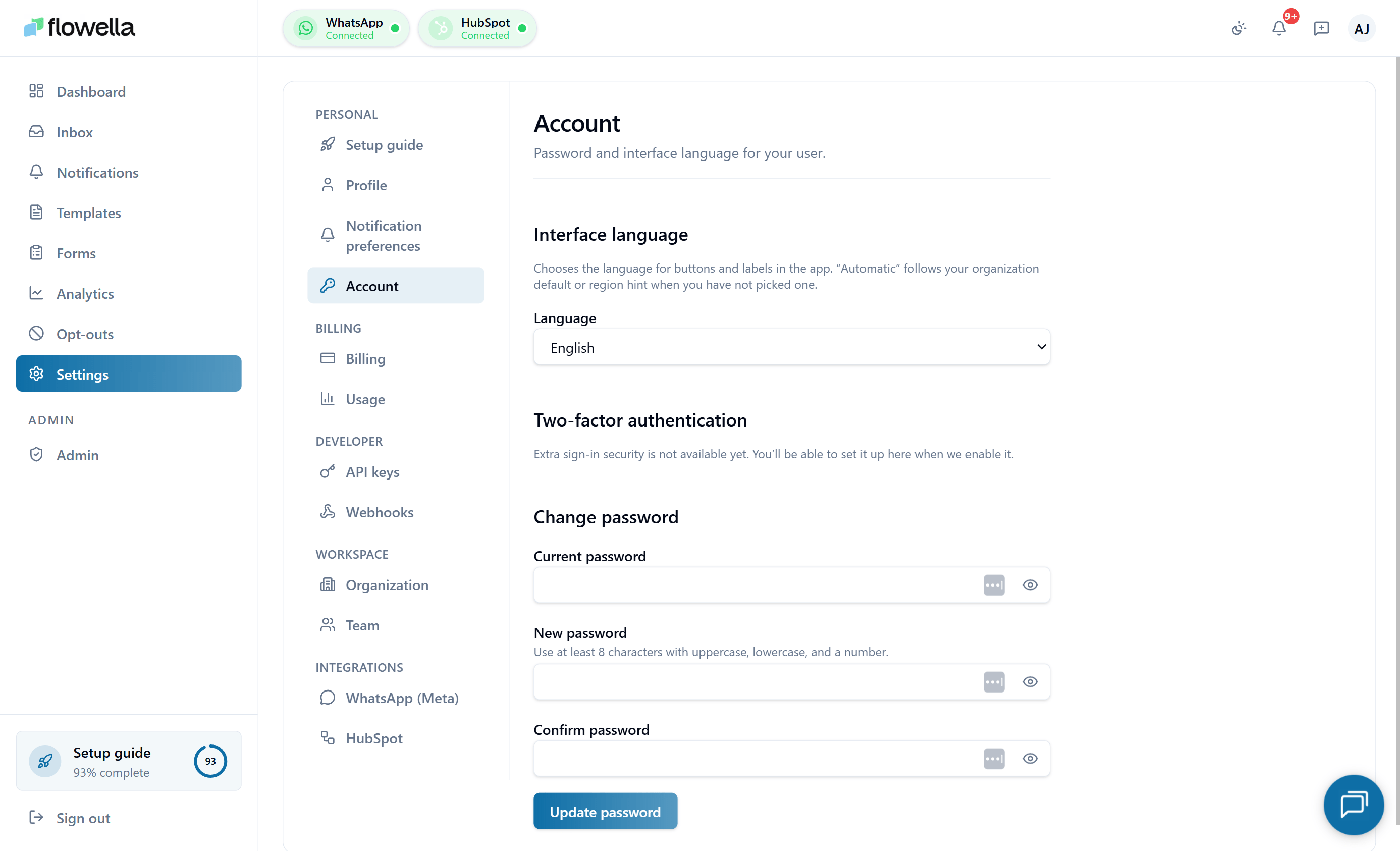 The **Settings → Account** screen is where you manage the security side of your Flowella user — how you sign in, your backup sign-in methods, and signed-in sessions. It is separate from your [Profile](/settings/profile) (name, avatar, locale) and from organization-level settings.
If you signed up using a magic link or SSO, Flowella may show a banner that reads:
> You are signed in without a password. Add one for backup sign-in.
That banner links here. Adding a password or passkey gives you a backup way in if email delivery is delayed or you lose access to the original sign-in method.
## Opening Settings → Account
From the left navigation click **Settings**, then choose **Account** under the **Personal** section of the settings sidebar.
## Sign-in methods
Flowella supports three ways to sign in. You can have more than one active at a time — they're cumulative, not exclusive.
### Magic link (default)
Flowella emails a one-time sign-in link when you enter your email on the login page. The link is valid for a short window and can only be used once.
Magic link is always available — you cannot disable it. For full details, see [Logging in to Flowella](/account/login).
### Password
Click **Set password** (or **Change password** if one already exists) to manage a password for your account.
**Password requirements**
* At least 12 characters.
* A mix of letter cases and at least one number or symbol.
* Cannot match your last 5 passwords.
After a successful password change, Flowella signs out all other sessions on your account and sends an `AUTH_PASSWORD_CHANGED` notification to your email.
If you signed up via magic link and have never set a password, the button reads **Set password** instead of **Change password**. This is the recommended backup sign-in method.
### Passkeys
If passkeys are available for your account, you'll see a **Passkeys** section listing devices that have a registered passkey, with the option to register a new one or remove an existing one.
Passkeys use your device's biometric or hardware authentication (Touch ID, Face ID, Windows Hello, hardware security key) so you don't need to type a password or wait for a magic link.
## Active sessions
The **Active sessions** panel lists every device currently signed in to your account, with:
* Device and browser fingerprint
* IP address (truncated)
* Last activity timestamp
* A **Sign out** action
Sign out individual sessions if you see one you don't recognise. **Sign out of all sessions** revokes every session except the one you're using.
If you suspect a session you don't recognise, sign out of it, change your password, and contact support so we can audit the account.
## Email address
Your email is the primary identifier for your Flowella account and the address the magic link is sent to.
Your email address is **not changeable** from this screen — contact support if you need to change it, so we can verify the new address and migrate any pending invites.
## Deleting your account
To delete your Flowella user account, contact support. Account deletion is separate from removing yourself from an organization — see [Team](/settings/team) for the workspace-level action.
## Related
Password reset, magic link mechanics, and the bot-protection check.
Display name, avatar, phone number, and UI locale.
Choose which events deliver to email and the in-app feed.
Workspace-level membership and roles.
The **Settings → Account** screen is where you manage the security side of your Flowella user — how you sign in, your backup sign-in methods, and signed-in sessions. It is separate from your [Profile](/settings/profile) (name, avatar, locale) and from organization-level settings.
If you signed up using a magic link or SSO, Flowella may show a banner that reads:
> You are signed in without a password. Add one for backup sign-in.
That banner links here. Adding a password or passkey gives you a backup way in if email delivery is delayed or you lose access to the original sign-in method.
## Opening Settings → Account
From the left navigation click **Settings**, then choose **Account** under the **Personal** section of the settings sidebar.
## Sign-in methods
Flowella supports three ways to sign in. You can have more than one active at a time — they're cumulative, not exclusive.
### Magic link (default)
Flowella emails a one-time sign-in link when you enter your email on the login page. The link is valid for a short window and can only be used once.
Magic link is always available — you cannot disable it. For full details, see [Logging in to Flowella](/account/login).
### Password
Click **Set password** (or **Change password** if one already exists) to manage a password for your account.
**Password requirements**
* At least 12 characters.
* A mix of letter cases and at least one number or symbol.
* Cannot match your last 5 passwords.
After a successful password change, Flowella signs out all other sessions on your account and sends an `AUTH_PASSWORD_CHANGED` notification to your email.
If you signed up via magic link and have never set a password, the button reads **Set password** instead of **Change password**. This is the recommended backup sign-in method.
### Passkeys
If passkeys are available for your account, you'll see a **Passkeys** section listing devices that have a registered passkey, with the option to register a new one or remove an existing one.
Passkeys use your device's biometric or hardware authentication (Touch ID, Face ID, Windows Hello, hardware security key) so you don't need to type a password or wait for a magic link.
## Active sessions
The **Active sessions** panel lists every device currently signed in to your account, with:
* Device and browser fingerprint
* IP address (truncated)
* Last activity timestamp
* A **Sign out** action
Sign out individual sessions if you see one you don't recognise. **Sign out of all sessions** revokes every session except the one you're using.
If you suspect a session you don't recognise, sign out of it, change your password, and contact support so we can audit the account.
## Email address
Your email is the primary identifier for your Flowella account and the address the magic link is sent to.
Your email address is **not changeable** from this screen — contact support if you need to change it, so we can verify the new address and migrate any pending invites.
## Deleting your account
To delete your Flowella user account, contact support. Account deletion is separate from removing yourself from an organization — see [Team](/settings/team) for the workspace-level action.
## Related
Password reset, magic link mechanics, and the bot-protection check.
Display name, avatar, phone number, and UI locale.
Choose which events deliver to email and the in-app feed.
Workspace-level membership and roles.