> ## Documentation Index
> Fetch the complete documentation index at: https://knowledge.flowella.io/llms.txt
> Use this file to discover all available pages before exploring further.
# Notification preferences
> Choose which Flowella events deliver to your in-app feed and email inbox, manage digests, and review which alerts are mandatory for security and billing.
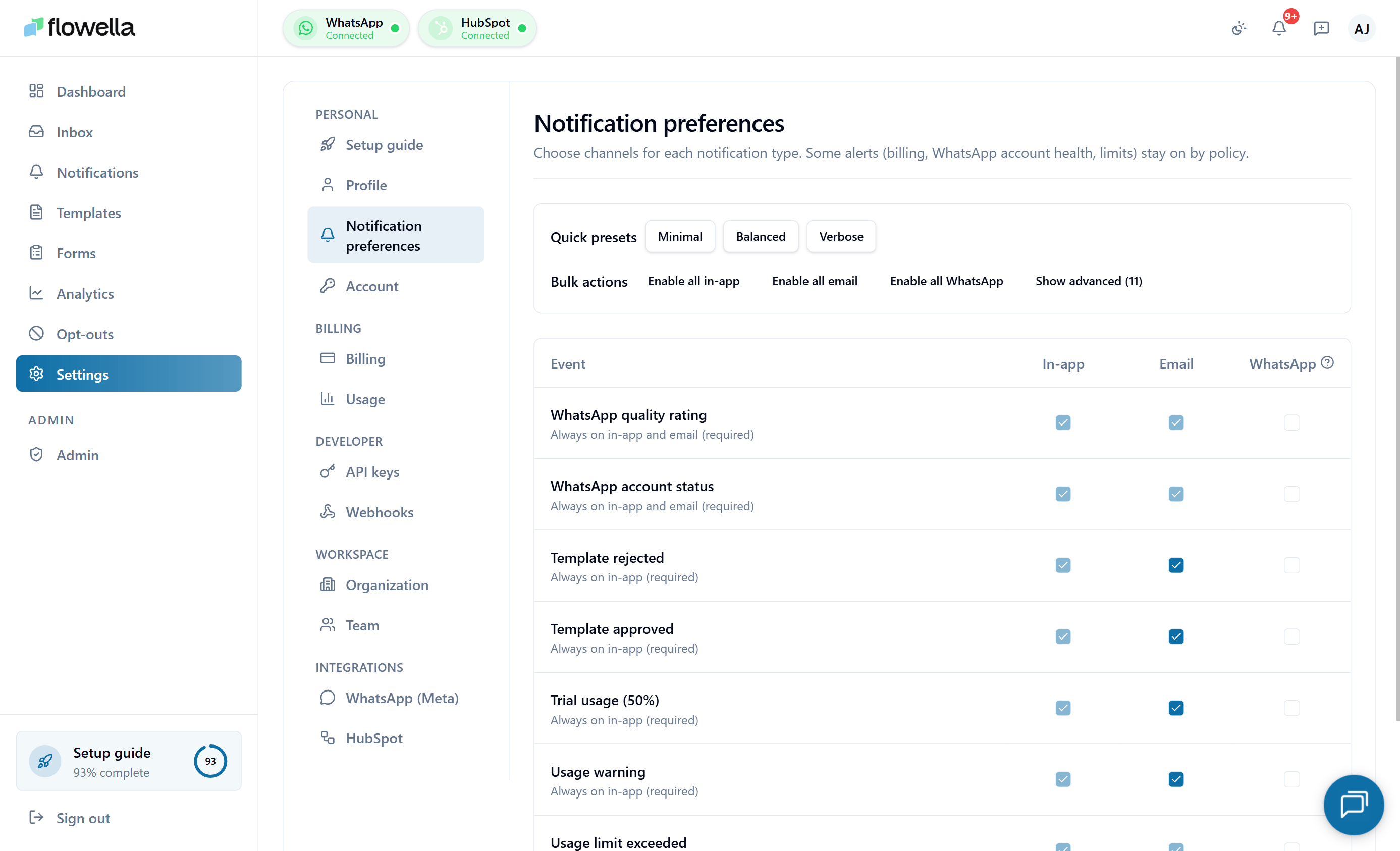 Notification preferences let you tune which Flowella events show up in your in-app feed and which arrive by email. Preferences are **per-user**, not per-organisation — each user manages their own.
For the full list of events Flowella can emit, see [Notification events](/app/notification-events). For the in-app feed itself, see [Notifications](/app/notifications).
## Opening Settings → Notification preferences
From the left navigation, go to **Settings → Notifications**.
## How preferences are structured
Preferences are grouped by **category**.
Sign-in, password changes, new-device alerts.
Invoices, trial lifecycle, usage thresholds.
Submission, approval, rejection, re-categorisation.
Sync results, publish events.
Connection state, sync failures.
Channel connections, verification, quality drops.
Long-running job completion.
Inside each category, every event has two toggles:
* **In-app** — shows in the bell icon feed at `/notifications`.
* **Email** — sends to your verified profile email.
Toggle each independently. Changes save automatically.
## Mandatory categories
Some categories cannot be disabled. The toggles are still shown so you can see they exist, but they're greyed out with an explanation.
| Category | Why it's mandatory |
| -------------------------------------------------------------------------------------- | ----------------------------------------------------------------------------------------------- |
| Authentication (`AUTH_*`) | Security. You always need to know about password changes, magic links, and new-device sign-ins. |
| Billing operational (`BILLING_PAYMENT_FAILED`, `BILLING_SUBSCRIPTION_CANCELLED`, etc.) | Org continuity. Missing a failed payment can interrupt service. |
| Usage hard cap (`USAGE_HARD_100`) | Service quality. You need to know when overage applies or, on trial, when sends are blocked. |
Other categories — usage soft alerts, template lifecycle events, HubSpot sync events — are optional.
## Org-wide operational email
Some org-level events (failed payments, subscription cancellation, trial expiry) are delivered both to **your personal email** and to a **single org-wide operational address**. The org-wide address is configured separately:
**Settings → Organisation → Notifications email**
Set this to your billing or operations team alias so critical events reach someone even when individual users are out of office.
## Daily reminder sweep
Flowella runs a daily sweep that re-surfaces high-impact unread notifications — for example, an unread `TEMPLATE_REJECTED` or `HUBSPOT_SYNC_FAILED` that has been sitting for more than 24 hours. The sweep respects your preferences: if you've turned off email for that category, the reminder is in-app only.
You cannot disable the sweep itself, but you can disable individual category reminders by turning off the underlying event.
## Quiet hours and digests
There is currently **no quiet-hours or digest mode** — every triggered notification is delivered immediately on the channels you've enabled. If you need to silence Flowella outside business hours, the practical workaround is to filter the `notifications@flowella.io` sender into a folder in your email client.
Quiet hours and a daily digest mode are on the product roadmap.
## Common questions
Most often: your profile email is unverified, or the message landed in spam. Check **Settings → Profile** for the verification status, and search your spam folder for `notifications@flowella.io`. If the email is verified and not in spam, check whether the event's email toggle is on.
No — preferences are strictly per-user. If you want a teammate to receive an event, they need to be a member of the org with the relevant role and they manage their own preferences.
Preferences apply across every org you're a member of. There is no per-org override yet. Roadmap.
See [Notification events](/app/notification-events) for the full catalogue with payload shapes.
## Related
The full catalogue of events with channels and mandatory flags.
The in-app feed these preferences control.
Push the same events to your own systems instead.
Verify your email address to receive notification emails.
Notification preferences let you tune which Flowella events show up in your in-app feed and which arrive by email. Preferences are **per-user**, not per-organisation — each user manages their own.
For the full list of events Flowella can emit, see [Notification events](/app/notification-events). For the in-app feed itself, see [Notifications](/app/notifications).
## Opening Settings → Notification preferences
From the left navigation, go to **Settings → Notifications**.
## How preferences are structured
Preferences are grouped by **category**.
Sign-in, password changes, new-device alerts.
Invoices, trial lifecycle, usage thresholds.
Submission, approval, rejection, re-categorisation.
Sync results, publish events.
Connection state, sync failures.
Channel connections, verification, quality drops.
Long-running job completion.
Inside each category, every event has two toggles:
* **In-app** — shows in the bell icon feed at `/notifications`.
* **Email** — sends to your verified profile email.
Toggle each independently. Changes save automatically.
## Mandatory categories
Some categories cannot be disabled. The toggles are still shown so you can see they exist, but they're greyed out with an explanation.
| Category | Why it's mandatory |
| -------------------------------------------------------------------------------------- | ----------------------------------------------------------------------------------------------- |
| Authentication (`AUTH_*`) | Security. You always need to know about password changes, magic links, and new-device sign-ins. |
| Billing operational (`BILLING_PAYMENT_FAILED`, `BILLING_SUBSCRIPTION_CANCELLED`, etc.) | Org continuity. Missing a failed payment can interrupt service. |
| Usage hard cap (`USAGE_HARD_100`) | Service quality. You need to know when overage applies or, on trial, when sends are blocked. |
Other categories — usage soft alerts, template lifecycle events, HubSpot sync events — are optional.
## Org-wide operational email
Some org-level events (failed payments, subscription cancellation, trial expiry) are delivered both to **your personal email** and to a **single org-wide operational address**. The org-wide address is configured separately:
**Settings → Organisation → Notifications email**
Set this to your billing or operations team alias so critical events reach someone even when individual users are out of office.
## Daily reminder sweep
Flowella runs a daily sweep that re-surfaces high-impact unread notifications — for example, an unread `TEMPLATE_REJECTED` or `HUBSPOT_SYNC_FAILED` that has been sitting for more than 24 hours. The sweep respects your preferences: if you've turned off email for that category, the reminder is in-app only.
You cannot disable the sweep itself, but you can disable individual category reminders by turning off the underlying event.
## Quiet hours and digests
There is currently **no quiet-hours or digest mode** — every triggered notification is delivered immediately on the channels you've enabled. If you need to silence Flowella outside business hours, the practical workaround is to filter the `notifications@flowella.io` sender into a folder in your email client.
Quiet hours and a daily digest mode are on the product roadmap.
## Common questions
Most often: your profile email is unverified, or the message landed in spam. Check **Settings → Profile** for the verification status, and search your spam folder for `notifications@flowella.io`. If the email is verified and not in spam, check whether the event's email toggle is on.
No — preferences are strictly per-user. If you want a teammate to receive an event, they need to be a member of the org with the relevant role and they manage their own preferences.
Preferences apply across every org you're a member of. There is no per-org override yet. Roadmap.
See [Notification events](/app/notification-events) for the full catalogue with payload shapes.
## Related
The full catalogue of events with channels and mandatory flags.
The in-app feed these preferences control.
Push the same events to your own systems instead.
Verify your email address to receive notification emails.