> ## Documentation Index
> Fetch the complete documentation index at: https://knowledge.flowella.io/llms.txt
> Use this file to discover all available pages before exploring further.
# User profile settings in Flowella
> Update your display name, avatar, phone number, locale, time zone, and password for your personal Flowella account from the Settings → Profile screen.
Your profile settings hold your personal account details: display name, avatar, email, phone number, and role. Open them from **Settings → Profile**.
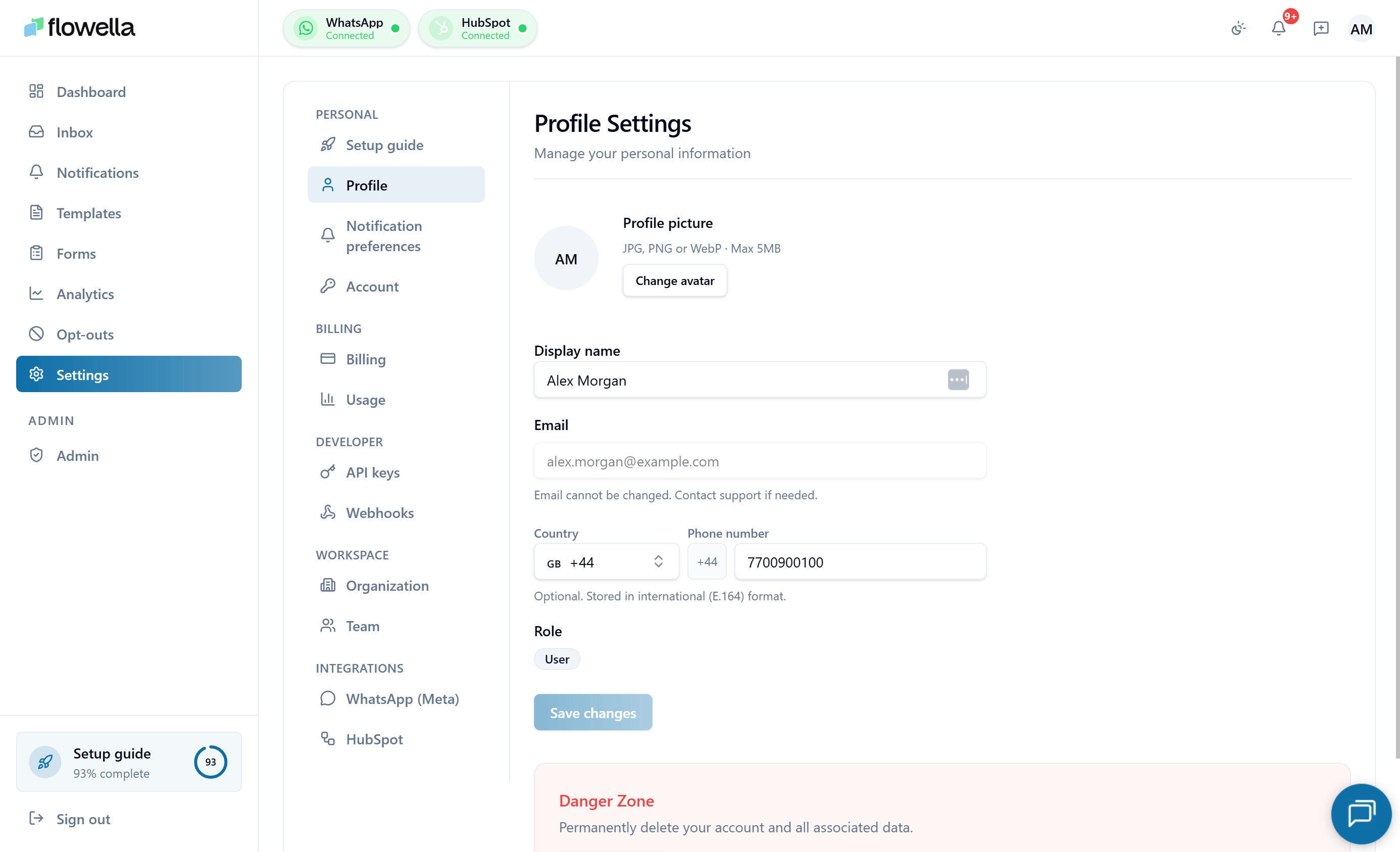 Your profile is the user-level record Flowella uses for sign-in, mentions in the inbox, and recipient details on notifications. Each Flowella user has one profile, even if you're a member of multiple organisations.
## Opening Settings → Profile
From the left navigation, click your avatar → **Profile**, or go to **Settings → Profile**.
## What you can change
### Display name
The name shown to teammates in the inbox, notifications feed, audit log, and team list. We recommend your full first and last name — initials make it harder for teammates to attribute conversations.
### Avatar
Click your current avatar to upload a new one.
* Accepted formats: **JPEG, PNG, WebP**.
* Maximum file size: **2 MB**.
* Recommended: a square image at least 256 × 256 px.
Avatars are uploaded server-side and stored in Flowella's Azure Blob storage with a signed URL. Direct browser uploads to Azure are not used (this avoids CORS and firewall edge cases). If the upload fails, the original avatar is preserved.
### Phone number (optional)
You can add a phone number in international format (E.164, for example `+447700900123`). The country picker resolves the format for you.
The phone number is used to:
* Prefill the Stripe Checkout form when starting or changing a subscription.
* Sync your contact details to Stripe so invoices show the right phone number.
* (Optional, opt-in) Receive WhatsApp notifications about your account.
Leaving the phone field empty is fine — Stripe Checkout will simply ask for it at the point of payment.
### Locale
Sets the language for the Flowella UI and emails. Available locales:
* English (en, default)
* Español (es)
* Türkçe (tr)
Changing your locale takes effect immediately. The locale is stored as a cookie and on your user record so it follows you across devices.
### Password
Click **Change password** to set a new password. You'll be asked to enter your current password first.
If you signed up via magic link or SSO and have never set a password, the section instead reads **Set password** — useful as a backup sign-in method.
**Password requirements**
* At least 12 characters.
* A mix of letter cases and at least one number or symbol.
* Cannot match your last 5 passwords.
After a successful password change, Flowella signs out all other sessions on your account and sends a `AUTH_PASSWORD_CHANGED` notification to your email.
## Email address
Your email address is the primary identifier for your Flowella account. It is **not changeable** from this screen — contact support if you need to change it, so we can verify the new address and migrate any pending invites.
## Linked WhatsApp account
If you have linked a personal WhatsApp number for notifications, it's shown here with an **Unlink** action. Unlinking stops Flowella from sending notifications to that number but does not affect your Flowella sign-in.
## Sessions
The **Active sessions** panel lists every device currently signed in to your account, with:
* Device and browser fingerprint
* IP address (truncated)
* Last activity timestamp
* A **Sign out** action
Sign out individual sessions if you see one you don't recognise. **Sign out of all sessions** revokes every session except the one you're using.
If you suspect a session you don't recognise, sign out of it, change your password, and contact support so we can audit the account.
## Related
Password reset, magic link, and the bot-protection check.
Choose which events deliver to your in-app feed and email.
What each role can do across the org.
Your phone number is reused on Stripe checkout for prefill.
Your profile is the user-level record Flowella uses for sign-in, mentions in the inbox, and recipient details on notifications. Each Flowella user has one profile, even if you're a member of multiple organisations.
## Opening Settings → Profile
From the left navigation, click your avatar → **Profile**, or go to **Settings → Profile**.
## What you can change
### Display name
The name shown to teammates in the inbox, notifications feed, audit log, and team list. We recommend your full first and last name — initials make it harder for teammates to attribute conversations.
### Avatar
Click your current avatar to upload a new one.
* Accepted formats: **JPEG, PNG, WebP**.
* Maximum file size: **2 MB**.
* Recommended: a square image at least 256 × 256 px.
Avatars are uploaded server-side and stored in Flowella's Azure Blob storage with a signed URL. Direct browser uploads to Azure are not used (this avoids CORS and firewall edge cases). If the upload fails, the original avatar is preserved.
### Phone number (optional)
You can add a phone number in international format (E.164, for example `+447700900123`). The country picker resolves the format for you.
The phone number is used to:
* Prefill the Stripe Checkout form when starting or changing a subscription.
* Sync your contact details to Stripe so invoices show the right phone number.
* (Optional, opt-in) Receive WhatsApp notifications about your account.
Leaving the phone field empty is fine — Stripe Checkout will simply ask for it at the point of payment.
### Locale
Sets the language for the Flowella UI and emails. Available locales:
* English (en, default)
* Español (es)
* Türkçe (tr)
Changing your locale takes effect immediately. The locale is stored as a cookie and on your user record so it follows you across devices.
### Password
Click **Change password** to set a new password. You'll be asked to enter your current password first.
If you signed up via magic link or SSO and have never set a password, the section instead reads **Set password** — useful as a backup sign-in method.
**Password requirements**
* At least 12 characters.
* A mix of letter cases and at least one number or symbol.
* Cannot match your last 5 passwords.
After a successful password change, Flowella signs out all other sessions on your account and sends a `AUTH_PASSWORD_CHANGED` notification to your email.
## Email address
Your email address is the primary identifier for your Flowella account. It is **not changeable** from this screen — contact support if you need to change it, so we can verify the new address and migrate any pending invites.
## Linked WhatsApp account
If you have linked a personal WhatsApp number for notifications, it's shown here with an **Unlink** action. Unlinking stops Flowella from sending notifications to that number but does not affect your Flowella sign-in.
## Sessions
The **Active sessions** panel lists every device currently signed in to your account, with:
* Device and browser fingerprint
* IP address (truncated)
* Last activity timestamp
* A **Sign out** action
Sign out individual sessions if you see one you don't recognise. **Sign out of all sessions** revokes every session except the one you're using.
If you suspect a session you don't recognise, sign out of it, change your password, and contact support so we can audit the account.
## Related
Password reset, magic link, and the bot-protection check.
Choose which events deliver to your in-app feed and email.
What each role can do across the org.
Your phone number is reused on Stripe checkout for prefill.