> ## Documentation Index
> Fetch the complete documentation index at: https://knowledge.flowella.io/llms.txt
> Use this file to discover all available pages before exploring further.
# Team members and roles in Flowella
> Invite teammates to your Flowella workspace, manage roles and permissions, handle pending invitations, and remove members from the Settings → Team screen.
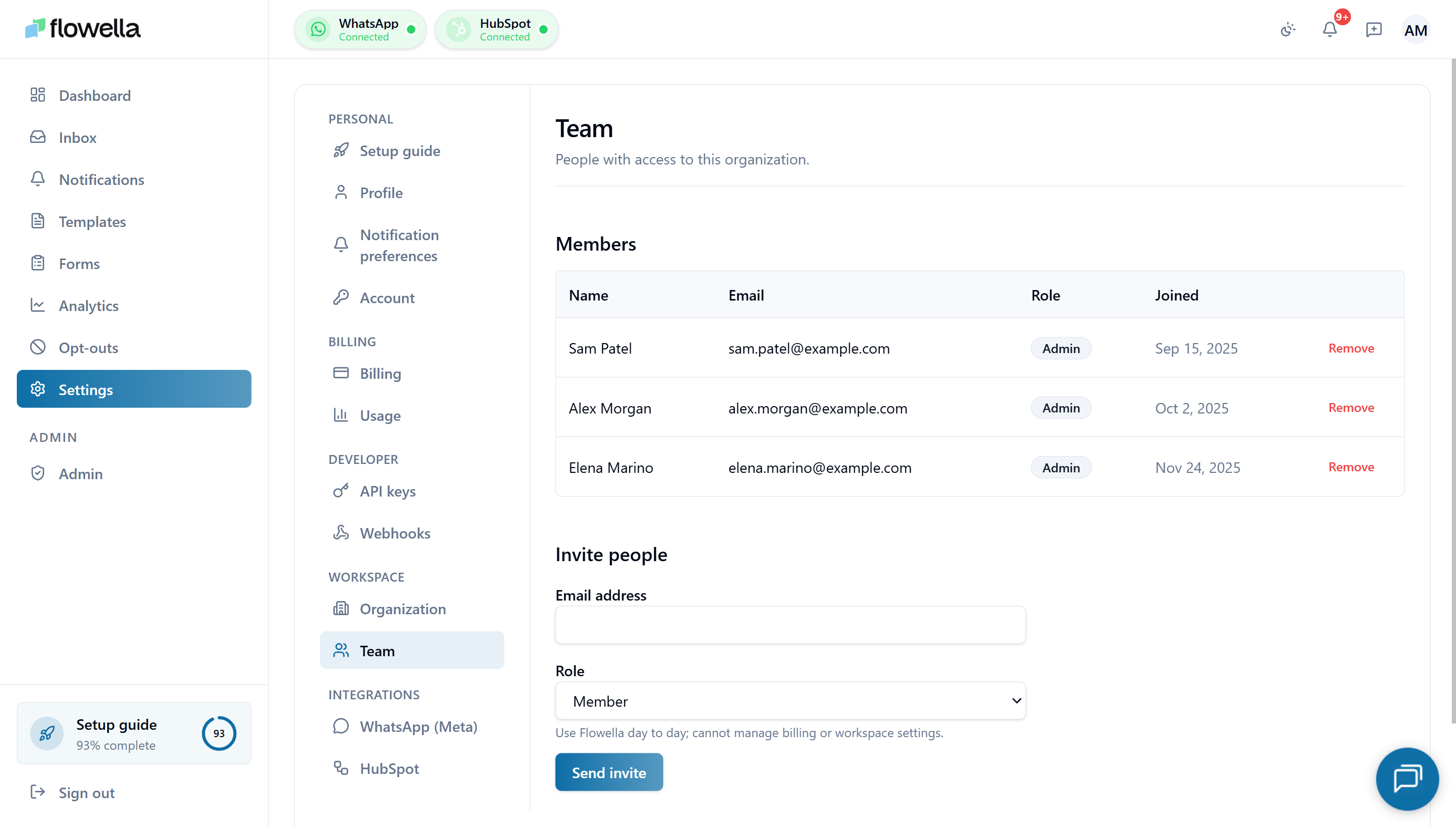 Flowella organizations are multi-user. The **Settings → Team** screen lists everyone with access to the current workspace, lets you invite new people, and shows pending invitations. This page covers the screen end to end, plus what each role can do.
## Opening Settings → Team
From the left navigation click **Settings**, then choose **Team** under the **Workspace** section of the settings sidebar.
## Roles at a glance
Flowella has three roles:
| Role | Best for | Key capabilities |
| ---------- | ---------------------------------------- | ------------------------------------------------------------------------------------------------------------------------------ |
| **Owner** | The person who set up the org | Everything an Admin can do, plus billing, deleting the org, and transferring ownership |
| **Admin** | Operators who run the WhatsApp programme | Manage channels, templates, opt-outs, integrations, API keys, webhooks, and team members |
| **Member** | Everyone else on the team | Use the inbox, view templates and analytics, send messages on connected channels — cannot manage billing or workspace settings |
Owners and Admins are functionally similar day-to-day. The main difference is **billing and org-level destructive actions**, which only Owners can do.
Roles apply at the **organization** level. The same person can have a different role in a different Flowella organization.
## Members table
The **Members** table at the top of the screen lists everyone with access to the workspace, with four columns plus a remove action:
| Column | What it shows |
| ---------- | -------------------------------------------------------------------------------------------- |
| **Name** | The display name from the member's [profile](/settings/profile) |
| **Email** | The account email the member signs in with |
| **Role** | Owner, Admin, or Member |
| **Joined** | The date the member accepted the invite (or for the Owner, the date the org was created) |
| **Remove** | Removes the member from the organization — see [Removing a member](#removing-a-member) below |
You cannot remove yourself or the Owner from this table. To leave an org you don't own, ask another Owner or Admin to remove you. To remove the Owner, transfer ownership first.
## Inviting people
You need the **Owner** or **Admin** role to invite teammates.
In the **Invite people** section, type the person's work email in **Email address**.
Pick **Member** (default), **Admin**, or **Owner** from the **Role** dropdown. The helper text under the dropdown describes what each role can do.
Click **Send invite**. Flowella emails the invitee a link of the form `https://app.flowella.io/join?code=…` and adds them to **Pending invitations**.
Promoting someone to **Owner** at invite time is uncommon — most teams invite as Member or Admin, then transfer ownership later through the role change flow.
### Accepting an invite
If you have been invited:
1. Open the invite email and click **Accept invite**.
2. If you do not yet have a Flowella account, you will be asked to create one with the same email the invite was sent to.
3. If you already have an account, sign in. Flowella will add you to the organization and apply the role from the invite.
Invite links are one-time use and expire after a period set by Flowella. If your link has expired, ask the person who invited you to send a new one.
## Pending invitations
The **Pending invitations** section lists invites that have been sent but not yet accepted. If there are no outstanding invites, the section reads **No pending invitations.**
For each pending invite you can:
* **Resend** the invite email (useful if the original was filtered to spam).
* **Revoke** the invite. Revoking immediately invalidates the join link — the invitee can no longer use it.
Invitations expire automatically after the Flowella invite TTL elapses. Expired invites stay visible in this section until you revoke them or resend a new link.
## Changing a role
Owners and Admins can change another member's role:
1. Click the member's row in the **Members** table.
2. Pick the new role.
3. Save.
You cannot change your own role. To transfer ownership, the current Owner must promote a teammate — see below.
## Transferring ownership
Only the current **Owner** can transfer ownership.
1. Promote the new Owner to **Owner** from **Settings → Team**.
2. The previous Owner is automatically demoted to **Admin**.
Each org has exactly one Owner at a time.
## Removing a member
Owners and Admins can remove members by clicking **Remove** on the member's row. Removing a member:
* Immediately revokes their access to the org. Any active session is terminated on the next request.
* Does **not** delete the messages they sent or templates they created — those stay in the org.
* Does **not** affect their account in other Flowella organizations.
* Does **not** automatically revoke API keys they created. Rotate or revoke keys separately — see the tip below.
* Reassigns any open inbox conversations they were the assignee on to **Unassigned**, so other agents can pick them up.
When a teammate leaves the company, remove them from the org **and** rotate any API keys they created. See [API keys](/settings/api-keys) for the rotation steps.
## Related
Workspace name, business email, and default content language.
Rotate or revoke any keys a leaving teammate created.
Only Owners can change billing — covered here.
Each user manages their own name, avatar, password, and sessions.
Flowella organizations are multi-user. The **Settings → Team** screen lists everyone with access to the current workspace, lets you invite new people, and shows pending invitations. This page covers the screen end to end, plus what each role can do.
## Opening Settings → Team
From the left navigation click **Settings**, then choose **Team** under the **Workspace** section of the settings sidebar.
## Roles at a glance
Flowella has three roles:
| Role | Best for | Key capabilities |
| ---------- | ---------------------------------------- | ------------------------------------------------------------------------------------------------------------------------------ |
| **Owner** | The person who set up the org | Everything an Admin can do, plus billing, deleting the org, and transferring ownership |
| **Admin** | Operators who run the WhatsApp programme | Manage channels, templates, opt-outs, integrations, API keys, webhooks, and team members |
| **Member** | Everyone else on the team | Use the inbox, view templates and analytics, send messages on connected channels — cannot manage billing or workspace settings |
Owners and Admins are functionally similar day-to-day. The main difference is **billing and org-level destructive actions**, which only Owners can do.
Roles apply at the **organization** level. The same person can have a different role in a different Flowella organization.
## Members table
The **Members** table at the top of the screen lists everyone with access to the workspace, with four columns plus a remove action:
| Column | What it shows |
| ---------- | -------------------------------------------------------------------------------------------- |
| **Name** | The display name from the member's [profile](/settings/profile) |
| **Email** | The account email the member signs in with |
| **Role** | Owner, Admin, or Member |
| **Joined** | The date the member accepted the invite (or for the Owner, the date the org was created) |
| **Remove** | Removes the member from the organization — see [Removing a member](#removing-a-member) below |
You cannot remove yourself or the Owner from this table. To leave an org you don't own, ask another Owner or Admin to remove you. To remove the Owner, transfer ownership first.
## Inviting people
You need the **Owner** or **Admin** role to invite teammates.
In the **Invite people** section, type the person's work email in **Email address**.
Pick **Member** (default), **Admin**, or **Owner** from the **Role** dropdown. The helper text under the dropdown describes what each role can do.
Click **Send invite**. Flowella emails the invitee a link of the form `https://app.flowella.io/join?code=…` and adds them to **Pending invitations**.
Promoting someone to **Owner** at invite time is uncommon — most teams invite as Member or Admin, then transfer ownership later through the role change flow.
### Accepting an invite
If you have been invited:
1. Open the invite email and click **Accept invite**.
2. If you do not yet have a Flowella account, you will be asked to create one with the same email the invite was sent to.
3. If you already have an account, sign in. Flowella will add you to the organization and apply the role from the invite.
Invite links are one-time use and expire after a period set by Flowella. If your link has expired, ask the person who invited you to send a new one.
## Pending invitations
The **Pending invitations** section lists invites that have been sent but not yet accepted. If there are no outstanding invites, the section reads **No pending invitations.**
For each pending invite you can:
* **Resend** the invite email (useful if the original was filtered to spam).
* **Revoke** the invite. Revoking immediately invalidates the join link — the invitee can no longer use it.
Invitations expire automatically after the Flowella invite TTL elapses. Expired invites stay visible in this section until you revoke them or resend a new link.
## Changing a role
Owners and Admins can change another member's role:
1. Click the member's row in the **Members** table.
2. Pick the new role.
3. Save.
You cannot change your own role. To transfer ownership, the current Owner must promote a teammate — see below.
## Transferring ownership
Only the current **Owner** can transfer ownership.
1. Promote the new Owner to **Owner** from **Settings → Team**.
2. The previous Owner is automatically demoted to **Admin**.
Each org has exactly one Owner at a time.
## Removing a member
Owners and Admins can remove members by clicking **Remove** on the member's row. Removing a member:
* Immediately revokes their access to the org. Any active session is terminated on the next request.
* Does **not** delete the messages they sent or templates they created — those stay in the org.
* Does **not** affect their account in other Flowella organizations.
* Does **not** automatically revoke API keys they created. Rotate or revoke keys separately — see the tip below.
* Reassigns any open inbox conversations they were the assignee on to **Unassigned**, so other agents can pick them up.
When a teammate leaves the company, remove them from the org **and** rotate any API keys they created. See [API keys](/settings/api-keys) for the rotation steps.
## Related
Workspace name, business email, and default content language.
Rotate or revoke any keys a leaving teammate created.
Only Owners can change billing — covered here.
Each user manages their own name, avatar, password, and sessions.