
You will learn:
-
Where to find the Flowella action in HubSpot workflows
-
How to connect Contact Phone Number, Template Name and Contact Email
-
How to populate Template Variables with dynamic values from HubSpot
1. Prerequisites
Before you start, make sure:
-
Flowella is installed and connected to your HubSpot portal.
-
Your WhatsApp Business number is set up and working in Flowella.
-
You have at least one approved WhatsApp template in Flowella.
-
Contacts you want to message have:
-
A mobile number stored in a phone property, in full international format, for example
+447700900123 -
An email address if your template needs it
-
2. Add Flowella to a HubSpot workflow
-
In HubSpot, go to Automation → Workflows.
-
Create a Contact based workflow, or open an existing one.
-
Set your enrolment trigger, for example:
-
Form submission
-
Lifecycle stage change
-
List membership
-
-
Click the plus (+) icon to add an action.
-
In the action picker, look for Flowella and choose:
Send WhatsApp Template (this is the Flowella Custom Workflow Action).
You will now see the Flowella configuration panel on the left hand side.
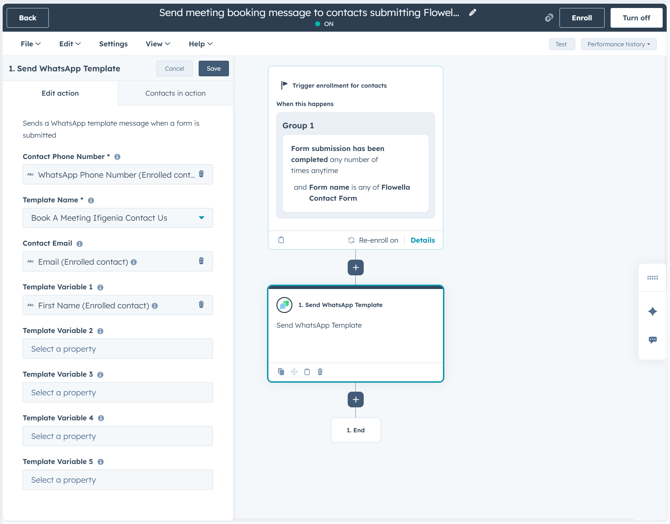
3. Configure the Flowella action
The action has several fields. Some are required, others are optional.
3.1 Contact Phone Number (required
Contact Phone Number tells Flowella which WhatsApp number to send the message to.
-
Choose the HubSpot contact property that stores the recipient’s WhatsApp number, for example
WhatsApp Phone NumberorMobile phone number. -
The number must be in E.164 format, starting with a
+and country code, with no spaces.
If this field is empty or the number is invalid, the action will fail for that contact.
3.2 Template Name required
Template Name tells Flowella which WhatsApp template to send.
Depending on your setup this will be:
-
A dropdown of templates synced from Flowella, or
-
A text field where you enter the exact template name as defined in Flowella / WhatsApp
Make sure the name matches an approved template that is active on your WhatsApp Business account.
3.3 Contact Email recommended
Contact Email is usually mapped to the contact’s main email address.
-
Select the standard Email property for the enrolled contact.
Flowella can use this for logging, deduplication and analytics. Some templates may also include the email address as part of the message.
3.4 Template Variables 1–5
If your WhatsApp template contains placeholders, you can populate them here using dynamic HubSpot values.
For example, a template might look like:
Hi 1, your meeting is confirmed for 2 at 3.
In the Flowella action you would set:
-
Template Variable 1 →
First name -
Template Variable 2 →
Meeting date -
Template Variable 3 →
Meeting time
You can map each Template Variable to any contact property, such as:
-
First name, last name
-
Company name
-
Custom properties like event name, booking link, discount code
Guidelines:
-
If a variable is required in the template and you leave it blank here, the send may fail.
-
If a variable is optional you can either leave it unmapped, or use a property that might be empty for some contacts.
Check your template in Flowella or WhatsApp Manager so you know exactly how many variables you need and in what order.
4. Example workflow: send a meeting booking reminder
Here is a simple example similar to the screenshot you shared.
Goal: After someone submits a HubSpot form, send them a WhatsApp message with a booking link.
-
Trigger:
-
Enrol contacts when Form submission has been completed for
Flowella Contact Form.
-
-
Action:
-
Add Send WhatsApp Template (Flowella).
-
-
Configure the action:
-
Contact Phone Number:
WhatsApp Phone Number (Enrolled contact) -
Template Name:
Book A Meeting – Contact Us -
Contact Email:
Email (Enrolled contact) -
Template Variable 1:
First name (Enrolled contact) -
Template Variable 2:
Meeting link(custom property, if your template has a second placeholder)
-
-
Turn the workflow on and test with a test contact.
When a contact submits the form, HubSpot enrols them, passes the mapped fields into the Flowella action, and Flowella sends the templated WhatsApp message to their number.
5. Testing and troubleshooting
Test with a single contact first
-
Create a test contact with your own WhatsApp number.
-
Enrol just that contact in the workflow and check that:
-
The action shows as successful in HubSpot history
-
You receive the correct WhatsApp message on your phone
-
Common issues
-
No message delivered
-
Check the workflow history to see if the custom action errored.
-
Confirm that the phone number property contains a valid number with a country code.
-
-
Wrong or empty variables
-
Check that each Template Variable is mapped to the correct property.
-
Make sure those properties actually contain values for the contact.
-
-
Template rejected or not approved
-
Confirm in WhatsApp Manager or Flowella that the template is approved and active.
-
If you recently changed the template content, it may be under review again.
-
6. When to use multiple Flowella actions
You can add more than one Send WhatsApp Template action in a workflow, for example:
-
One message immediately after form submission
-
Another reminder message later, using a different template
Just remember that WhatsApp rules apply: once the 24-hour session window has passed, you can only send templated messages, not free form, and Meta will charge per eligible template message.