
Click‑to‑WhatsApp (CTWA) ads are Facebook or Instagram ads that send people straight from the ad into a WhatsApp chat with your business when they tap the call to action. Instead of landing on a website or form, they land in a conversation.
Flowella fits in after the click: it can run a structured WhatsApp journey (a Flowella Flow Template), capture answers, and sync those answers into HubSpot, so your “Send message” button becomes a proper lead funnel, not just a friendly hello that nobody follows up.
The important bit: Ads can launch a Flow, but it cannot be a dynamic Flow
In Ads Manager, you’ll typically see two chat experiences:
-
Start conversations
-
Collect info with a form on WhatsApp (Meta’s simplified WhatsApp Flows experience)
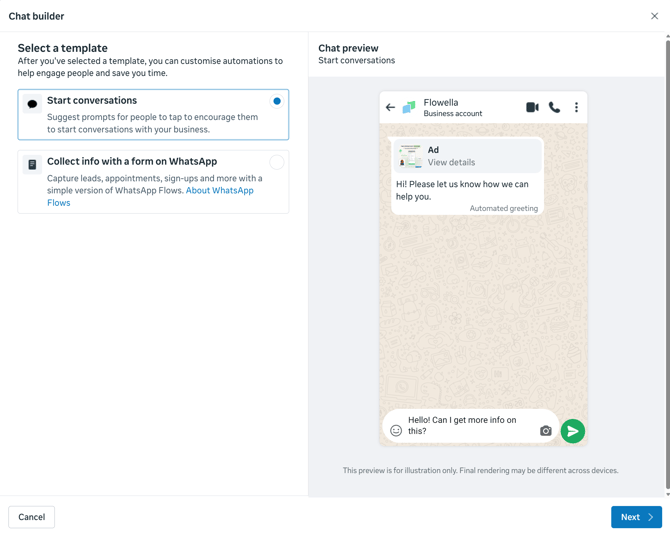
It is possible to link a WhatsApp ad directly to a Flow using the “form” experience, but Meta’s requirements for ad‑attached Flows mean that the Flow must be static (no data exchange). The moment you need an endpoint to fetch or validate data, you are into dynamic Flow territory, which is not eligible for that ad placement.
A helpful way to think about it:
-
Dynamic Flow: uses endpoints (data exchange) to fetch, validate, or personalise content.
Because a CRM integration depends on exchanging data with your backend (for example, creating/updating a HubSpot contact, checking for duplicates, looking up available appointment times, routing logic, and so on), an ad‑attached Flow cannot behave like a “proper” dynamic Flowella flow.
So while the “Collect info with a form on WhatsApp” option looks tempting, it is best treated as basic, static lead capture only, not a CRM-connected journey.
Best practice: Use CTWA to start a conversation, then trigger a Flowella Flow Template with a keyword
The recommended approach is:
-
Use the ad to start a WhatsApp conversation, using the Start conversations template in Ads Manager.
-
Use a pre‑filled message (keyword) so the user’s first message reliably triggers automation.
-
Flowella detects that keyword and launches the right Flow Template.
-
Flowella syncs the captured data into HubSpot.
This follows the “pre‑filled entry message” pattern: the ad opens WhatsApp with suggested text, the user taps send, then Flowella starts the right flow based on that first inbound message.
Why this approach wins
You keep the low-friction ad experience
Users still go from scroll → tap → WhatsApp, with minimal effort.
You unlock the full Flowella experience
Flowella can run the full chat journey and capture structured data.
HubSpot sync works as intended
Flowella can create/update HubSpot contacts and map fields cleanly.
Step-by-step setup
1) Build your Flow Template in Flowella
Create a Flow Template tailored to the ad’s promise (quote, demo, booking, eligibility check, etc.).
Keep it short, purposeful, and mobile-friendly (think “a few taps”, not “tax return”).
Recommended fields for HubSpot lead capture
-
Name
-
Email
- One or two qualifying questions (budget, timeframe, service type)
A "phone" field is not required as it will be automatically captured from the WhatsApp number.
2) Add a trigger phrase (entry condition)
Pick a unique phrase you will use only for that ad.
Examples:
-
Hello! Can I get more info on Flowella?
- Hello, can I book a Flowella Demo?
Make it:
-
easy to understand
-
unlikely to be used naturally
-
unique
3) Connect your HubSpot mapping in Flowella
Map Flow answers to HubSpot properties so the submission becomes a real contact record and can trigger workflows.
4) Create your CTWA campaign in Ads Manager
High-level Ads Manager flow is unchanged: create campaign → choose a messaging-compatible objective → choose WhatsApp as the destination → build the ad.
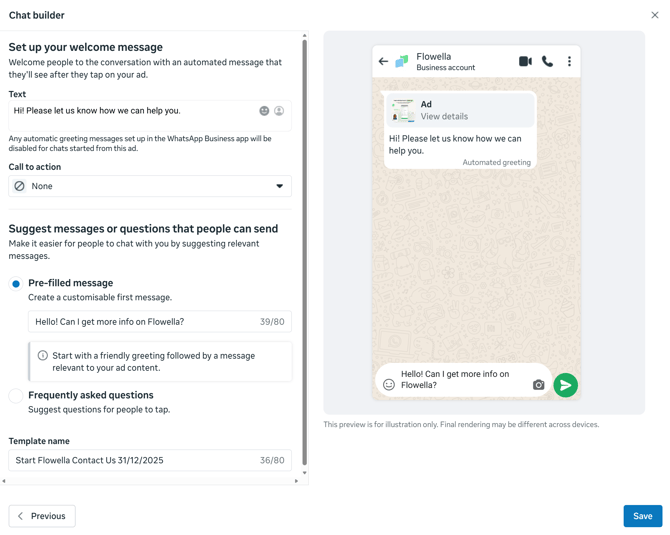
When you get to the Chat builder step:
-
Select Start conversations (not “Collect info with a form on WhatsApp”)
-
Set the pre-filled message to your keyword, for example:
-
Hello! Can I get more info on Flowella?
- Hello, can I book a Flowella Demo?
-
That’s the trigger Flowella will listen for.
5) Test end-to-end on a real phone
Test the full journey:
-
Tap the ad
-
WhatsApp opens
-
Confirm that the pre-filled message appears
-
Tap send
-
Confirm that Flowella launches the correct Flow Template
-
Complete the flow
-
Confirm the HubSpot contact is created/updated with the right properties
Tracking and reporting
You’ll typically measure results in two places:
In Ads Manager
Track conversations started and cost per conversation (front-end performance).
In Flowella and HubSpot
Track:
-
flows started vs completed
-
leads created
-
downstream HubSpot metrics (MQLs, opportunities, revenue)
Common pitfalls and how to avoid them
-
Wrong chat template selected in Ads Manager
If you pick “Collect info with a form on WhatsApp”, you’re opting into Meta’s limited, static flow experience, not a dynamic Flowella journey. -
Keyword mismatch
Case, spacing, punctuation, or “helpful” mobile autocorrect can break triggers. Keep the keyword short and distinctive. -
Generic keywords
If your keyword is “Hi”, Flowella will have a nervous breakdown deciding which flow to run. -
Overlong flows
If it feels like a mortgage application, completion rates will suffer. -
No end-to-end QA
Always test from ad click to HubSpot record before scaling spend.
Summary
-
Yes, ads can be linked to WhatsApp Flows.
-
No, the ad-attached Flow cannot be dynamic (no endpoint-driven data exchange), so it is not suitable for CRM-connected journeys.
-
Best practice for Flowella + HubSpot is: Start conversations in Ads Manager → use a keyword as the pre-filled message → trigger a Flowella Flow Template → sync results into HubSpot.
Best practices for using Flowella with Click to WhatsApp ads
Some practical tips, aligned with Meta’s guidance on ads that click to message and good WhatsApp hygiene.
-
Make the value crystal clear in the ad
-
Explain what the user gets if they message you.
-
For example: “Get a quote on WhatsApp in 2 minutes” or “Chat to book your demo”.
-
-
Mention WhatsApp explicitly
-
Use copy like “Message us on WhatsApp” so people know what will open.
-
This filters out people who are happy to use WhatsApp.
-
-
Use a strong default message
-
Give the user helpful pre-filled text, for example, “Hi, I want to book a consultation”.
-
This improves the conversion rate from clicks to actual chats.
-
-
Keep flows short and purposeful
-
Ask only what you need to qualify or fulfil the request.
-
Use buttons and lists so the user taps rather than types whenever possible.
-
-
Match ad promise to flow content
-
If the ad says “Get a quote”, the flow should quickly ask the few questions needed for a quote and then confirm what happens next.
-
No surprise twenty question interrogations.
-
-
Optimise for conversations, not just clicks
-
Where possible, use an objective that optimises for messaging conversations instead of traffic.
-
That encourages delivery to users more likely to engage.
-
-
Test the entire journey on a phone
-
From seeing the ad to tapping it, through the flow, to arriving in HubSpot.
-
Fix any confusing questions or broken routing before you scale spend.
-
-
Have a plan for human follow-up
-
Particularly for high-value leads, ensure someone reviews completed flows and can reply personally in WhatsApp within a reasonable time.
-
Example flow: “Book a demo on WhatsApp”
A simple pattern you might use in Flowella for a Click to WhatsApp ad:
-
Ad promise
-
Primary text: “Book a 20-minute product demo, all arranged in WhatsApp.”
-
CTA: “Send message on WhatsApp”.
-
-
Default message (if using pre-filled text)
-
“Hi, I’d like to book a demo.”
-
-
Flowella flow steps
-
Ask for name.
-
Ask for company.
-
Ask for email address.
-
Ask for preferred timeslot from a list.
-
Confirm booking and expectations.
-
-
HubSpot mapping
-
Name, company, email mapped to contact fields.
-
Preferred timeslot mapped to a custom property.
-
Optional: task or meeting booked by a workflow.
-
-
Follow up
-
Sales rep receives a task or notification.
-
Rep confirms the booked slot by email and/or WhatsApp.
-
From a user perspective, they scroll, tap, answer four or five quick questions, and are done. From your side, a neat, structured lead appears in HubSpot.
Common pitfalls
A few things to avoid:
-
Using an objective that does not support messaging properly
-
Traffic can work, but Engagement with messages is usually better for conversations.
-
-
Leaving the chat empty
-
Forgetting to configure the default message or template so users land in a blank conversation and do not know what to say.
-
-
Overlong or complicated flows
-
Trying to replicate a 20-field web form in WhatsApp. Break it down or trim it.
-
-
No QA before launch
-
Not testing the end-to-end journey and discovering after spending that flows are not firing or fields are mapped incorrectly.
-
-
Ignoring the 24-hour messaging window
-
If you promise a follow-up, try to do it while the conversation is still open, or have approved templates ready for later contact.
-
12. Official Meta resources
When you need to double-check the Meta side configuration or policy, these official pages are useful:
-
Create ads that click to WhatsApp in Ads Manager
Meta https://www.facebook.com/business/help/447934475640650 -
Meta Developer Ads that Click to WhatsApp
https://developers.facebook.com/docs/marketing-api/ad-creative/messaging-ads/click-to-whatsapp/ -
About ads that click to message (Messenger, Instagram, WhatsApp)
https://www.facebook.com/business/help/1816962591668838 -
Create ads that click to WhatsApp from your Facebook Page
https://www.facebook.com/business/help/1874973492831043 -
How to set up ads that click to WhatsApp (official WhatsApp YouTube channel)