

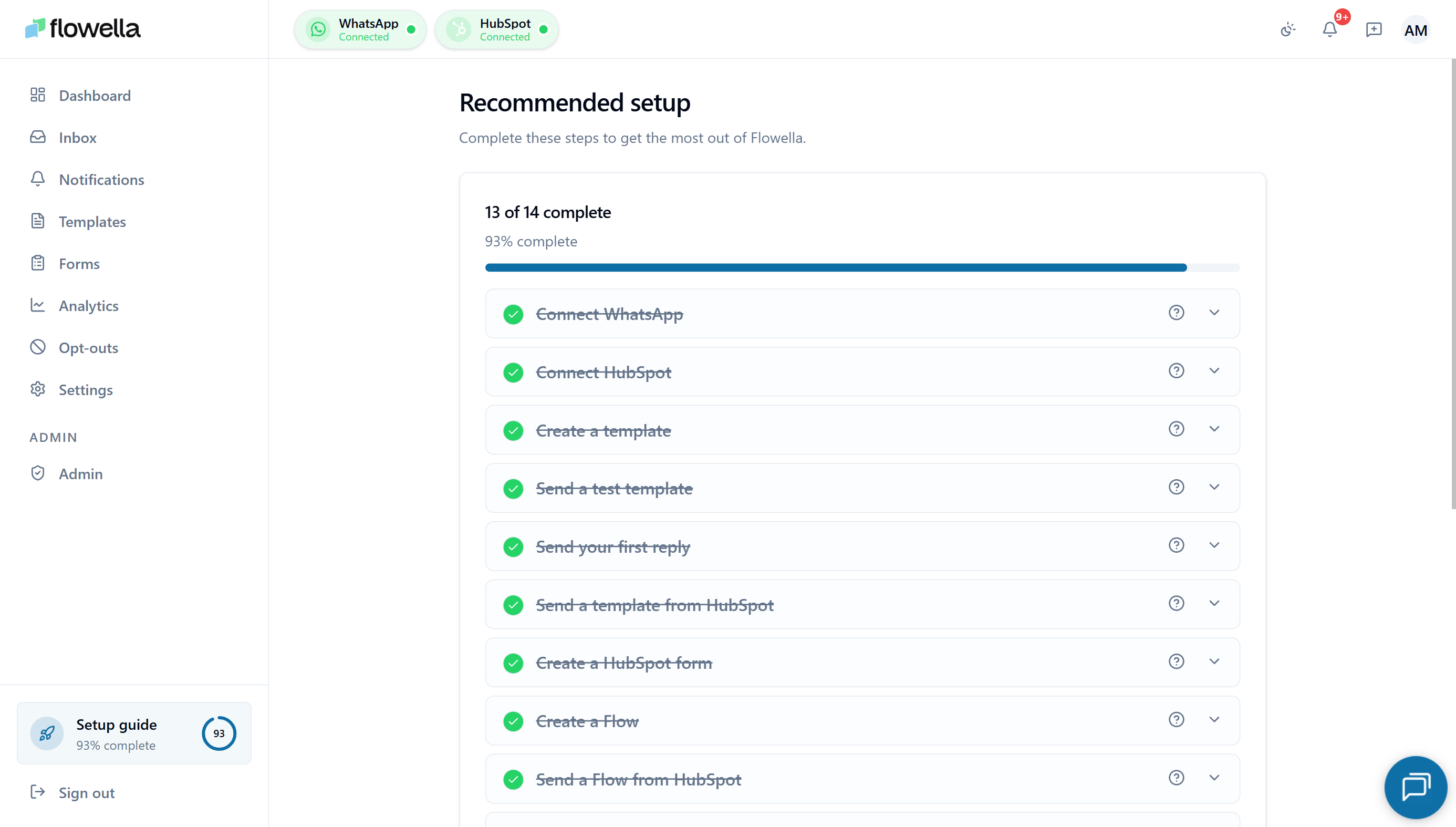
/{org}/onboarding that tracks every action you need to complete before going live. The guide watches your org’s state in the background and ticks off each step as you complete it, so you can leave at any time and return to exactly the right place.
You can re-open the setup guide at any time from the left-hand sidebar entry Setup guide.
Name your organisation first
Right after signup, and before you can connect WhatsApp, Flowella asks you to enter your organisation’s name. The name appears in the organisation switcher in the header and prefills your business details in Meta’s Embedded Signup. Flowella skips this prompt when your organisation already has a proper name, for example when you joined through a team invite. You can change the name at any time under Settings → Organization. See Organization.How the setup guide works
- Auto-detected progress. Every step has a check that runs against your account — connect a WABA, add a payment method, install the HubSpot app, and the step turns green on its own. No “Mark as complete” buttons.
- First-sign-in redirect. New sign-ins land on the setup guide automatically until every required step is done.
- Progress bar. A live counter at the top shows how many of the 13 steps you’ve cleared.
- Continue later. Click Continue later at any point to return to the dashboard — your progress stays exactly where it was.
- Per-step help. Each step has a help tooltip that links straight to the matching knowledge-base page. If a step turns red, the tooltip explains why.
- Completion celebration. A confetti animation fires when the last step turns green, and the sidebar entry drops off automatically once you’re fully onboarded.
The 13 steps
The guide groups steps under three headers: Connect, Configure, and Launch. Each one links to a focused page in the knowledge base if you need more detail.Connect
1
Create your Flowella account
Sign up at app.flowella.io. This step is already complete by the time you see the guide.
2
Connect Meta (WhatsApp Business)
Click Connect WhatsApp Business to launch Meta’s Embedded Signup. Choose or create your business portfolio, WABA, and phone number, and confirm Flowella’s permissions. See Setup sequence.
3
Add a Meta payment method
Add a Visa, Mastercard, or Amex to your WABA and confirm it carries the Default badge. Meta — not Flowella — bills WhatsApp conversation charges to this card. See Meta payment method.
4
Connect HubSpot
Run the HubSpot OAuth flow to link your portal. Flowella confirms with Connected to HubSpot and your Portal ID. See HubSpot setup.
5
Install the HubSpot app
Install Flowella from the HubSpot marketplace so the workflow actions, contact properties, and timeline events become available in your portal.
6
Connect the HubSpot inbox channel
Add the Flowella Channel to HubSpot’s conversations inbox so WhatsApp threads land alongside email, chat, and calls. Inbound WhatsApp is published to the channel, and outbound replies from the HubSpot inbox are relayed back to WhatsApp. See Custom channel.
Configure
1
Invite your team
Add the rest of your team under Settings → Team with the right role (Owner, Admin, or Member). See Team.
2
Set your organisation details
Confirm the organisation name, business email, and content/export language under Settings → Organization. See Organization.
3
Review reply templates
Flowella auto-provisions three reopen templates — Service, Update, and Offer — used by Smart Reply and the Send WhatsApp Reply workflow action. Review the wording and confirm at least one is Approved and enabled. See Reply templates.
4
Create your first template
Build a Meta-approved WhatsApp template. The guide’s CTA deep-links straight into the Meta Library gallery, where you can search Meta’s prebuilt utility templates and tick several at once to create them as local drafts in one click. From there, edit, personalise, and publish. The step ticks off as soon as one template reaches the APPROVED state.You can also switch to the Flowella Templates tab for curated starters, or start from a blank editor. See Templates.
Launch
1
Send a test message
From Templates → your template → Send tab → Test Template, send a test to your own number to confirm everything renders correctly.
2
Run a HubSpot workflow
Wire your template into a HubSpot workflow with the Send WhatsApp Template or Send WhatsApp Reply action. See Workflow actions.
3
Make your first real send
Trigger a workflow against a real contact, or run a bulk send from the Send tab. The guide marks itself complete once the first non-test outbound message is delivered.
What happens after completion
- The Setup guide entry disappears from the sidebar.
- The next sign-in goes straight to the dashboard.
- You can still re-open the guide from the in-app search at any time — every step continues to reflect live state, so it doubles as a health check if anything later changes (for example, the Meta payment method is removed).
- An optional re-engagement tip appears once, alongside the completed guide. Flowella auto-provisions a re-engagement template for closed WhatsApp windows, so no extra setup step is required — the tip just points you to the one-tap Re-engage action in the Inbox for when a chat window has closed. Dismiss it with Got it and it won’t come back.
What’s next
Templates
Build, test, and bulk-send Meta-approved WhatsApp templates.
Workflow actions
Triggers and actions that wire WhatsApp into HubSpot workflows.
Inbox
Open/Unseen + All/Pending tabs, Smart Reply, typing indicators.
Reply templates
Service / Update / Offer reopen templates and how they’re managed.
Custom channel
Bring WhatsApp into the HubSpot conversations inbox.
Onboarding troubleshooting
Meta permissions, payment method, and HubSpot install issues.