
1. Opening the Inbox
-
Log in to Flowella.
-
In the left navigation, click Inbox.
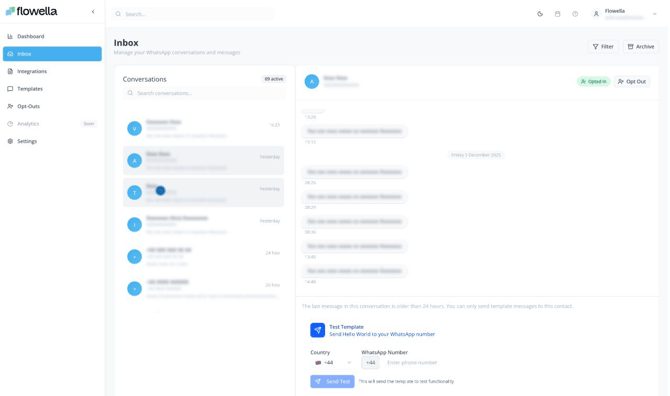
You will see three main areas:
-
Conversation list on the left
-
Current conversation in the middle
-
Contact status and actions on the right side of the header, plus a test area at the bottom
2. Conversation list
The left-hand panel shows all conversations Flowella is currently tracking.
2.1 Conversation items
Each row shows:
-
Contact name (or phone number if no name is available)
-
The latest message preview
-
The time of the most recent message
You may also see a count of active conversations at the top.
2.2 Search
Use the Search conversations… box to find a contact by:
-
Name
-
Phone number
-
Text contained in the latest message
This is handy when a customer phones or emails and says “I messaged you on WhatsApp” and you need to find their thread quickly.
2.3 Filter and archive
On the top right of the conversation list you will see:
-
Filter – limit the view to certain statuses, segments or timeframes (for example active vs archived).
-
Archive – move older or completed conversations out of your default view without deleting them.
Archived conversations can still be searched and viewed if needed.
3. Conversation view
Click on any item in the conversation list to open it.
The middle panel shows the full message history with that contact, including:
-
Incoming messages from the customer
-
Outgoing messages sent by flows, templates or agents
-
Timestamps for each message
If the last message in the conversation is more than 24 hours old, you will see a notice along the lines of:
“The last message in this conversation is older than 24 hours. You can only send template messages to this contact.”
This is a WhatsApp Business Platform rule. After 24 hours from the customer’s last message, you cannot send free text replies, only approved template messages.
4. Contact status and opt-outs
At the top right of the conversation, you will see the contact’s WhatsApp number and their opt-in status, for example:
-
✅ Opted in
-
⛔ Opt out button
Use these controls to:
-
Confirm whether Flowella is allowed to send messages to this contact
-
Mark a contact as opted out if they ask to stop receiving WhatsApp messages
When a contact is opted out, Flowella will not send any further messages to them, even if workflows or flows try to do so.
5. Sending template messages from the Inbox
At the bottom of a conversation, if the 24-hour window is closed, you will see a template send panel.
You can:
-
Pick a WhatsApp template (for example, “Test Template – Send Hello World to your WhatsApp number”).
-
Confirm the country code and WhatsApp number.
-
Click Send to send that template to this contact.
Template messages are typically used for:
-
Re-opening a conversation after 24 hours
-
Sending notifications, confirmations or reminders
-
Starting a structured WhatsApp Flow from the Inbox
Any template variables will be filled using the data Flowella has for the contact, just like in workflows.
6. Sending test templates to your own number
At the very bottom of the Inbox, you may see a Test Template card.
Use this to:
-
Choose a test template (for example, “Send Hello World to your WhatsApp number”).
-
Select your country code.
-
Enter your own WhatsApp number.
-
Click Send Test.
This will send the template to your own phone so you can:
-
Confirm that your templates are approved and working
-
Check how the message looks to an end user
-
Validate variables before wiring templates into live workflows
It is a safe way to experiment without bothering real customers.
7. Recommended workflow for agents
When using the Inbox as an agent:
-
Open the Inbox and filter to show active conversations.
-
Pick the oldest unanswered chat and respond within the 24-hour window whenever possible.
-
If the 24 hours have passed, you can use a template to reopen the conversation.
-
Update the contact’s opt-in status if they explicitly opt out in the chat.
-
Archive completed conversations to keep the active list manageable.
8. Limitations and notes
-
The Inbox is designed primarily for one-to-one conversations, not bulk sending.
-
Free text replies are only allowed while you are within WhatsApp’s 24-hour customer service window. After that, only templates can be sent.
-
If a template send fails, check that:
-
The contact’s number is in full international format
-
The contact is opted in
-
The template is approved on your WhatsApp Business account
-