
You can keep using the WhatsApp Business App for day-to-day 1:1 chats, while Flowella powers automation at scale (Flows, forms, HubSpot submissions, templates, and workflow triggers).
What is co-existence?
When you enable co-existence, your WhatsApp Business App account and number are connected to the WhatsApp Business Platform (Cloud API).
This means:
-
You can continue sending and receiving 1:1 messages in the WhatsApp Business App
-
Flowella can also send and receive messages via the Cloud API
-
1:1 message history stays in sync between the WhatsApp Business App and Flowella (subject to your sharing choices during setup)
When should I use co-existence?
Use co-existence if you:
-
Already have a WhatsApp Business App number customers know and trust
-
Want to add automation (Flows, structured forms, reminders, workflow triggers) without changing your number
-
Still want staff to use the WhatsApp Business App for quick, human replies
Do not use co-existence if your number is already connected to a WhatsApp API provider (for example, a BSP tool such as Superchat, Twilio, etc). A phone number can only be connected to one API provider/platform at a time.
In that scenario you will either:
-
Use a new number for Flowella, or
-
Migrate the existing number to Flowella (which means disconnecting it from the current provider)
Requirements and eligibility
To connect an existing WhatsApp Business App number (co-existence), Meta requires:
-
WhatsApp Business App version 2.24.17 or higher
-
Your phone number country code must be supported
-
Not supported: Nigeria, South Africa
-
-
You must be able to access the WhatsApp Business App on the device that owns the number
-
You need the right permissions in your Meta Business settings to complete the Embedded Signup flow
What changes in the WhatsApp Business App after enabling co-existence?
Co-existence is designed to keep the WhatsApp Business App usable, but some features change to stay compatible with the Business Platform.
Key changes and limitations
-
Message throughput is fixed at 20 messages per second (mps) while the number is used on both the Business App and Cloud API
-
You can optionally sync up to 6 months of 1:1 chat history (group chats are excluded)
-
Group chats: no change in the WhatsApp Business App, but not available in Flowella (Cloud API)
-
Disappearing messages: turned off for all 1:1 chats
-
View once messages: disabled for all 1:1 chats
-
Live location: disabled for all 1:1 chats
-
Broadcast lists: disabled (existing lists become read-only)
-
Voice/video calls: still work in the WhatsApp Business App; not supported by the Cloud API
-
Linked devices: after onboarding, companion clients are unlinked and you can re-link supported ones. WhatsApp for Windows and WearOS are not supported as companion clients for mirroring
Tip: If messages stop appearing in Flowella, check whether staff are using unsupported companion devices. Those messages may not trigger API webhooks.
Step-by-step: Connect your existing WhatsApp Business App number to Flowella
1) Start in Flowella
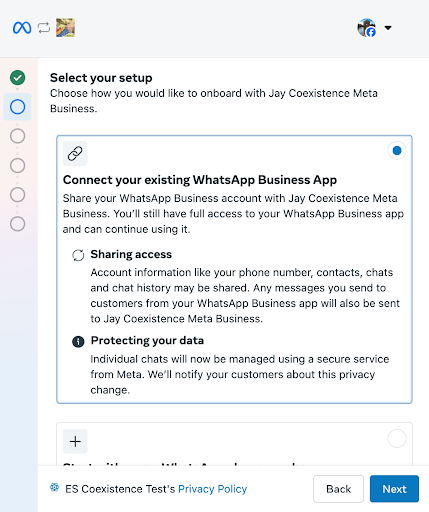
In Flowella, begin connecting WhatsApp (this launches Meta Embedded Signup). You will see a Meta screen offering a setup choice.
Choose: Connect your existing WhatsApp Business App
2) Flowella generates a verification code
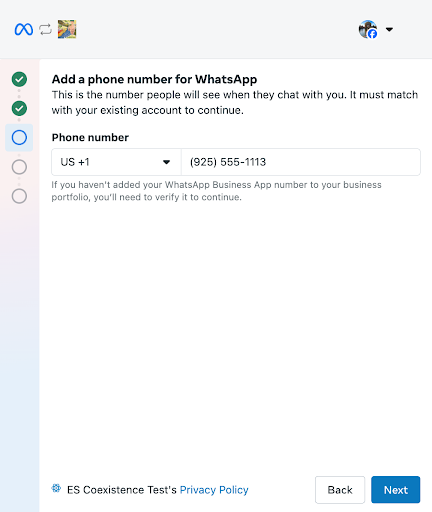
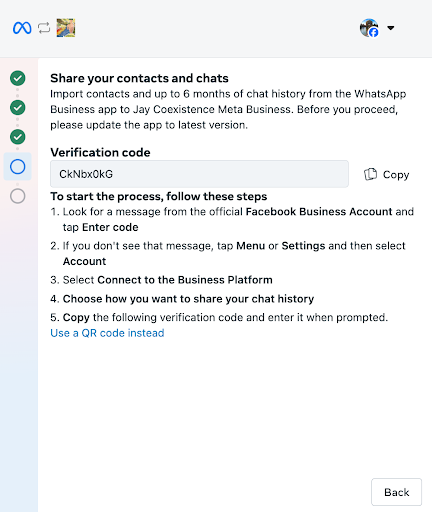
Meta will ask you to verify you own the WhatsApp Business App number. Flowella will show a verification code and the steps to follow.
3) Open WhatsApp Business App and find the Meta message
On your phone, open the WhatsApp Business App and look for a message from the official Facebook Business account. Tap Connect.
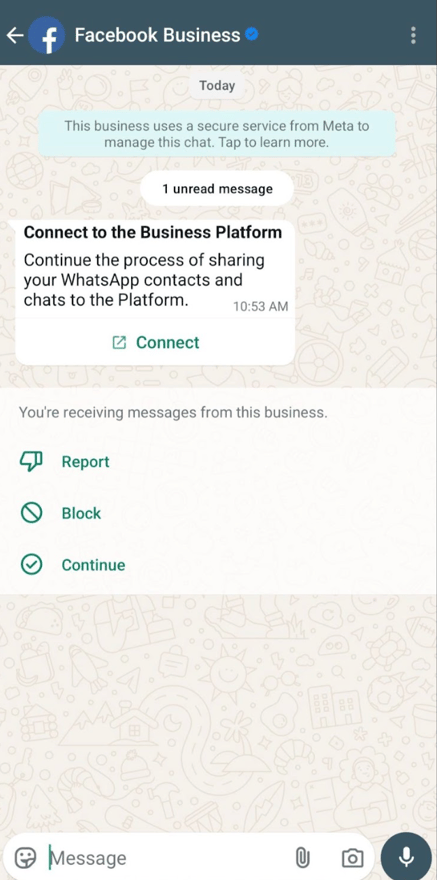
If you do not see the message:
-
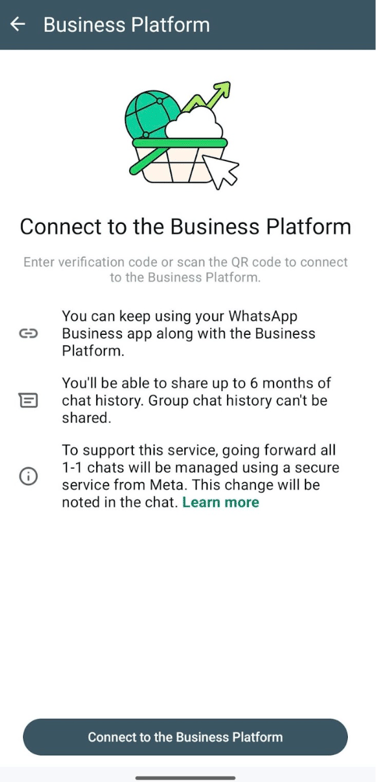
Go to WhatsApp Business App → Settings → Account → Business Platform
-
Select Connect to the Business Platform
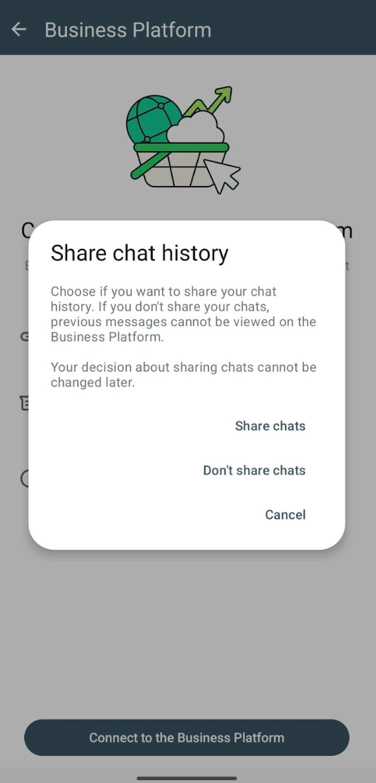
4) Choose whether to share chat history
You will be asked whether you want to share chat history.
-
If you share: Flowella can sync up to 6 months of 1:1 messages
-
If you do not share: Flowella starts with new conversations only
Important: This choice cannot be changed later without disconnecting and redoing the onboarding.
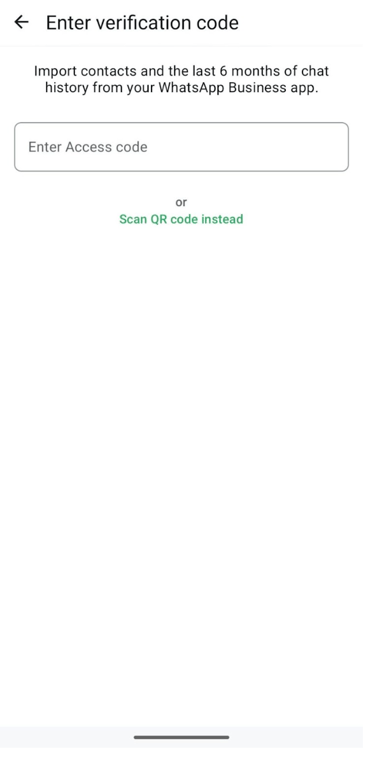
5) Enter the verification code (or scan QR)
Enter the verification code shown in Flowella (or scan the QR code if offered).
6) Confirm connection to the Business Platform
Tap Connect to the Business Platform when prompted.
7) Complete the Embedded Signup flow in Flowella
Return to your browser window to finish Meta’s Embedded Signup steps. Once complete, Flowella will finalise setup.
8) Allow time for synchronisation
After onboarding, Flowella synchronises contacts and, if permitted, chat history.
-
Keep the WhatsApp Business App open during synchronisation
-
Synchronisation can take several minutes depending on chat history size and connection speed
Meta requires synchronisation to begin within 24 hours after onboarding. Flowella initiates this automatically, so it’s best to complete the steps in one sitting.
What gets synchronised?
If you enable co-existence:
-
Contacts: WhatsApp contacts can be synchronised so they appear in Flowella
-
Chat history (optional): up to 180 days (6 months) of 1:1 messages can be synchronised if you choose “Share chats”
-
Group chats are not synchronised
-
Media messages may have additional limitations (Meta may send media asset details separately and not for older media)
-
Pricing and messaging rules
-
Messages sent via the WhatsApp Business App remain free (as per Meta’s rules)
-
Messages sent via Flowella (Cloud API) are subject to Cloud API pricing
Customer service window behaviour
A customer service window is opened when a WhatsApp user messages your business after you are onboarded to Cloud API.
If a user messaged you just before onboarding, you may only be able to reply with a template message until a new customer service window is opened.
Disconnecting (offboarding)
If you want to stop using Flowella with a co-existence number:
-
Go to WhatsApp Business App → Settings → Account → Business Platform → Disconnect Account
Once disconnected, Flowella can no longer send or receive messages for that number.
Troubleshooting
I did not receive the message from Facebook Business
-
Ensure WhatsApp Business App is updated (2.24.17+)
-
Go to Settings → Account → Business Platform and try connecting from there
-
Check internet connection and that notifications are enabled
Verification code does not work
-
Restart the connection from Flowella to generate a new code
-
Avoid extra spaces when copying and pasting
-
Try the QR code option if available
I get an error when switching partners/providers
If you previously used another partner and still share a credit line, Meta may block switching until that is resolved. Contact Flowella support and share the error details.
Some messages do not show in Flowella
This can happen if staff use unsupported companion devices (for example, WhatsApp for Windows). Ask them to reply from the primary device or supported companion apps.
FAQs
Can I keep using the WhatsApp Business App after connecting to Flowella?
Yes. That is the point of co-existence.
Do I have to share chat history?
No. You can choose “Don’t share chats”. In that case, Flowella will start from new messages only.
Will group chats appear in Flowella?
No. Group chats remain in the WhatsApp Business App only.
Can I use co-existence if I already use WhatsApp API with another tool?
Not on the same phone number at the same time. You will need a new number for Flowella, or migrate the number away from the current provider.
Related resources
-
Flowella blog: Flowella kicks off 2026 with two game-changing updates (Co-existence + HubSpot App Events)
https://flowella.io/en/blog/flowella-kicks-off-2026-with-two-game-changing-updates-co-existence-hubspot-app-events -
Meta documentation: “Onboarding WhatsApp Business app users (Coexistence)” (Updated Feb 4, 2026)
https://developers.facebook.com/documentation/business-messaging/whatsapp/embedded-signup/onboarding-business-app-users/