

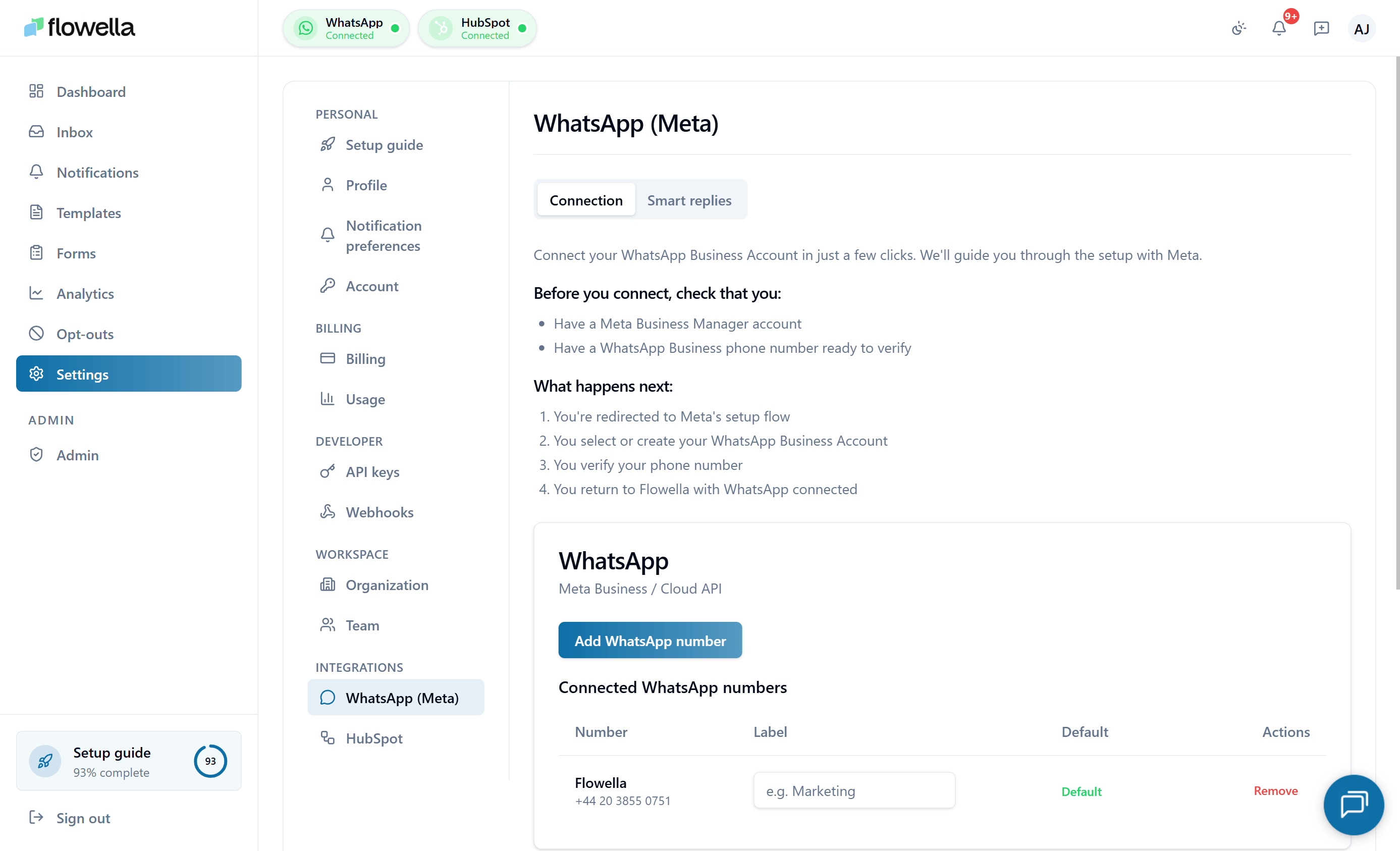
Who can manage Meta settings
Only Owners and Admins can change Meta integration settings. Members see the page but cannot reconnect or modify channels.What you see on Settings → Meta
The page lists every WABA connected to your org, and under each WABA, every phone number. For each phone number you can see:- Display name
- Verification status
- Quality rating (as reported by Meta)
- Whether Flowella is currently subscribed to incoming-message webhooks
Reconnecting Meta
Meta access tokens can expire — typically because a user permission was revoked, the connected user changed role at the company, or Meta required re-authorisation. When that happens, Flowella shows a banner prompting you to reconnect.1
Click Reconnect WhatsApp
On Settings → Meta, click Reconnect WhatsApp.
2
Run Meta's Embedded Signup
Meta opens its Embedded Signup popup. Sign in with a Facebook account that has admin access to the Meta Business and the WABA.
3
Confirm scopes
Approve the scopes Flowella requests. These are the same scopes used during onboarding.
4
Verify the channel list
After the popup closes, the channel list refreshes. Confirm every WABA and phone number you expect is listed.
Adding a new WABA or phone number
You can add more channels at any time:- A new WABA — click Connect WhatsApp and run through Meta’s Embedded Signup again. Pick the WABA you want to add.
- A new phone number on an existing WABA — add the number in Meta Business Manager first (Meta requires verification on Meta’s side), then refresh the channel list in Flowella.
Changing a display name or business profile
Display name, profile picture, address, and “About” text are configured per phone number. See Display name & profile for the full walk-through.Disconnecting a channel
If you no longer need a phone number in Flowella:- Open Settings → Meta.
- Find the phone number under its WABA.
- Click Disconnect.
- Stops Flowella from sending or receiving messages on that number.
- Does not delete templates or conversation history (these are kept for audit and reporting).
- Does not affect the number in Meta Business Manager — it remains attached to the WABA.
Related
Meta setup sequence
The order of business portfolio, verification, WABA, and phone setup.
Business verification
Verify your Meta Business so display names and limits unlock.
Phone numbers
Add and verify the numbers that power each channel.
Meta payment method
The separate card Meta uses for WhatsApp delivery fees.
Multi-channel
Each channel now uses its own Meta access token — relevant for multi-WABA orgs.
Co-existence
Use your existing WhatsApp Business app number with Flowella.