

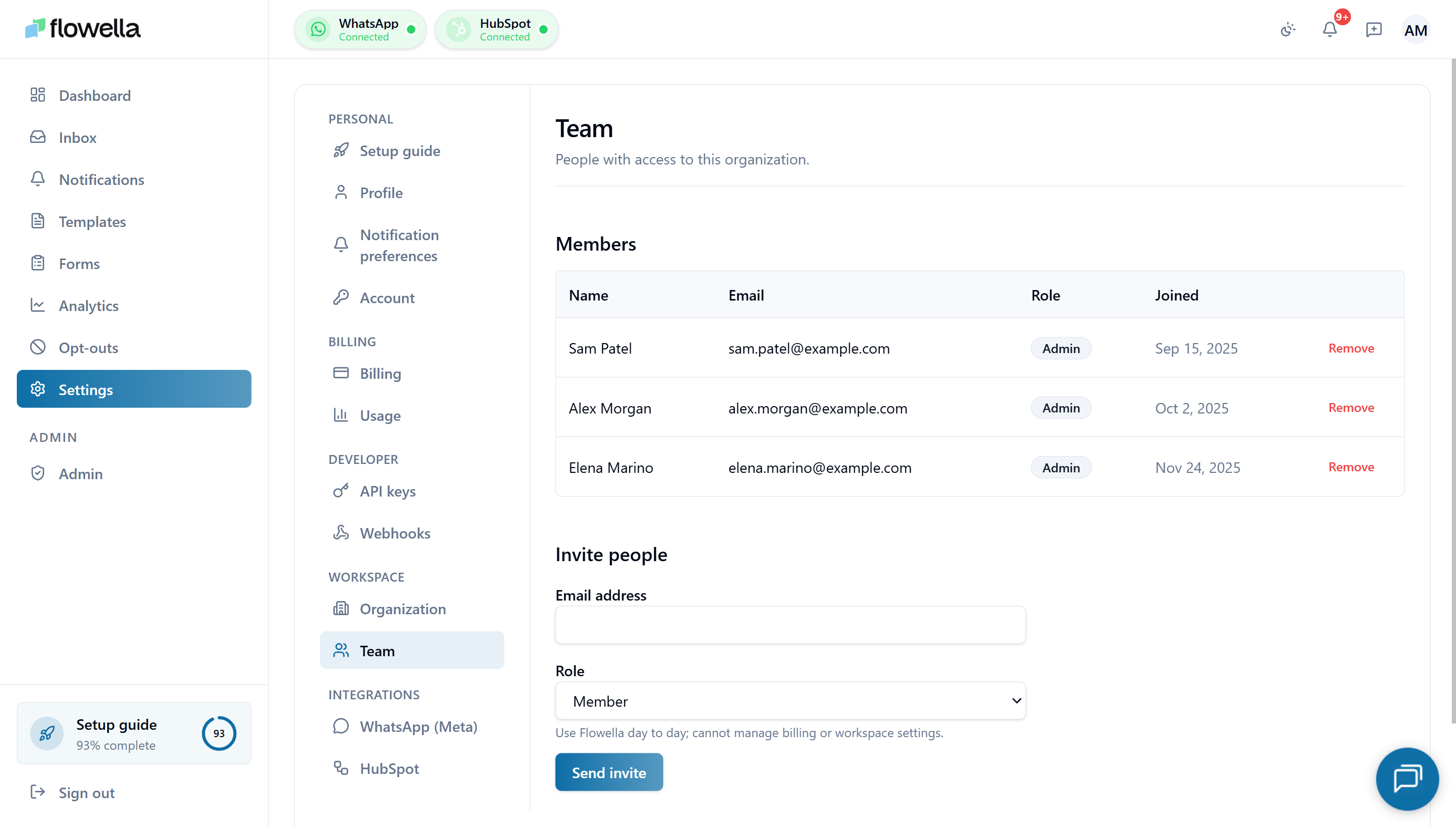
Opening Settings → Team
From the left navigation click Settings, then choose Team under the Workspace section of the settings sidebar.Roles at a glance
Flowella has three roles:
Owners and Admins are functionally similar day-to-day. The main difference is billing and org-level destructive actions, which only Owners can do.
Roles apply at the organization level. The same person can have a different role in a different Flowella organization.
Members table
The Members table at the top of the screen lists everyone with access to the workspace, with four columns plus a remove action:
You cannot remove yourself or the Owner from this table. To leave an org you don’t own, ask another Owner or Admin to remove you. To remove the Owner, transfer ownership first.
Inviting people
You need the Owner or Admin role to invite teammates.1
Enter their email
In the Invite people section, type the person’s work email in Email address.
2
Choose a role
Pick Member (default), Admin, or Owner from the Role dropdown. The helper text under the dropdown describes what each role can do.
3
Send invite
Click Send invite. Flowella emails the invitee a link of the form
https://app.flowella.io/join?code=… and adds them to Pending invitations.Accepting an invite
If you have been invited:- Open the invite email and click Accept invite.
- If you do not yet have a Flowella account, you will be asked to create one with the same email the invite was sent to.
- If you already have an account, sign in. Flowella will add you to the organization and apply the role from the invite.
Pending invitations
The Pending invitations section lists invites that have been sent but not yet accepted. If there are no outstanding invites, the section reads No pending invitations. For each pending invite you can:- Resend the invite email (useful if the original was filtered to spam).
- Revoke the invite. Revoking immediately invalidates the join link — the invitee can no longer use it.
Changing a role
Owners and Admins can change another member’s role:- Click the member’s row in the Members table.
- Pick the new role.
- Save.
Transferring ownership
Only the current Owner can transfer ownership.- Promote the new Owner to Owner from Settings → Team.
- The previous Owner is automatically demoted to Admin.
Removing a member
Owners and Admins can remove members by clicking Remove on the member’s row. Removing a member:- Immediately revokes their access to the org. Any active session is terminated on the next request.
- Does not delete the messages they sent or templates they created — those stay in the org.
- Does not affect their account in other Flowella organizations.
- Does not automatically revoke API keys they created. Rotate or revoke keys separately — see the tip below.
- Reassigns any open inbox conversations they were the assignee on to Unassigned, so other agents can pick them up.
Related
Organization
Workspace name, business email, and default content language.
API keys
Rotate or revoke any keys a leaving teammate created.
Billing
Only Owners can change billing — covered here.
Profile
Each user manages their own name, avatar, password, and sessions.