

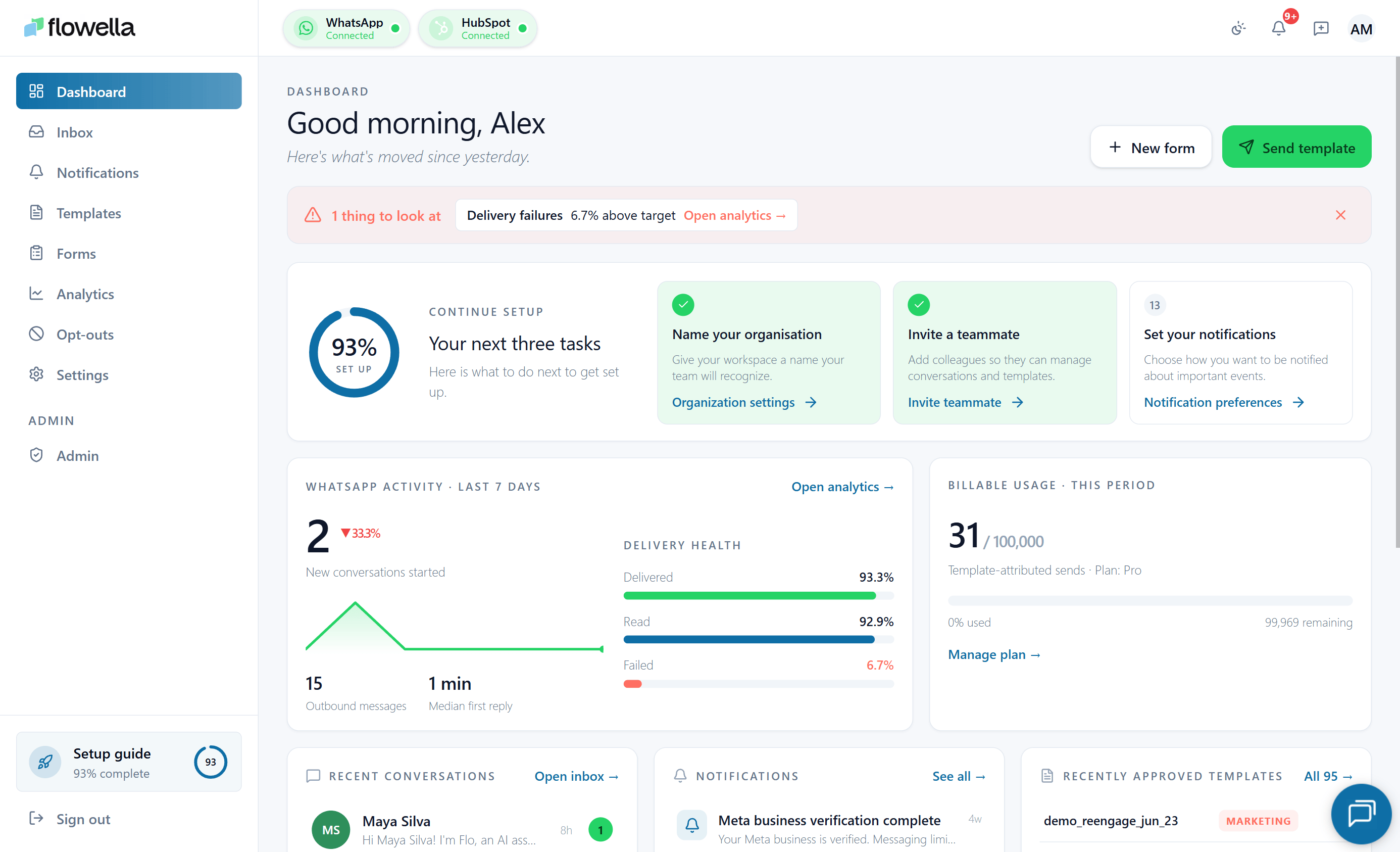
How to open it
Sign in to Flowella. The Dashboard is the home page of every organisation, at/{org}/dashboard. You can also click the Flowella logo in the top-left from any page to return here.
What the Dashboard shows
The page is laid out as a grid of cards. The exact set you see depends on what is connected, but the standard set is:Billing
Current plan and a shortcut to manage your subscription. See Billing.
WhatsApp (7 days)
A snapshot of activity on your active channel: conversations, total outbound messages, delivery rate, read rate, and failure rate.
Channels
The number of WhatsApp channels connected to your org and a shortcut to add another. See Multi-channel.
HubSpot
Connection status for HubSpot and a quick link to integration settings.
Flows
The number of HubSpot forms Flowella is tracking. See Flows.
Templates
Live counts pulled from Meta and your Flowella drafts — for example, “12 approved · 3 drafts” — with a shortcut into the templates list. If Meta doesn’t respond within 8 seconds, the card falls back to the last known counts.
Useful links
Shortcuts to common tasks: open the inbox, create a template, view analytics.
The WhatsApp snapshot
The WhatsApp card shows five metrics, all calculated over the last 7 days for your active channel:- Conversations — distinct conversations that had at least one message in the period.
- Total outbound — messages sent from your channel.
- Delivery rate — percentage of outbound messages Meta confirmed delivered.
- Read rate — percentage of delivered messages the recipient opened.
- Failure rate — percentage of outbound messages that failed.
Sample data when nothing is connected
If your org has no WhatsApp channel yet, the Dashboard still renders the layout but uses illustrative numbers with a “Sample data” callout. As soon as you connect a channel and send a few messages, the card switches to your real data.Switching channels
The WhatsApp snapshot reflects the active channel. To see numbers for a different channel, switch channels using the channel switcher in the top-left. See Multi-channel.Related
Analytics
Per-channel detail behind the 7-day dashboard snapshot.
Usage
Current-cycle conversation count and per-channel breakdown.
Inbox
Open a conversation directly from the dashboard.
Notifications
The bell icon and the operational events behind it.