

Before you start
You need:- HubSpot connected to Flowella with access to your forms. See HubSpot setup. If the Flows page shows Sample forms, select Open HubSpot integration and reconnect HubSpot.
- A WhatsApp number connected to Flowella and selected in the app. See Before you start.
- Your business verified by Meta. Flowella does not publish a Flow until Meta shows your business as verified. See Business verification.
- The WhatsApp number fully registered with Meta.
- An active Flowella subscription or free trial.
- A HubSpot marketing form with at least one field that WhatsApp can show. See How HubSpot fields convert.
Syncing a form to a WhatsApp Flow
1
Open Flows
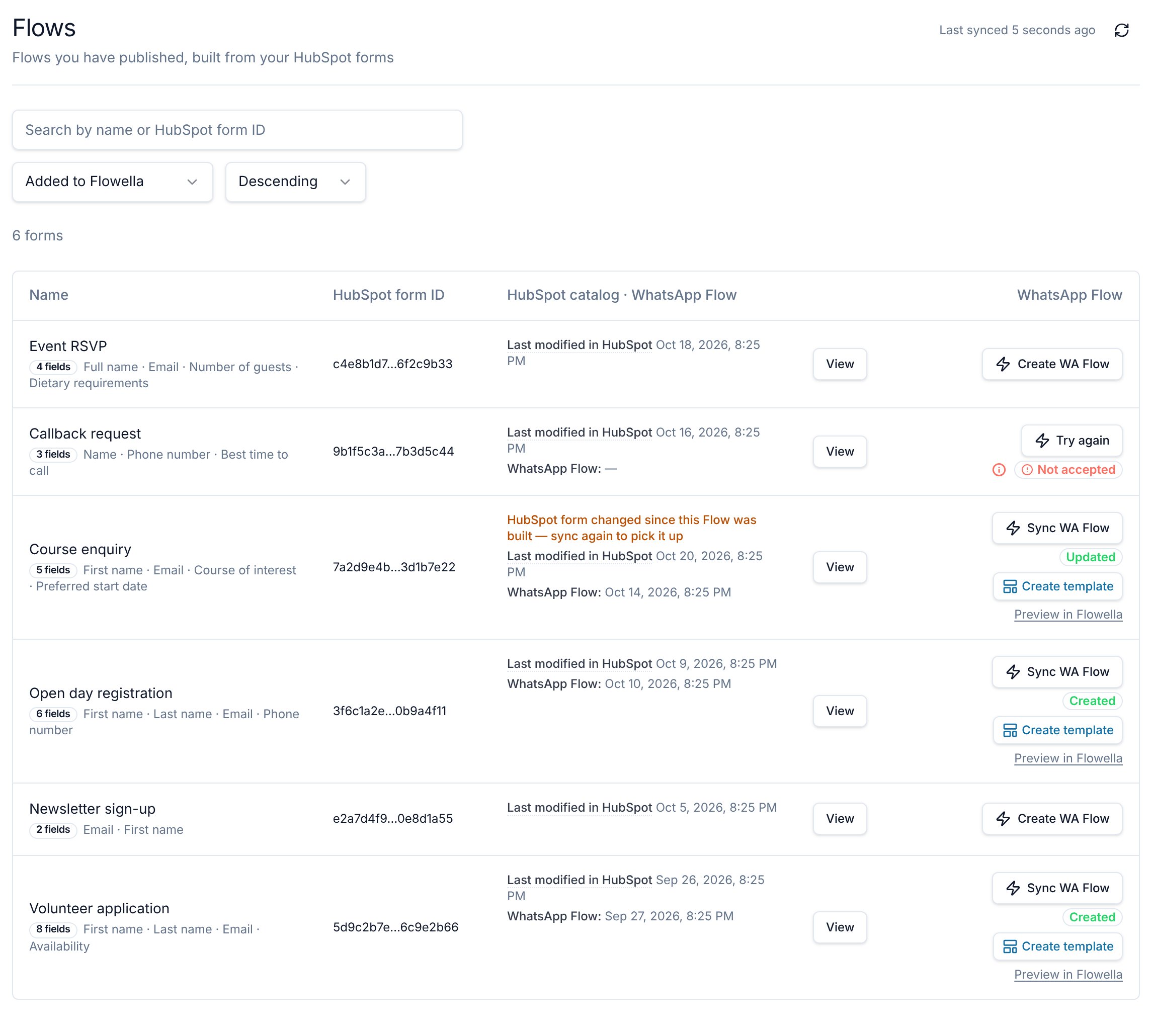
Select Flows in the sidebar. The page lists your HubSpot marketing forms for the WhatsApp number you have selected. Flowella refreshes the list from HubSpot automatically. To pull in a new form straight away, select the refresh icon next to Last synced.
2
Find the form
Search by form name or HubSpot form ID. You can sort by Added to Flowella (the default, newest first), Modified in HubSpot, Flow last synced or Name.
3
Create the Flow
Select Create WA Flow on the form’s row, or open the form and use the same button on its detail page. While Flowella reads the form, builds the Flow and publishes it, the button shows Syncing…. To stop the sync, hover over the button and select Cancel.
4
Check the result
When the sync succeeds, the row shows a Created badge, or Updated after later syncs. It also shows Create template, Preview in Flowella and Open in Meta, which opens Meta’s preview of the Flow.
If the button is greyed out
Hover over the button to see why it cannot run.Flows belong to one WhatsApp number
Flowella creates the Flow on the WhatsApp number you have selected. If you have more than one number, select the other number under Meta channels in the account menu (see Switching channels), then sync the form again to use it there.Create a template after your first sync
After your organisation’s first successful sync, Flowella shows Your form is now a WhatsApp Flow. It doesn’t appear for later syncs. Select Create template with this Flow to open the template editor with a Flow button already connected, or Not now to close it. You can start the same template later with Create template on the form’s row. See Send the Flow to customers.The Flow detail page
Select a form to open its detail page. The page has three tabs.
Flowella keeps only the result of the latest sync for each form and WhatsApp number. There is no sync history.
How HubSpot fields convert
Each HubSpot field becomes one WhatsApp Flow component. Only the field’s label, its options and its required setting carry over.
Rich text that is a single heading of up to 80 characters becomes a heading (H1) or subheading (H2 or H3). Anything else becomes body text, which keeps bold, italic, links and lists.
Each component also has a label length limit, so long labels can be cut short on the customer’s phone. See Form design best practices.
Fields that do not convert as they are
- Hidden fields do not appear in WhatsApp. Flowella submits each hidden field’s default value with the answers.
- Conditional (dependent) fields always show, straight after their parent field. If one is required in HubSpot, the customer must answer it.
- Help text, placeholder text and option descriptions are dropped.
- File uploads become a photo picker, and the photo picker is always optional in WhatsApp. If the file field is required in HubSpot and the customer skips it, the submission fails with “Missing required field”. Make file fields optional in HubSpot.
- Other field types, such as HubSpot’s mobile phone field (type
mobile_phone), are skipped. The Overview tab marks them. If a skipped field is required in HubSpot, the sync fails with Not ready.
Limits and gotchas
- One screen plus a thank-you screen. The whole form becomes a single screen. After the customer submits, a thank-you screen shows the form’s thank-you message from HubSpot, with a Done button. To ask questions in stages, use two forms and two Flows.
- The form name is the screen title, and it identifies the Flow. Customers see the HubSpot form name at the top of the screen. Flowella also uses the name to find the Flow in Meta. If you rename the form, the next sync creates a new Flow, and templates you have already made keep opening the old one. If your WhatsApp account already has a Flow with the same name, Flowella overwrites it.
- Every sync publishes straight away. There is no draft step, so the live Flow changes as soon as a sync succeeds. Edits to the HubSpot form also change your website form. For Flow-only changes, consider a WhatsApp-only copy of the form.
- Meta’s limits per screen. A screen can hold one photo picker, five opt-ins (consent checkboxes count) and 50 components in total. The submit button text from HubSpot can be up to 35 characters. A single-line answer can be up to 80 characters and a multi-line answer up to 600. See Meta’s Flow components reference and media upload components.
- Large forms lose their rich text. If the form would need more than 50 components, Flowella drops every rich text block and keeps all the questions.
- Redirecting forms show the link as text. If the HubSpot form redirects to a page after submission, the thank-you screen shows the redirect address as plain text. Set the form to show a thank-you message instead.
- Uploaded photos are public files. Flowella saves each photo a customer uploads to HubSpot files as a public file, so anyone with its link can open it and search engines can index it. Don’t ask for photos of ID documents or other sensitive information.
- Sync again after you add a required field. Flowella checks each submission against the live HubSpot form. If you add a required field in HubSpot and do not sync, every submission fails with “Missing required field”.
Sync errors
When a sync fails, the row shows a red badge. Hover over the info icon next to it for more detail. After you fix the cause, select Try again.
A failed sync keeps the form linked to its existing Flow, so submissions from that Flow keep reaching HubSpot.
Send the Flow to customers
Customers open a Flow from a button on a WhatsApp template message.1
Create a template with a Flow button
Select Create template with this Flow in the first-sync dialog, or Create template on the form’s row. The template editor opens with a Flow button already connected. Write the message, choose a category and name the template. See Templates.
2
Submit the template for approval
Submit the template to Meta. You can only send it once Meta approves it.
3
Test it
Open the template and use the Test Template card to send it to your own WhatsApp number. Open the Flow and submit it to check the answers reach HubSpot.
4
Send it from a HubSpot workflow
In a contact-based workflow, add the Send WhatsApp Template action and choose the template. See Send WhatsApp Template.
What happens when a customer submits
When the customer taps the submit button, Flowella checks the required answers against the live HubSpot form, then submits the answers to HubSpot as a submission of that form. Flowella attaches the submission to a HubSpot contact, in this order:- The contact the HubSpot workflow enrolled, when a workflow sent the Flow with Send WhatsApp Template.
- The HubSpot contact already linked to the customer’s WhatsApp number in Flowella.
- A HubSpot contact with the same phone number. Flowella uses the phone number given in the form, or else the customer’s WhatsApp number.
- A HubSpot contact with the email address given in the form.
- If none of these match, Flowella creates a HubSpot contact for the phone number.
Check that a submission arrived
- In HubSpot: the form’s submissions list shows WhatsApp submissions with the page name
WhatsApp Flow · <form name>. - On the contact’s timeline: the Form Completed event has a View submission link to the answers.
- In Flowella: the form’s Statistics tab lists recent submissions.
- In the Inbox: the conversation shows a card marked Response sent, titled with the Flow button text or Flow response. Select View response to see the answers.
Errors the customer sees
If a submission fails, the Flow stays open and shows an error, so the customer can try again.Related
Send your first Flow
Walk through the whole loop from HubSpot form to first submission.
Form design
Build HubSpot forms that read well on every phone.
Workflow actions
Send Flow templates and wait for Form Completed in HubSpot.
Workflow recipes
End-to-end recipes that combine forms, templates and workflows.
HubSpot sync failures
Diagnose missing submissions and failed workflow steps.
Multi-channel
How Flows and other settings work across WhatsApp numbers.