

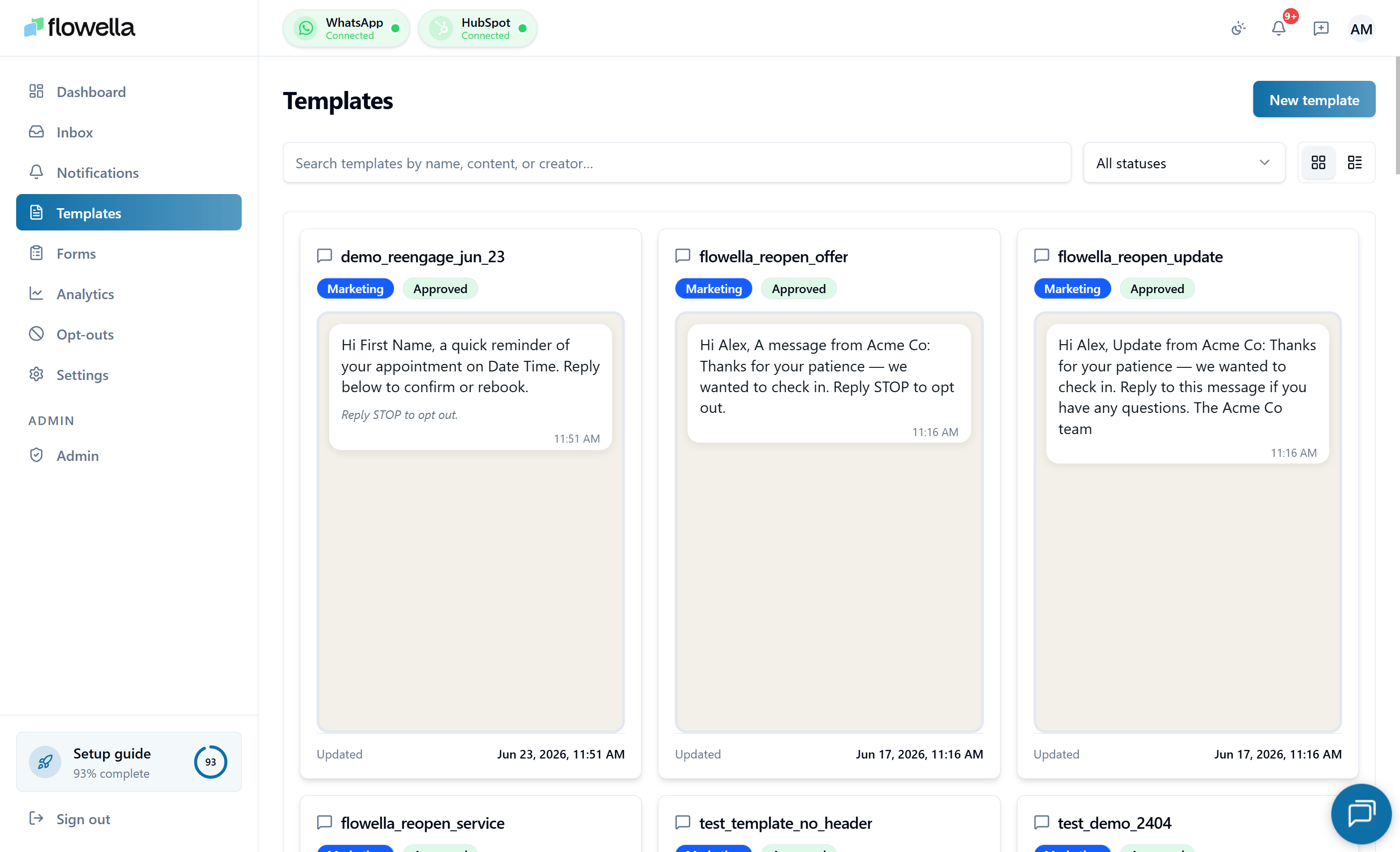
What templates are and why they need Meta approval
Because WhatsApp templates are sent outside the standard conversation window, Meta reviews every template before it can be used. The approval process ensures messages meet WhatsApp’s quality standards and business policies. Common rejection reasons include overly promotional language, misleading content, or poor grammar, so it pays to keep your copy clear and focused on genuine value for the recipient. Once Meta approves a template, you can use it in Flowella workflows, automated flows, campaigns, and manual inbox sends. Any changes to a template’s structure require resubmission — but dynamic variables let you personalise each message without additional approvals.Approval is often near-instant. Meta runs an automated first-stage review that clears most templates within minutes, but anything routed for human review can take up to 48 hours. Submit ahead of time so a slower review never blocks a production send.
Creating a template
Choose a starting point
Clicking New Template (or navigating to/{org}/templates/new) opens a chooser with three ways to start:
- Meta Library — browse Meta’s own catalogue of prebuilt utility templates. These are pre-vetted by Meta and usually approved quickly.
- Flowella Templates — a curated catalogue of starter templates that showcase Flowella capabilities (Flow buttons, coupons, re-engagement, and so on).
- Start from Scratch — open a blank editor when you already know exactly what you want to build.
Meta Library gallery
The Meta Library gallery lets you search Meta’s utility template catalogue and add templates without rewriting them.- Search — type to filter by name; results are debounced and cached for about an hour per WABA.
- Language filter — by default the gallery is filtered to the WhatsApp language derived from your organisation’s content locale (set under Settings → Organization). Toggle All languages to browse every Meta locale.
- Open one as draft — click Open as draft on a card to instantiate that template as a local draft and jump straight into the editor. Nothing is submitted to Meta until you click Publish.
- Multi-select add — tick the checkbox on multiple cards, then click Create drafts () to instantiate all selected templates at once. On success, Flowella returns you to the templates list.
Library selections always open as local drafts in your WABA. You can rename, edit variables, add buttons, or change categories before publishing — the Meta Library entry is just a starting point.
Flowella Templates gallery
The Flowella Templates gallery lists curated starters maintained by Flowella (order-status flows, coupon promos, appointment reminders, and so on). Pick a starter to prefill the editor with a ready-to-personalise draft, then publish to Meta when you’re happy. Behind the scenes the gallery drops you into the editor via?starter=<slug>.
Fill in the editor
1
Name your template
Enter a descriptive name that reflects the template’s purpose.
2
Add a visual header
Optionally add an image or video as the template header to make your message more engaging.
Header media is optional but recommended. Images must be under 5 MB and videos under 10 MB. Videos should be under 60 seconds and open with an engaging frame.
3
Write your message body
Enter the main body text for your template. Keep it clear, concise, and relevant to your audience.
Avoid overly promotional language. Meta’s review looks for messages that provide clear value to the recipient.
4
Add a button
Click Add a button to your template to include an interactive element.
5
Select the button type
Choose the button type that fits your use case:
- Call-to-action button — directs users to a website or phone number.
- Quick reply button — lets users respond with predefined text.
- URL button — sends users to a specific web page.
You can mix button types on the same template. For example, combine a URL button labelled “View Order” with a quick reply button labelled “Contact Support”.
6
Set the button value
Enter the action or destination for the button — for example, a phone number for a call button or a URL for a link button.
7
Add button text
Enter the label that will appear on the button. Make it action-oriented and clear — for example, “Learn More”, “Contact Us”, or “Get Started”.
Button text has a 25-character limit. Use short action verbs and make it obvious what happens when the button is tapped.
8
Create the template
Click Create Template to save and submit your template.
Submitting the template sends it to Meta for review. This is often near-instant, as most templates clear Meta’s automated review within minutes, though some are routed for human review and can take up to 48 hours.
9
Wait for approval
Submitted templates land in the Pending state. Most clear Meta’s automated review within minutes; some are routed for human review.
Meta tells you approval may take up to 12 hours and Flowella will email you as soon as the status changes. You don’t need to keep refreshing the page.
Catalogue actions menu
Every template in the catalogue has a 3-dot actions menu, in both the grid (card) and list (table) views. The menu gives you the same actions in both views, so you no longer need to open the editor for routine tasks.
Send and Statistics deep-link to the matching tab on the template detail page via the
tab query parameter (?tab=send, ?tab=statistics), and Submit for approval appends ?submit=1 to open the submit dialog. These URLs are shareable — paste one in a message to send a teammate straight to the right tab.
Screenshot review: the templates list screenshot above predates the 3-dot actions menu. Update it once new captures are available.
Copy the Meta template ID
Once a template has been submitted to Meta, it has a Meta template ID. You need this ID when configuring API sends, debugging webhooks, or cross-referencing a template in Meta Business Manager. You can copy it from two places:- Catalogue — open the 3-dot menu and click Copy template ID.
- Template detail — the info card in the editor header shows a Template ID row (next to Last updated and Updated by) with a copy button.
Delivery-health pills on the templates list
Every row on the templates list can show a delivery-health pill in addition to the usual status badge. The pill flags templates that WhatsApp has stopped delivering, so you can spot them without opening each editor.
Paused and disabled pills replace the normal status badge; the Quality: Red pill shows alongside it. When Meta lifts the pause, restores the template, or brings quality back to Yellow/Green, the pill clears automatically on the next sync.
Pacing pauses vs quality pauses
Flowella classifies every Meta pause into one of two kinds, and the recovery path differs:- Pacing pause — WhatsApp temporarily held the template after early negative feedback on a marketing send. Flowella shows an Unpause button next to the pill. Click it to ask Meta to restore the template. Review the content before unpausing; Flowella never unpauses automatically.
- Quality pause — WhatsApp paused the template for quality violations. These arrive in escalating instances, shown as Quality pause 1/3, 2/3, and so on. The first pause lasts about 3 hours and the second about 6 hours; a third violation disables the template. There is no Unpause button for quality pauses. Wait for the pause to expire, and don’t edit or resubmit while it’s active, because that sends the template back into Meta review and extends the outage.
TEMPLATE_PAUSED, TEMPLATE_DISABLED, TEMPLATE_QUALITY) so you find out even if you’re not on the templates page. Opt in or out under Notification preferences; the full event list is in Notification events.
Meta status history
Open any Meta-backed template and switch to the Statistics tab. Below the send-log tiles you’ll see a Status history section that lists every recorded transition Meta has reported for this template — approvals, pauses, disables, quality changes, and category re-classifications — with a timestamp and the source field that changed. Use this as an audit trail when you’re investigating a delivery-health pill or answering “when did this template flip?” in a support conversation.Status history only appears for Meta-backed templates (not local drafts) and is nested inside the Statistics tab. Earlier versions rendered it below the editor’s action bar — it now lives with the rest of your delivery analytics.
System-managed reopen templates
Flowella’sflowella_reopen_* templates (Service, Update, Offer) power the Inbox Reply tab and the one-tap Re-engage CTA. In the Templates catalogue these system-managed reopen templates now carry a System badge on both the card and list views so you can spot them at a glance.
You can still edit the framing text under Settings → Reply templates, but system reopen templates cannot be deleted — the Delete action in the catalogue’s 3-dot menu and the delete button inside the template editor are disabled with a tooltip explaining why. To stop using a kind, toggle it off in Reply templates instead.
Editor behaviour
The template editor is designed to never lose work.- Auto-save — every change to the name, language, category, channel, or components saves after a ~1-second pause. A sticky footer action bar shows the current save state (Saving…, Saved, or Unsaved changes).
- Publish is gated by save — the Publish button stays disabled until the latest auto-save completes, so you can never submit a half-saved draft to Meta.
- Body line breaks and footer spaces are preserved across tab switches and saves — what you type is what Meta receives.
- Quick Reply buttons start empty with a placeholder. Saving or publishing a template with an empty Quick Reply text is blocked by inline validation (
BUTTON_TEXT_REQUIRED). - Category dropdown shows only the selected label when closed; opening it reveals Meta-aligned descriptions, a recategorisation note, and a link to the Template reference.
Testing a template
To test a template before using it with real contacts, open the template and switch to the Send tab.1
Open the Send tab
From Templates, click the template you want to test, then select the Send tab.
2
Enter your number
Under Test Template, choose the country code and enter the WhatsApp number you can receive messages on.
The number must be in international format with the country code — for example,
+44123456789.3
Fill any required variables
Provide a value for each template variable. For Coupon code templates, enter the literal codes you want to send — the template’s sample value is placeholder only and never used at send time.
4
Send the test
Click Send Test.
5
Verify on device
Open the message on your device and confirm the header media, body formatting, and buttons render correctly. Check on both iOS and Android if possible.
Bulk send
The Send tab also lets you send an APPROVED template to many recipients in one job — useful for marketing announcements, batched reminders, or any structured outbound that doesn’t fit in the inbox.Building the recipient list
The recipient list editor sits below Test Template in the Send tab.- Add rows manually — one row per recipient, with a phone column and one column per template variable.
- Import a file — click Import file and pick a
.csvor.xlsxfile. File import is the only way to add recipients in bulk; pasting rows is not supported. - Download a sample file — click Download sample file and choose Excel (.xlsx) or CSV (.csv). Flowella generates a starter file with the correct column headers for the selected template (phone + each variable). Use it as the basis for your own list.
- Remove rows with the row-level delete action.
Import file requirements
- Formats —
.csvand.xlsxare accepted. Legacy.xlsfiles are rejected; save them as.xlsxor.csvfirst. - Limits — files must be under 10 MB and contain at most 50,000 recipient rows.
- Excel workbooks — Flowella reads the worksheet named Recipients if present, otherwise the first sheet. Phone numbers stored as Excel numbers import as full digit strings (never scientific notation), and date or number cells import as they display in Excel.
- CSV quoting — quoted fields are parsed per RFC 4180, so commas and line breaks inside quotes, doubled quotes (
""), and the UTF-8 BOM from Excel’s “CSV UTF-8” export all work. Empty padding rows that Excel appends are dropped automatically.
Schedule and throttle
- Schedule — send immediately, or pick a future date and time.
- Throttle — choose how many messages per second Flowella dispatches to Meta. Throttle below your phone number’s messaging limit tier to avoid spikes that hurt quality score. See Messaging limits.
Watching the job run
Once you click Start send, the Statistics tab on the same template shows a live progress banner and job summary tiles: total queued, sent, delivered, read, failed, and suppressed. While a job is running, the banner and send log refresh automatically every few seconds. You don’t need to switch tabs or refocus the window to see new progress. If you open the Statistics tab partway through a job, the banner reappears with the current progress. The Suppressed state is used when Flowella drops a row because the same(template, phone) pair was already sent inside the dedupe window. This prevents accidental duplicates if you re-import a recipient file or re-run a schedule.
You can leave the page — the job continues to run server-side and a notification fires when it completes.
Sends are held while a template is paused or disabled
If you start a bulk send (or trigger a send through the v1 API or a HubSpot send form) while the template’s latest Meta status is Paused or Disabled, Flowella creates the job in a held state instead of dispatching it. Nothing is sent and nothing is lost.- Paused templates — held jobs resume automatically as soon as Meta restores the template to Active. Flowella’s pause/restore notifications include how many jobs were held and for how long. Unpause pacing pauses from the templates list, or wait for a quality pause to expire.
- Disabled templates — held jobs stay parked. Edit or appeal the template in WhatsApp Manager before sending again.
- Test sends and inbox sends are refused outright while the template is paused or disabled, with a toast explaining why.
Failed sends and Resend unsent
If a job finishes without reaching every recipient, Flowella marks it Failed instead of reporting an inflated completed count. The progress banner stays visible with the message Bulk send finished with unsent recipients and a Resend unsent button. Click Resend unsent to requeue only the recipients who never received the message. Recipients that were already sent are not messaged again, so there’s no risk of duplicates.Per-send Details column
Every row in the Statistics → Send log has a Details column that explains the outcome in plain English instead of a Meta error code. The Details copy resolves the failure reason frommeta_webhook_logs and the persisted delivery payload, so post-send Meta failures (for example, payment method 131042) are surfaced just like pre-send job failures.
Status badges are localized to your account’s UI language.
Related
Template reference
Categories, headers, buttons, variables, and the submission lifecycle.
Template variables
Syntax, sample values, HubSpot mapping, and rejection traps.
Media headers
What media formats and sizes WhatsApp accepts in template headers.
Template rejected
Common Meta rejection reasons and how to fix them.
Pricing & categories
How template category drives Meta’s per-conversation pricing.
Workflow actions
Send your approved templates from a HubSpot workflow.