

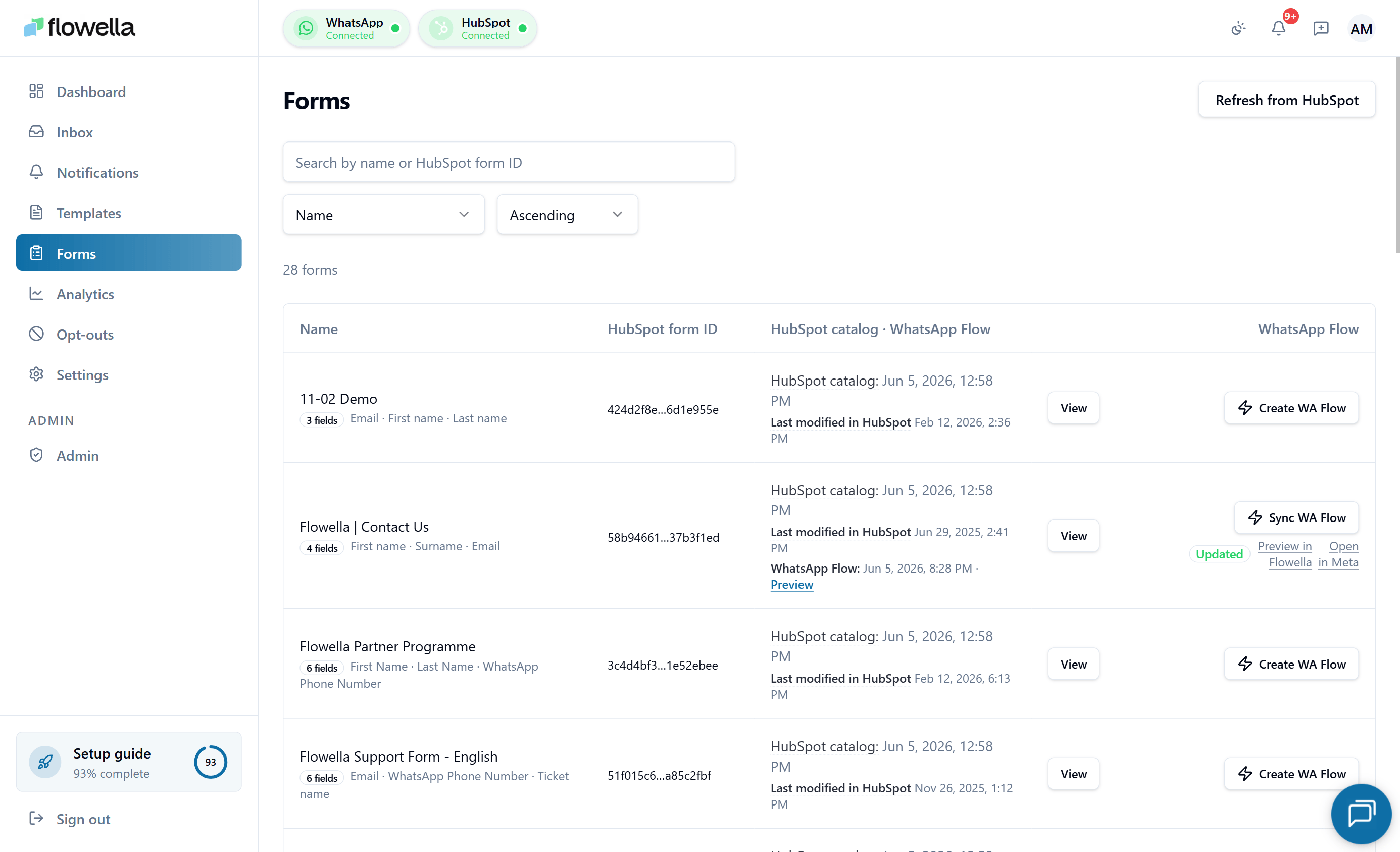
How to open it
Go to Forms in the left navigation, or:/{org}/{waba}/{phone}/forms. The list is the same — the channel scoping is used when you sync a Flow to Meta.
What the list shows
Each row represents one HubSpot form. Columns include:- Form name and a truncated HubSpot form ID with a one-click copy button.
- Field count — how many fields the form has, with a flag if any are unsupported.
- Last modified in HubSpot — pulled from HubSpot’s own
updatedAtso you can tell when the form definition itself changed. - Catalog updated — when Flowella last refreshed the form definition from HubSpot.
- WhatsApp Flow status — synced, draft, or stale (HubSpot has changed since the last sync).
- Create WhatsApp Flow / Sync WhatsApp Flow — the primary action. The label switches to Sync when a Flow already exists and to Stale — Sync needed when the HubSpot form has been edited since the last sync.
Form detail
Click a row to open its detail page. The detail header shows the same Create / Sync WhatsApp Flow primary action as the list row, so you don’t have to go back to make changes. From the detail page you can:- Review the field-by-field mapping between the HubSpot form and the WhatsApp Flow.
- See past sync runs — when each was started, status (queued, running, succeeded, failed), and any errors Meta returned.
- Trigger a new sync, retry a failed run, or cancel a sync that is still in progress.
- Open the corresponding Flow in Meta Business Suite.
Syncing a form to a WhatsApp Flow
When you click Create WhatsApp Flow or Sync WhatsApp Flow, Flowella:- Runs a preflight check — confirms HubSpot is connected, the active channel is verified, the form has at least one supported field, and billing is active.
- Reads the latest form definition from HubSpot.
- Generates the equivalent WhatsApp Flow JSON.
- Uploads it to Meta on the channel you have selected (channel-scoped).
- Records the sync run on the detail page.
Channel scope gating
Forms are org-wide in the list but channel-scoped when you sync — a Flow has to be uploaded against a specific WABA + phone number combination.
If you click Sync from the org-wide URL and Flowella can’t decide which channel to use (no channels connected, multiple channels with no scope set, or a stale cross-org session), the button stays pre-disabled with a tooltip explaining what’s missing. Switch into the correct channel from the channel switcher, or open
/{org}/{waba}/{phone}/forms directly.
Sync error UX
When a sync fails, Flowella turns the run row into a single outline action button so you can fix forwards from the same row:
The row also carries a user-safe error badge:
FLOW_SYNC_PREFLIGHT+ Meta error#133010(phone not registered) — the badge shows the stored Meta message and a phone-registration hint, not a generic “not ready”. Finish phone registration in Settings → Meta and retry.QUEUE_FAILED— the sync queue couldn’t pick up the job. Usually transient; retry. If it persists, the platform status page is the next place to check (see Status & incidents).- Meta
validation_errors— the badge summarises which fields Meta rejected, so you can adjust the HubSpot form (or the field mapping) and retry without leaving the row.
Question copy in rich text blocks
HubSpot lets you place a rich text element above a field group so the question text sits above the input rather than inside the field label. Flowella maps those blocks into the WhatsApp Flow alongside the inputs:
The rich text appears before the inputs in the field group, so customers see the question, then answer it. Field labels are still shown in-app, so keep them short — see Form design best practices.
If you already have HubSpot forms that use rich text above field groups, re-sync them from the form detail page. Older sync runs only picked up field labels, so the rich text question copy was missing from the published Flow until you sync again.
Sample data
If you have no HubSpot connection yet, the Forms page renders with illustrative rows behind a “Sample data” callout. Connect HubSpot to switch to your real forms.A form can sync perfectly and still read badly on a phone. Long field labels are shortened on screen, most noticeably on iPhone, and the wrong question type makes it worse. See Form design best practices before you build a form.
Related
HubSpot setup
Connect the portal Flowella reads forms from.
Form design
Build HubSpot forms that render cleanly on every device.
Workflow actions
Trigger Flows from a HubSpot workflow.
Workflow guides
End-to-end recipes that combine forms, templates, and workflows.
HubSpot sync failures
Diagnose form sync issues and missing submissions.
Multi-channel
Forms are synced per channel — understand the scoping.
Data security
How form submissions are encrypted in transit and at rest.