

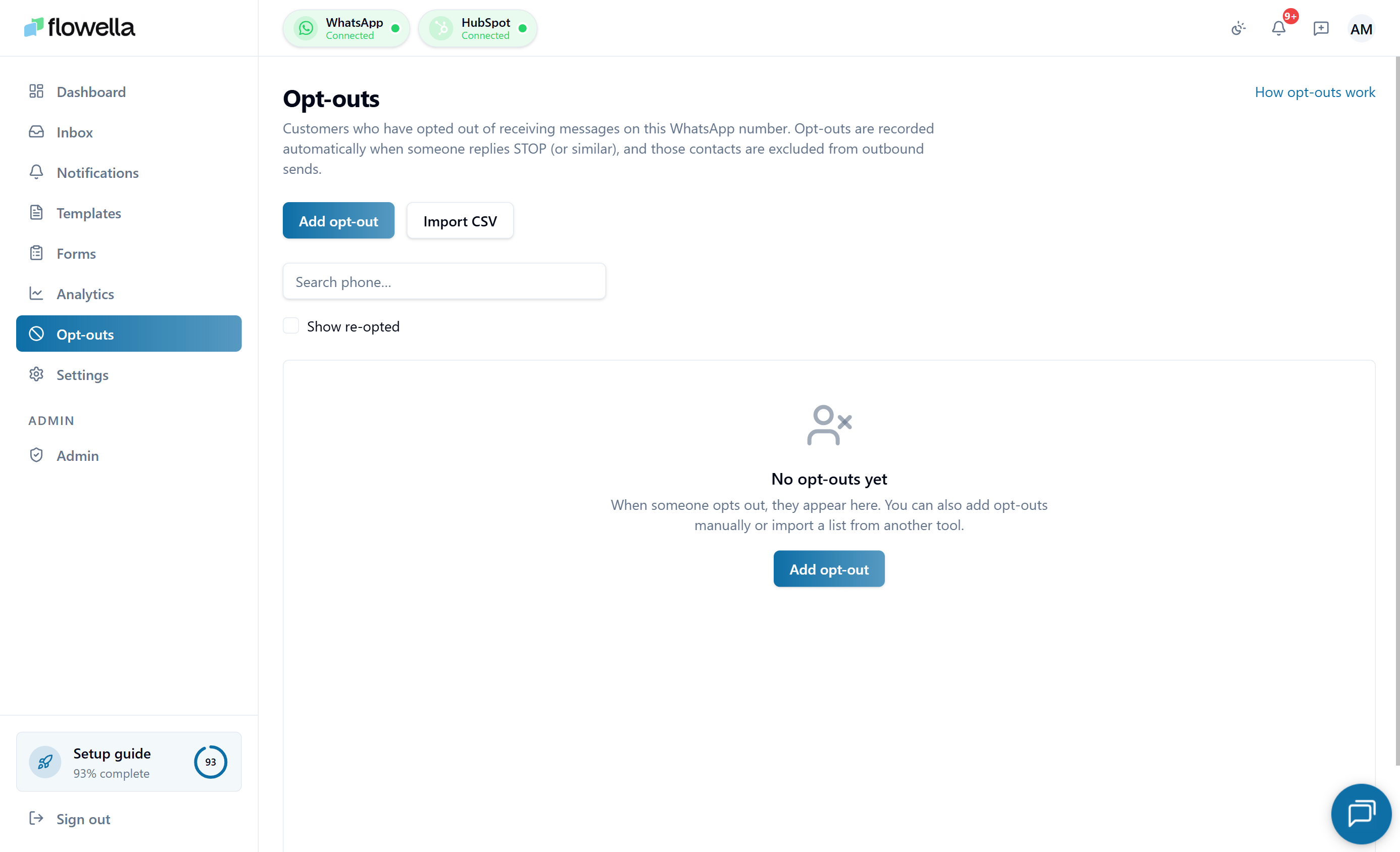
Opening the opt-outs page
- Log in to Flowella.
- In the left menu, click Opt-Outs.
Adding contacts to your opt-out list
You can add contacts to the opt-out list without waiting for an inboundSTOP message — useful when consent (or withdrawal of consent) was captured outside WhatsApp.
Add a single contact manually
1
Click Add contact
On the Opt-Outs page, click Add contact (top right).
2
Enter the WhatsApp number
Type the contact’s phone number in international E.164 format (for example,
+447700900123). Optionally add a display name.3
Pick the status
Choose Opted Out (default) or Opted In. For most manual adds you want Opted Out.
4
Save
Flowella validates the number, creates the consent record on the active channel, and logs the change as a manual consent event with your user as the source.
Import contacts from CSV
For bulk updates — for example, importing an existing suppression list when you first connect a channel — use the CSV import dialog.1
Click Import CSV
On the Opt-Outs page, click Import CSV.
2
Download the template (optional)
The dialog offers a downloadable CSV template with the required columns:
phone (E.164), name (optional), and status (opted_in or opted_out, defaults to opted_out).3
Upload your file
Drag and drop your CSV or pick it from disk. Flowella validates each row and previews how many records will be created, updated, or skipped (for example, invalid phone numbers).CSV files exported from Excel work as-is: quoted fields containing commas or line breaks, doubled quotes (
""), and the UTF-8 BOM from Excel’s “CSV UTF-8” export are all handled.4
Confirm
Confirm the import. Each row creates one consent event marked as a CSV import, attributed to your user. Rows that fail validation are downloadable as a separate “errors” CSV so you can fix and re-import.
CSV import is idempotent: re-importing the same file does not duplicate events. If a contact already has the same status, the row is skipped.
Understanding the opt-outs table
The main table lists one row per WhatsApp number Flowella knows about.
Use the pagination controls at the bottom to move through the full list.
Automatic opt-out and opt-in keywords
Flowella automatically updates a contact’s status when they send certain keywords in any WhatsApp thread Flowella handles. These keywords follow the HubSpot SMS pattern and are matched case-insensitively.- Opt-out keywords
- Opt-in keywords
If a contact sends one of these words on its own, or as the first word of a message, Flowella marks them as Opted Out:
After an automatic opt-out:
- Flowella blocks all automated WhatsApp sends (flows, workflows, campaigns) to that number.
- The contact’s status shows as Opted Out in the Inbox header and on the Opt-Outs page.
- A consent event is logged against that number.
Viewing a contact’s consent history
- On the Opt-Outs page, find the contact using the search bar — search by name or phone number.
- Click View in the Actions column.
- The current status (Opted In or Opted Out).
- When the status last changed and the mechanism that triggered it (for example, “Automatic keyword: STOP”).
- The full event history, including automatic opt-outs and opt-ins from keywords, and any manual changes made by your team.
Manually updating opt-in status
Sometimes a contact gives or withdraws consent through another channel — by phone, email, or a signed form. When that happens, you can update their status in Flowella manually from two places.1
Locate the contact
On the Opt-Outs page, use the search bar to find the contact by name or phone number.
2
Open their detail record
Click View in the Actions column to open the contact’s detail view.
3
Change the status
Use the controls on the detail view to set the status to Opted In or Opted Out as appropriate.
4
Save your changes
Save the update. The change is recorded as a new consent event in the contact’s history.
How Flowella uses opt-out data
Whenever Flowella is about to send a WhatsApp message, it checks the contact’s current status:- If the contact is Opted Out, Flowella blocks the send for all automated messages.
- If the contact is Opted In, the message proceeds as normal, subject to WhatsApp’s 24-hour and template rules.
- HubSpot workflows using the Flowella custom action
- Automated flows and campaigns
- Inbox template sends
Good practice checklist
Related
Opt-out not honoured
Diagnose cases where an opted-out contact still receives messages.
Marketing contacts
How HubSpot’s Marketing Contacts model intersects with WhatsApp opt-in.
Multi-channel
Opt-outs are per-channel — understand the scoping rules.
Data security
Audit trail, consent records, and compliance.