

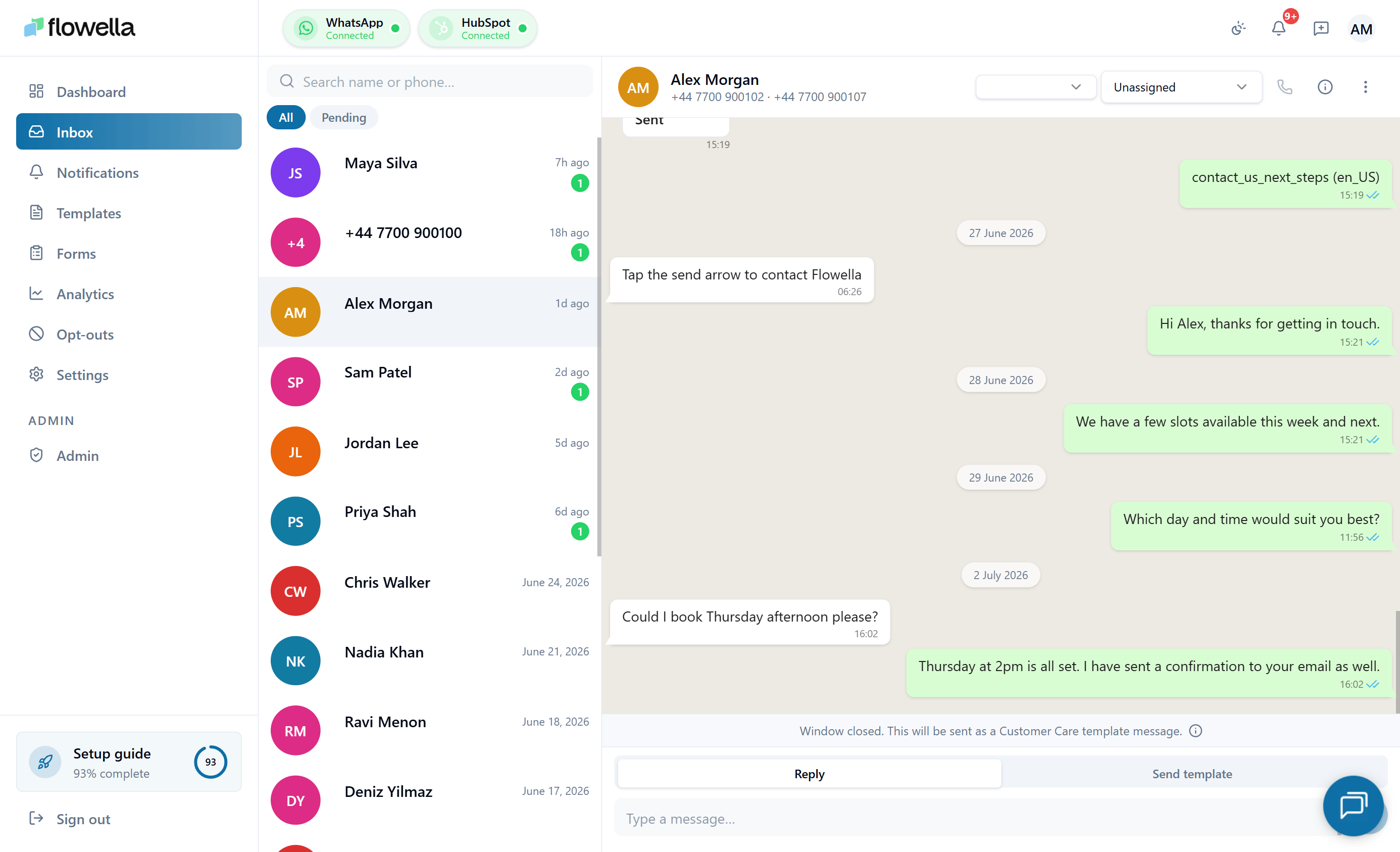
Opening the inbox
- Sign in to Flowella.
- In the left navigation, click Inbox.
- Conversation list on the left
- Current conversation in the middle
- Contact status and actions on the right of the header
Conversation list
The left-hand panel shows every conversation Flowella is tracking on the active WhatsApp channel.Tabs
The list is split into two sets of tabs: Status tabs- Open — conversations that are currently active (not archived).
- Unseen — conversations with at least one message your team hasn’t acknowledged. The unseen state is org-wide: once any teammate opens the conversation, it leaves Unseen for everyone.
- Closed — conversations you have soft-closed from the thread. Closed threads stay searchable and can be reopened; they do not appear under Open, Unseen, or Pending.
- All — every conversation under the current status tab.
- Pending — only conversations awaiting your reply (the most recent message was from the customer).
Closing and reopening a conversation
Closing a thread from the conversation view moves it out of Open (so it also leaves All and Pending) and into the Closed tab. If the closed thread was the one selected, Flowella clears the middle panel so it’s obvious the thread has left the current list. Reopening a thread from the Closed tab flips its status back to Open, so it reappears under All (and under Pending if the customer’s message is still the most recent). Use Closed as your list of resolved conversations you might need to revisit; use Archive to hide a resolved conversation from Open without changing its status.A screenshot of the new Closed tab in the conversation list would be useful here.
Conversation items
Each row shows:- Contact name (or phone number if no name is available)
- Latest message preview
- Time of the most recent message
- An unread badge when there are unseen messages
Search
Use Search conversations… to find a contact by name, phone number, or text from a recent message.Archive
The Archive action moves a resolved conversation out of the Open view without deleting it. Archived conversations remain searchable and can be reopened at any time.Conversation view
Click any item in the list to open it. The middle panel shows the full message history with that contact, including:- Incoming messages from the customer (with read receipts when WhatsApp reports the customer has read your reply)
- Outgoing messages sent by workflows, templates, or agents — with structured template cards (header, body, footer, buttons, media, location) and Flow answer rows for Flow submissions, instead of just the template name
- Typing bubble when the customer is composing a reply (when Meta surfaces the signal)
- Timestamps for each message
Flow response bubble and Open full view
When a contact submits a WhatsApp Flow, the inbox renders a Flow response bubble in the thread. Client-only Flows show each answer inline in the bubble. Flows that submit through Flowella’s Flow endpoint show a short summary in the bubble with an Open full view action. Clicking Open full view opens a dialog with the full submission, matching what HubSpot’s View submission shows on the contact timeline:- The form name at the top.
- The screen path the contact took through the Flow, so you can see which branch produced the answers.
- Each answer as a labelled question and answer row, with Meta’s raw component names humanised into readable labels.
Only Flow responses received after this update carry the labelled Q&A snapshot. Flow response bubbles for submissions from before the fix stay empty in Open full view until the contact submits the Flow again — new submissions populate normally.
A screenshot of the populated Open full view dialog for an endpoint-backed Flow response would be useful here.
Starting a new conversation (New message)
Use New message at the top of the conversation list to start a WhatsApp thread with a contact who has never messaged you. Enter the contact’s name and full international phone number, then click Open conversation. Because WhatsApp only allows free-form messages once the customer has messaged you, a brand-new thread has no session open. Flowella reflects that in three ways:- The new thread is not added to the conversation list, dashboard recent activity, or the v1 conversations list API until it has at least one message. This keeps empty shells out of your team’s inbox.
- A toast prompts you to send a template to start the conversation. Empty chats that never send a first message are cleaned up automatically after a short grace period.
- The thread body shows a Send a template to start this chat CTA in place of the message list. Clicking it opens the template picker so you can pick an approved template and send it as the first message.
A screenshot of the empty new-message conversation with the Send a template to start this chat CTA would be useful here.
Live typing indicator (composer → customer)
When you start typing in the reply composer, Flowella sends a throttled typing indicator to the customer’s WhatsApp client. The signal refreshes every ~20 seconds while your draft is non-empty and clears as soon as you send or empty the composer. This works automatically — there’s nothing to enable. It uses Meta’s WhatsApp Cloud API typing-indicator endpoint and is only sent inside the 24-hour customer service window.The 24-hour customer service window
WhatsApp Business Platform only allows free-form messages for 24 hours after the customer’s last message. After that, you must use an approved template. Flowella surfaces this state clearly in the composer:- Window open — the composer shows a single text field. Press Enter to send.
- Window closed — the composer splits into two tabs: Reply (default) and Send template, and adds a one-tap Re-engage action.
Live countdown in the thread header
The open thread’s header shows a live 24-hour window countdown driven off the customer’s most recent inbound message. It ticks every second and adapts its format and tone as time runs low:- Green (open) — more than an hour left; shows
Xh YYm(for example,22h 34m). - Amber (warning) — under an hour left; shows
Mm SSs(for example,34m 12s). - Red (closed) — the window has expired; shows Session closed.
Reply tab (Smart Reply)
The Reply tab lets you type a free-text message even when the 24-hour window has closed. Flowella does this by wrapping your text into an approved reopen template (one of three system templates: Service, Update, or Offer).- Inside the window — your text sends as a normal free-form WhatsApp message.
- Outside the window — your text is placed into variable
{{3}}of the active reopen template. Variable{{1}}is the contact’s first name and{{2}}is your business name; both are filled automatically.
Reply templates are provisioned automatically the first time you open the Inbox on a Meta-connected channel, and an hourly worker backfills anything still missing. You can edit the framing text under Reply templates.
One-tap Re-engage on a closed window
When the window is closed, the composer surfaces a one-tap Re-engage button next to the send action. Clicking it sends the org’s default Service re-engagement template (flowella_reopen_service) immediately — no free text required. Use it to reopen a conversation you don’t have a bespoke reply for yet, then continue the thread inside the fresh 24-hour window.
- The CTA always uses the Service kind, which is the system-managed default. Update the framing copy under Reply templates.
- Standard opt-out and Smart Reply checks still apply — the CTA is hidden or disabled when the contact isn’t eligible.
- One tap = one send. The button disables while the send is in flight to prevent duplicates.
First closed-window education
The first time an agent in your organization lands on a closed window in the Inbox, Flowella shows a one-time explainer dialog covering what re-engagement templates are, why the composer switches modes, and how the Utility conversation charge works. Dismissing the dialog is remembered per organization in the browser’s local storage, so it won’t appear again for that agent.Send template tab
Use Send template when you want to pick a specific approved template rather than wrap a free-text reply.- Pick a WhatsApp template from the list.
- Fill any required variables (the contact’s saved values prefill where possible).
- Click Send.
- Reopen a conversation with structured content (appointment reminder, order update)
- Send notifications, confirmations, or reminders
- Start a structured WhatsApp Flow from the inbox
Failed message bubbles
When a template or free-form send is rejected by Meta after Flowella has already dispatched it, the outgoing bubble in the thread renders in a failed state with a plain-English reason underneath — not a raw Meta error code. The same wording appears in the Details column on Templates → Statistics and in the Analytics per-template drill-down, so agents and admins see the same explanation. The mapping covers the most common Meta delivery-failure codes:
Other Meta failures fall back to Meta’s own wording (with the code in parentheses) so nothing is hidden.
Contact status and opt-outs
The conversation header shows the contact’s WhatsApp number and their opt-in status:- Opted in — Flowella is allowed to send messages.
- Opt out button — mark the contact as opted out if they ask to stop.
Recommended agent workflow
1
Start with Unseen → Pending
Open the Inbox, switch to the Unseen tab, then the Pending activity tab. You’ll see only conversations awaiting a human reply.
2
Work oldest first
Reply to conversations from oldest to newest while still inside the 24-hour window where possible.
3
Use Reply (or a template) if the window has closed
If 24 hours have passed since the customer’s last message, type into the Reply tab to send a Smart Reply, or pick a specific template from Send template.
4
Update opt-in status if needed
If a contact asks to stop receiving WhatsApp messages, click Opt Out in the conversation header.
5
Close or archive completed conversations
Once a conversation is resolved, close it to move it into the Closed tab (still searchable and reopenable), or archive it to hide it from Open without changing status.
Limitations
- The inbox is designed for one-to-one conversations. For bulk sends, see Templates and Campaigns overview.
- Free-form replies are only possible inside WhatsApp’s 24-hour customer service window. After that, Reply uses a reopen template and Send template uses any approved template.
- If a template send fails, check that:
- The contact’s number is in full international format.
- The contact is opted in.
- The template is approved on your WhatsApp Business account — see Templates and Template rejected.
Related
Reply templates
Edit the Service, Update, and Offer reopen templates used by the Reply tab.
Templates
Create and submit templates for sending outside the 24-hour window.
Opt-outs
Manage consent for the contacts you message.
Messages not delivered
Diagnose sends that don’t reach the recipient.