

Bulk send has no contact list or HubSpot list picker. If your audience is a HubSpot list, use a HubSpot workflow with the Send WhatsApp Template action instead. See Workflow actions.
Before you start
- Who can send: any member of your organisation. Your organisation needs an active subscription or free trial.
- An approved template. The Bulk send card stays locked until Meta approves the template. See Templates.
- Recipients who opted in. Send only to people who agreed to receive WhatsApp messages from your business. Flowella skips anyone who opted out on the number you send from. See Opt-outs.
- Enough plan allowance. Bulk sends count towards your plan’s message allowance. See Plans and limits.
- Room in your messaging limit. Meta caps how many unique people you can message outside the 24-hour window in a moving 24 hours. Keep each job within your limit, and schedule the rest of a large list for later days. See Messaging limits.
- Confirmed fallback values, if some contacts may have empty values. See Fallback values.
What you can personalise
Prepare a recipient file
Skip this section if you plan to type the numbers in by hand.- Open the template’s Send tab. In the Bulk send card, click Download sample file and choose Excel (.xlsx) or CSV (.csv). The sample has the right columns for this template.
- Add one row per recipient.
- Save the file as
.xlsxor.csv.
File columns
Column names aren’t case-sensitive and can be in any order. Flowella ignores other columns, such as a name column you keep for reference.
File rules
- Import one
.csvor.xlsxfile at a time. It must be under 10 MB and have at most 50,000 recipient rows. - Older
.xlsfiles aren’t supported. Save them as.xlsxor.csvfirst. - In an Excel workbook, Flowella reads the sheet named Recipients, or the first sheet if there isn’t one.
- Phone numbers stored as numbers in Excel are read in full.
- Excel date cells import as day/month/year, for example
27/06/2026. To use another format, type the date as text. - CSV values that contain commas or line breaks must be in double quotes. Files saved as CSV UTF-8 from Excel work, and empty rows at the end are ignored.
Send the job
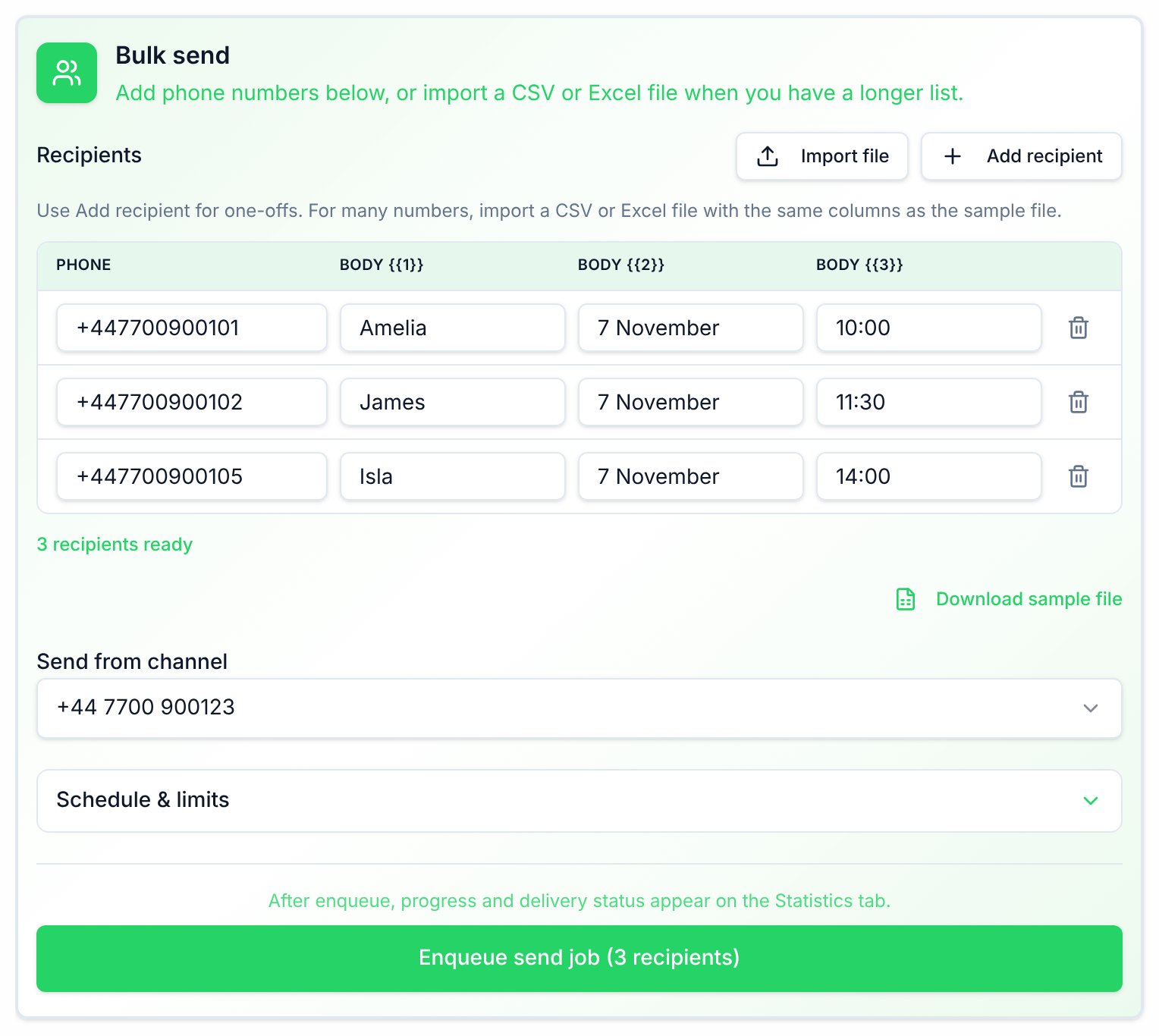
1
Open the Bulk send card
On the Templates page, open the template’s actions menu and click Send. Scroll past Test Template to the Bulk send card, under Or send at scale.
2
Add the recipients
Under Recipients, click Add recipient to add a row by hand, or click Import file to import your
.csv or .xlsx file.Importing a file replaces any rows already in the list. Flowella confirms with Imported N recipients. Check the count under the list, for example 250 recipients ready.3
Choose the sending number
Under Send from channel, pick the WhatsApp number to send from. The list shows the numbers in the template’s WhatsApp Business Account.
4
Set a schedule and limits (optional)
Click Schedule & limits to see more options:
- Schedule (optional, local): a date and time in your computer’s time zone. Leave it empty to send straight away.
- Max sends per hour (optional): a whole number from 1 to 100,000. It doesn’t pace sends at the moment, so don’t rely on it. To spread a large list over time, split it into several jobs and schedule each one.
- Header media URL: appears for templates with an image, video or document header. If the template has a sample file, it reads Using the template sample media from Meta. If it doesn’t, paste a public
https://link to the file.
5
Queue the job
Click Enqueue send job (N recipients). Flowella confirms with Bulk send job queued (N recipients), or with Bulk send scheduled for and the date for a scheduled job. It then opens the Statistics tab.
Check progress and results
Progress banner
After you queue the job, the Statistics tab shows its progress:- The banner reads Bulk send in progress, with a count such as 120/500 processed. When every recipient is processed, it changes to Bulk send complete and then closes.
- Current job summary shows how many messages are Sent, Delivered, Read, Failed, Pending and Suppressed. For a scheduled job, it also shows Scheduled for and the date.
- If the job stops before every recipient is processed, the banner reads Bulk send finished with unsent recipients. Click Resend unsent to try again for the recipients who didn’t get the message, including those whose send failed. Recipients who already got the message, or who opted out, aren’t sent it again.
Send log
The Send log on the Statistics tab lists the test sends, bulk sends and HubSpot workflow sends for the template, with Time, Recipient, Name, Status, Channel and Details columns. Use the search box to filter the rows, or select a status total to show only that status. The status shows the latest delivery state: Pending, Sent, Delivered, Read, Failed or Suppressed. The Details column explains failed and suppressed rows, and is empty for the others.Duplicates and repeat sends
- Within one job: if a number appears more than once, Flowella sends to it once, using the first row with that number. The progress count only includes unique numbers, so it can be lower than the number on the Enqueue send job button.
- Within 15 seconds: if the same template goes to the same number from the same WhatsApp number twice within 15 seconds, Flowella sends it once. The second send shows as Suppressed.
- Later sends: after 15 seconds, Flowella sends again. If you import the same file again or queue the same list again, everyone gets the message a second time.
Paused or disabled templates
If WhatsApp pauses or disables the template while a job is queued, scheduled or running, Flowella holds the job instead of sending it. When Meta restores the template, the job continues with the recipients who haven’t had the message yet. The Message template approved notification tells you how many held jobs resumed. A job for a disabled template stays on hold. It continues only if Meta approves the template again after you edit and resubmit it. See Delivery-health pills.Cancel or change a job
You can’t cancel, pause or edit a job in the app after you queue it, and that includes a scheduled job. Check the recipient list, the sending number and the schedule before you click Enqueue send job.Free trial
On the free trial, Flowella checks the whole job against your remaining trial allowance before it queues the job. If the job is bigger than what is left, Flowella refuses the whole job and shows You have reached your plan’s monthly WhatsApp message limit. Upgrade your plan to continue sending. Nothing is sent. Send to fewer recipients, or upgrade. See Plans and limits. Templates you create during the trial have the fixed footerReply STOP to opt out. Powered by Flowella.io.
Troubleshooting
Fewer recipients than rows in my file
Fewer recipients than rows in my file
Flowella skips file rows with a missing or invalid phone number, without a warning. Numbers need a country code: a national number such as
07700 900123 isn’t valid. Flowella also sends only once to each number, so duplicate rows don’t count.The file won't import
The file won't import
- Choose a .csv or .xlsx file.: the file has another format.
- Legacy .xls files are not supported. Save as .xlsx or .csv and try again.
- That file is too large. Use a file under 10 MB.
- That file has too many rows. Import at most 50,000 recipients. Split the list into several jobs.
- No recipient rows parsed from the file.: no row has a valid phone number.
- CSV must include a phone column header: name the phone column
phoneore164.
This template requires a media header URL before queueing bulk send.
This template requires a media header URL before queueing bulk send.
The template has a media header but no sample file. Open Schedule & limits and paste a public
https:// link to the file in Header media URL.Rows failed with a message about an empty variable
Rows failed with a message about an empty variable
A value was empty and the template has no confirmed fallback value. Fill in the value, or confirm the template’s fallback values, then send to those recipients in a new job. See Fallback values.
The job was refused with a plan limit message
The job was refused with a plan limit message
On the free trial, a job larger than your remaining allowance is refused in full. See Free trial.
Many rows failed with Meta errors
Many rows failed with Meta errors
Read the Details column, then see Meta error codes and Messages not delivered.
Related
Templates
Create, test and manage WhatsApp templates.
Template variables
Variables, samples and fallback values.
Messaging limits
How many people Meta lets you message in 24 hours.
Plans and limits
Message allowances, trial limits and overages.
Opt-outs
How Flowella tracks consent and opt-outs.
Campaigns overview
Choose between bulk send, HubSpot workflows and ads.