

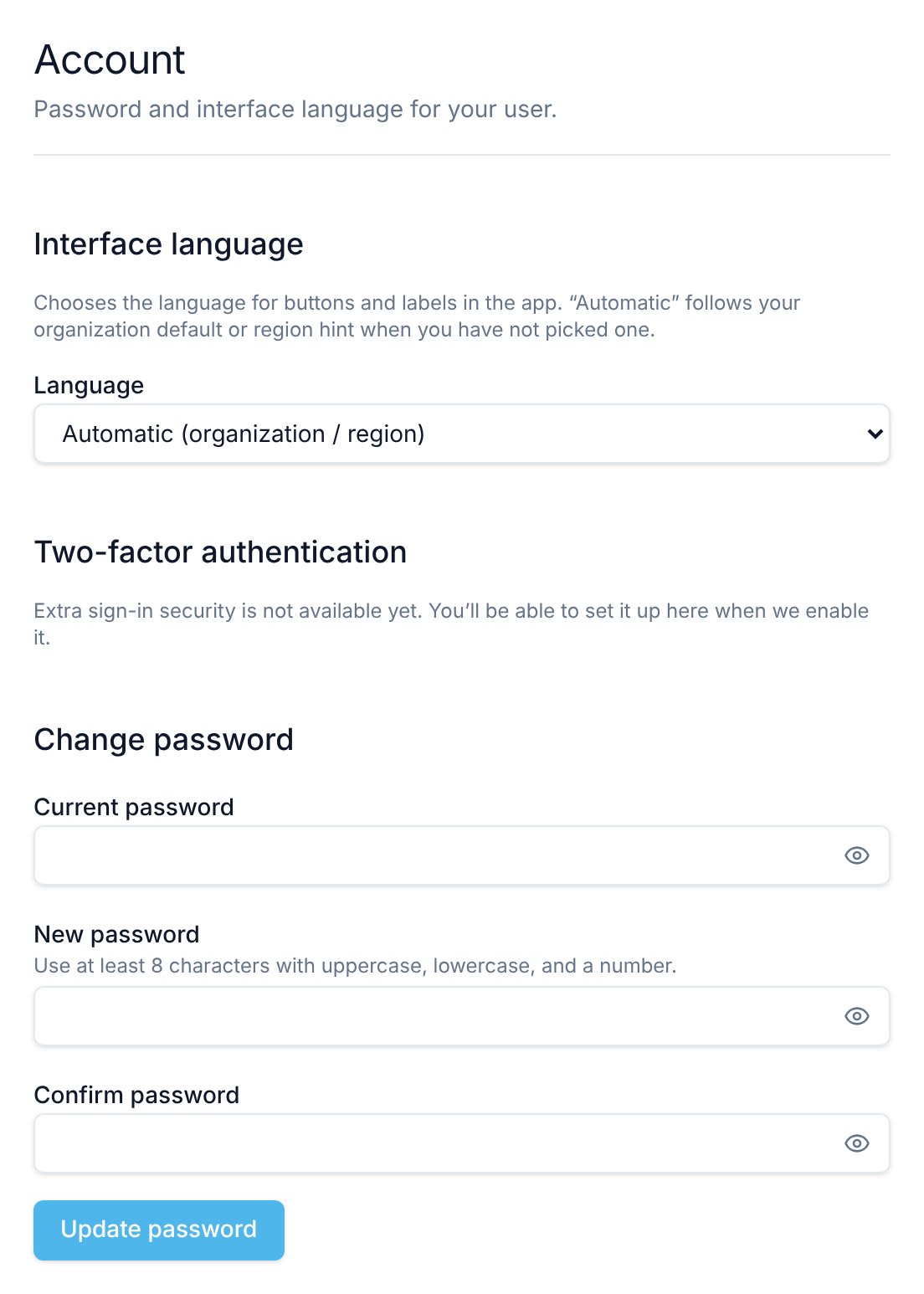
Open the Account screen
Select Settings in the left sidebar, then Account under Personal.Choose your interface language
Interface language sets the language of the buttons and labels in the app.- Under Interface language, open the Language list.
- Pick a language. Flowella saves your choice straight away and shows the page in the new language.
- Automatic (organization / region): Flowella follows your organisation’s default language or your region until you pick a language yourself.
- English, Spanish, Turkish, German, French, Italian, Greek, Portuguese (Brazil) and Arabic. Arabic shows the app from right to left.
Set or change your password
A password is optional. You can also sign in with a magic link that Flowella emails to you. See Sign in.If you don’t have a password yet
If you have only signed in with magic links, the section is titled Set password and shows this banner: “You signed in with a magic link. Add a password if you also want to sign in with email and password.”- Enter your password in New password.
- Enter it again in Confirm password.
- Select Save password.
If you already have a password
The section is titled Change password.- Enter your Current password.
- Enter your new password in New password and again in Confirm password.
- Select Update password.
Password rules
Your password must have at least 8 characters, including an uppercase letter, a lowercase letter and a number. Both password fields must match.
Changing your password doesn’t sign you out on other devices, and Flowella doesn’t send a confirmation email. If you think someone else has access to your account, contact Flowella support.
Two-factor authentication
Flowella doesn’t offer two-factor authentication yet. The Two-factor authentication section reads “Extra sign-in security is not available yet” and has no settings.Email address and account deletion
You can’t change your email address or delete your account from this screen. Both are handled by Flowella support. See Profile for details.Related
Profile
Change your display name, picture and phone number.
Sign in
Sign in with a magic link or a password, and reset a forgotten password.
Organisation settings
Set the language Flowella uses for emails and notifications.
Notification preferences
Choose which alerts reach you in the app and by email.